YouTube API and Authorization
FOXI Studio has two different YouTube connections, and it is important not to confuse them:
- YouTube API key — used for topic research, Scout, and analysis of public YouTube data.
- YouTube OAuth — used to upload finished videos to your YouTube channel.
In simple words: API key helps FOXI read public YouTube information, while OAuth allows FOXI to publish videos to your channel.
Quick comparison
| Connection | What it is for | Gives access to your channel | When to connect |
|---|---|---|---|
| YouTube API key | Topic research, Scout, competitor analysis, reading public data | No | When you want to find topics and analyze a niche |
| YouTube OAuth | Uploading videos, thumbnails, descriptions, and schedules | Yes | When you are happy with video quality and ready to enable auto-publishing |
For beginners, the safest order is:
- First configure the project and generate a test video.
- Then connect YouTube API key for Scout if you need topic research.
- Only after quality checks, connect YouTube OAuth for publishing.
YouTube API key: what it is for
YouTube API key is used when FOXI needs to read public YouTube data:
- search videos by keywords;
- analyze competitors;
- collect titles, views, dates, and channels;
- help Scout find topics;
- help AI Config understand the niche through competitors.
API key does not publish videos and does not control your channel. It is a key for reading public information.
Does everyone need a YouTube API key?
No. Not everyone needs it.
YouTube API key is needed if you want to:
- run Scout in YouTube analysis mode;
- find topics through competitors;
- analyze a niche through YouTube;
- regularly collect ideas for the topic queue.
You can start without a YouTube API key if you:
- already know your topics and add them manually;
- only want to test script, voice, images, and Builder;
- use the AI assistant for brainstorming without deep YouTube search.
How YouTube API quota works
Google gives daily quota to a Google Cloud project, not to each separate key inside one project.
This is important:
- 1 Google Cloud project = one daily quota;
- 10 keys inside one project = still one shared quota;
- if Scout needs more stability, create several separate projects, each with one key.
Example:
| Setup | What happens with quota |
|---|---|
| 10 keys created inside one project | Quota does not increase; all keys share one limit |
| 5 projects with 1 key in each | 5 separate daily quotas |
If Scout often reaches limits, the issue may not be FOXI. All keys may have been created inside the same Google Cloud project.
How to get a YouTube API key
Below is the general process. The Google interface may change slightly, but the logic stays the same.
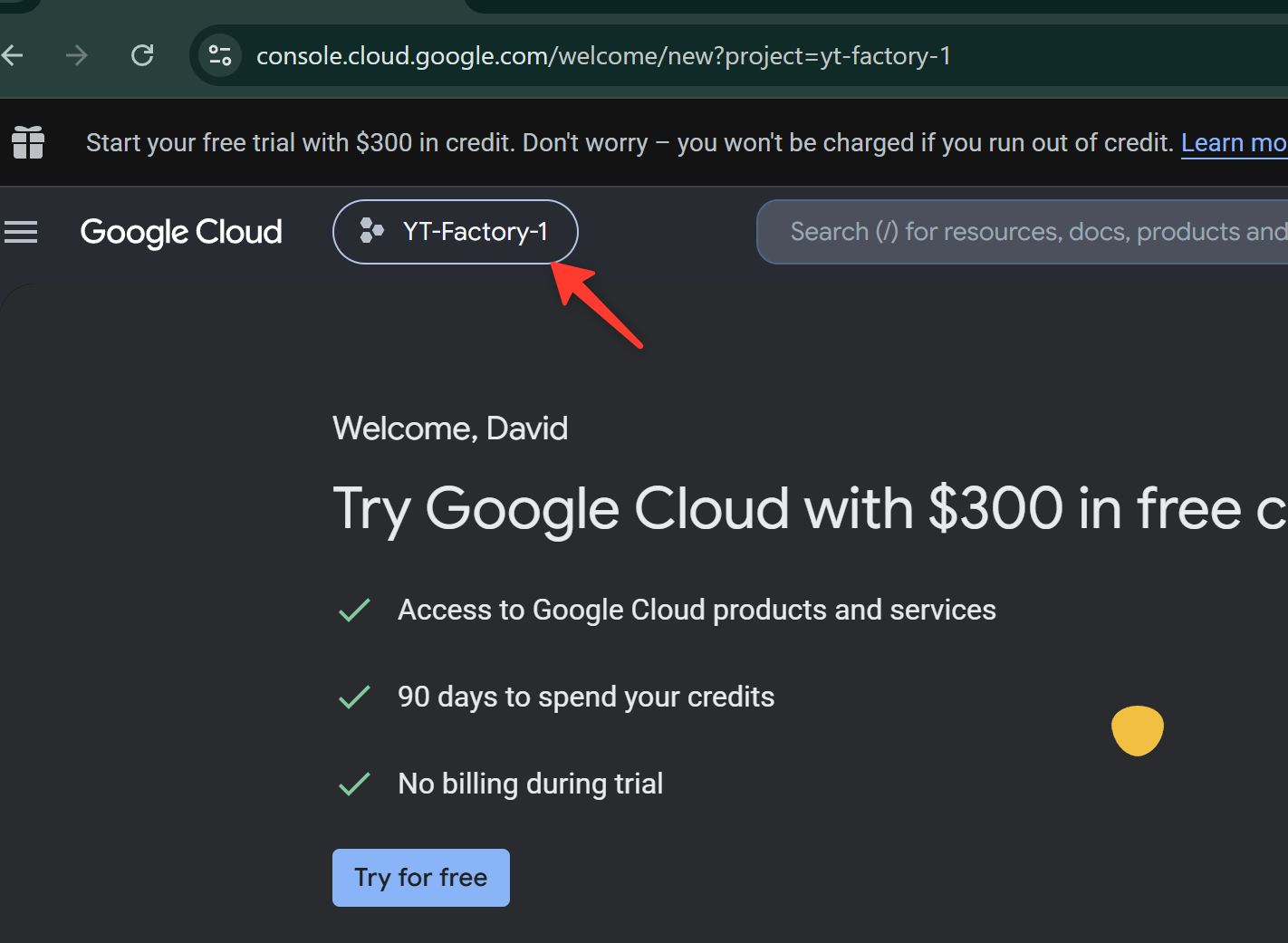
Step 1. Open Google Cloud Console
Go to Google Cloud Console and sign in to the Google account where you will create projects.
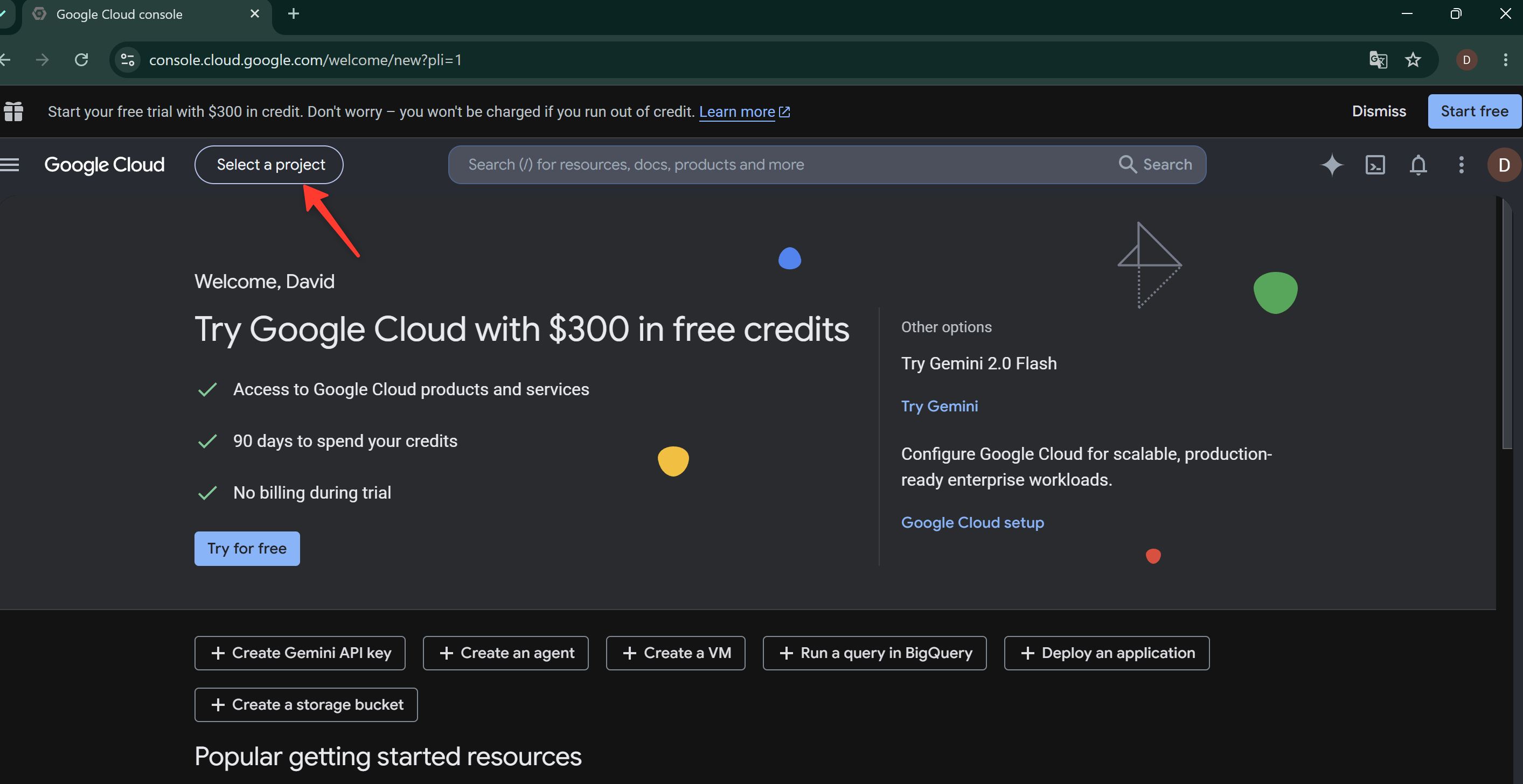
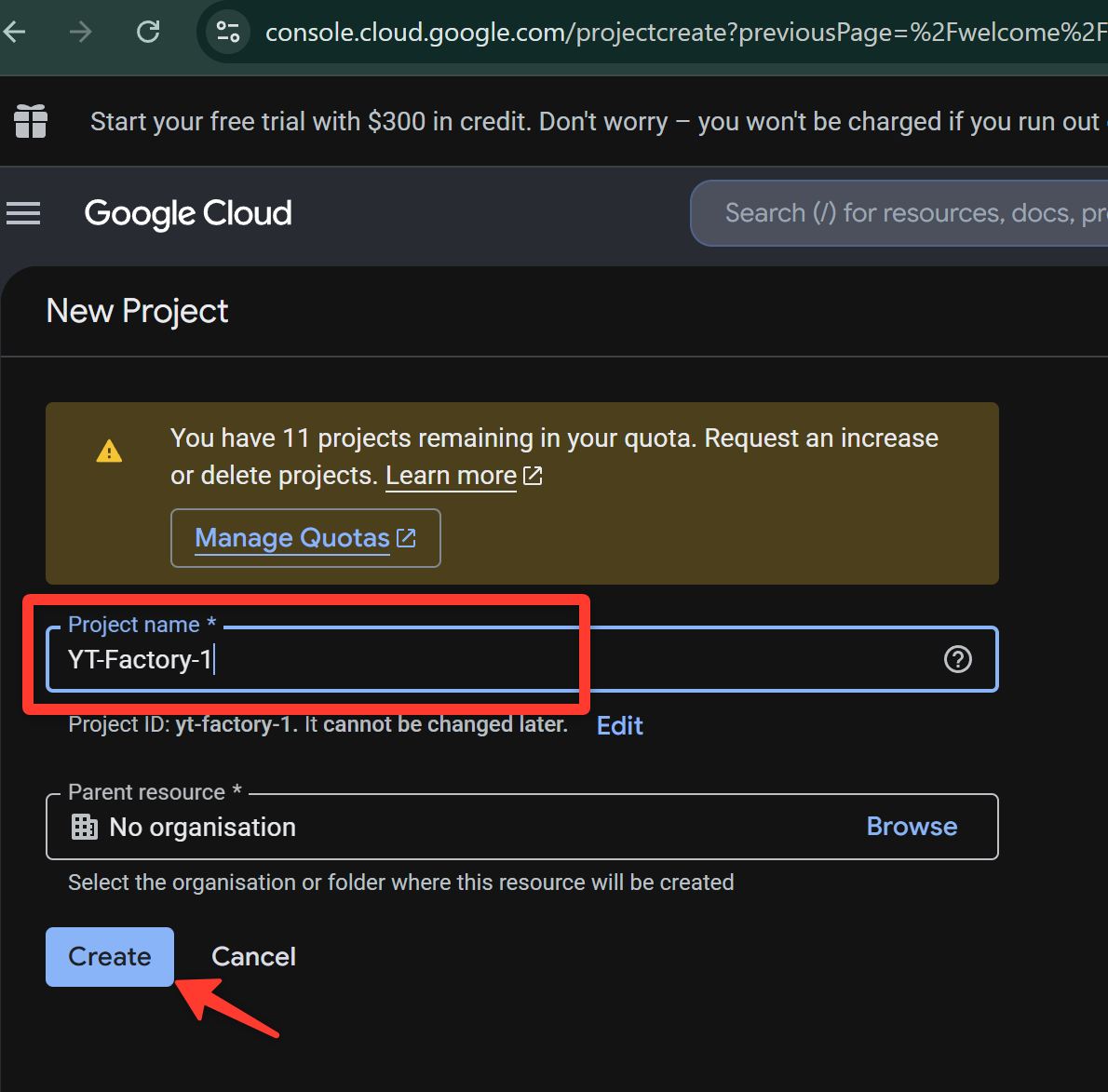
Step 2. Create a separate project
Open the project list and create a new project. Give it a clear name, for example:
FOXI-YouTube-API-1
For the next key, create the next project:
FOXI-YouTube-API-2
FOXI-YouTube-API-3
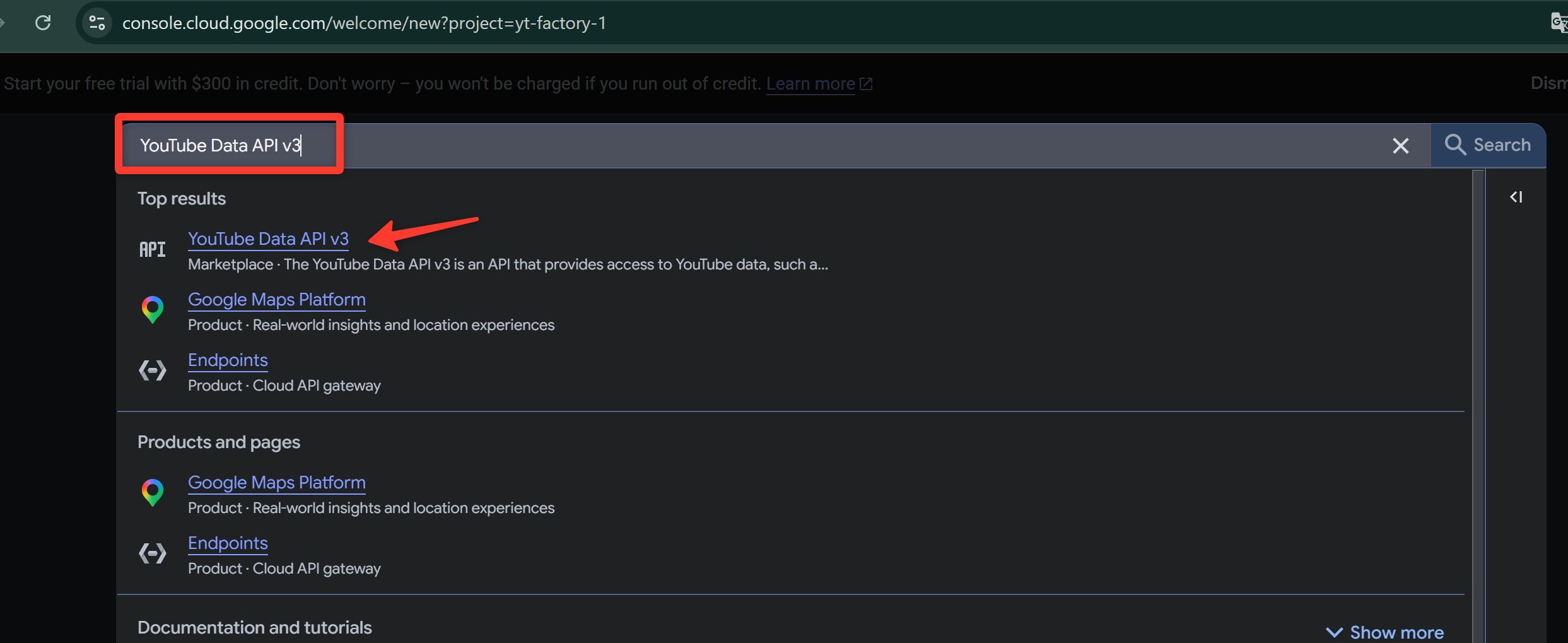
Step 3. Enable YouTube Data API v3
Inside the selected project, find YouTube Data API v3 and click Enable.
After clicking Enable, wait until Google shows that the API is enabled for the selected project.
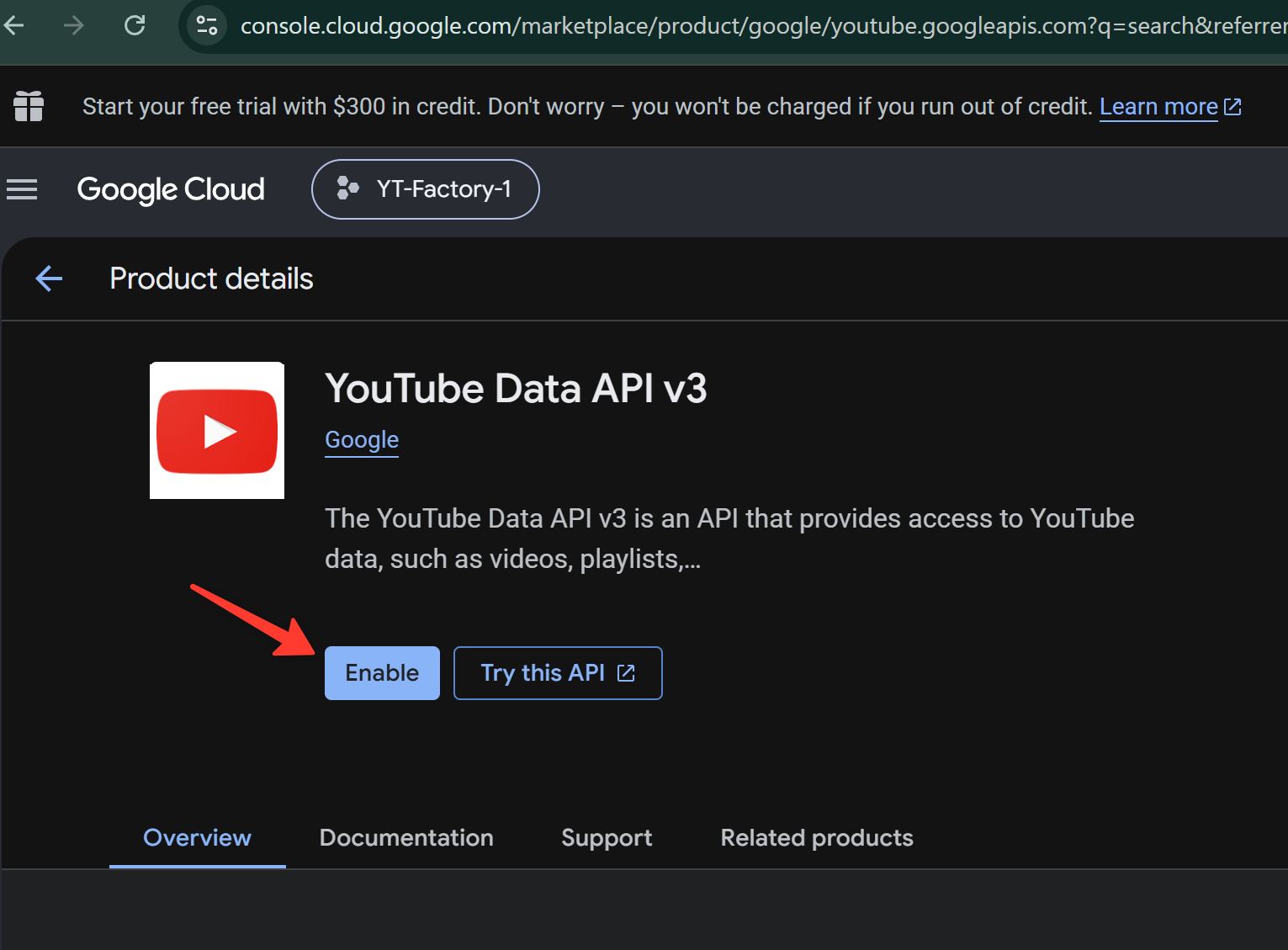
Without this, the key may exist, but Scout will not be able to read YouTube data correctly.
Step 4. Create an API key
Open Credentials and create a new API key.
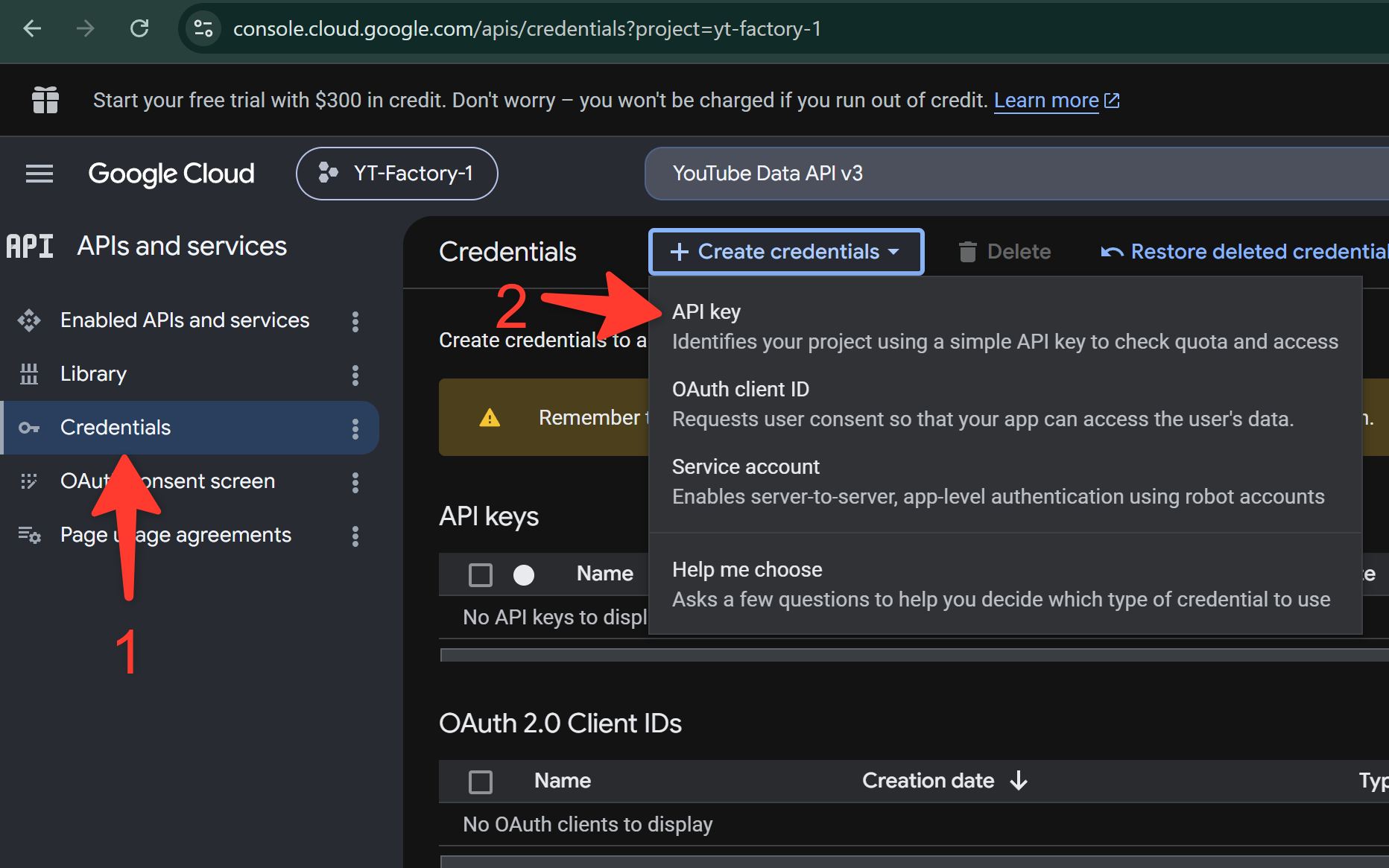
After creation, copy the key.
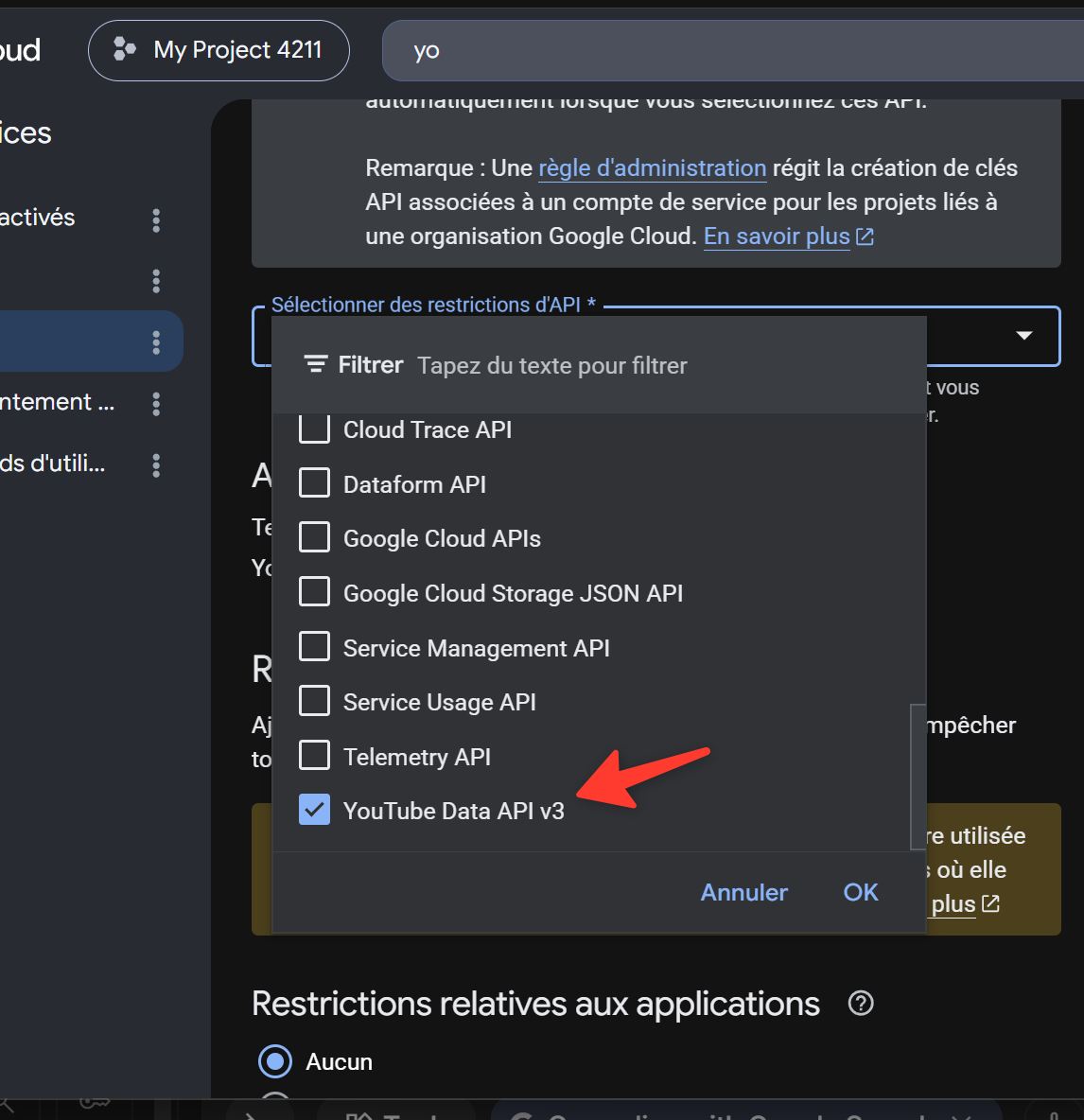
If Google offers API restrictions for the key, select YouTube Data API v3. This keeps the key limited to YouTube Data API instead of allowing it to be used across all Google services.
Step 5. Paste the key into FOXI
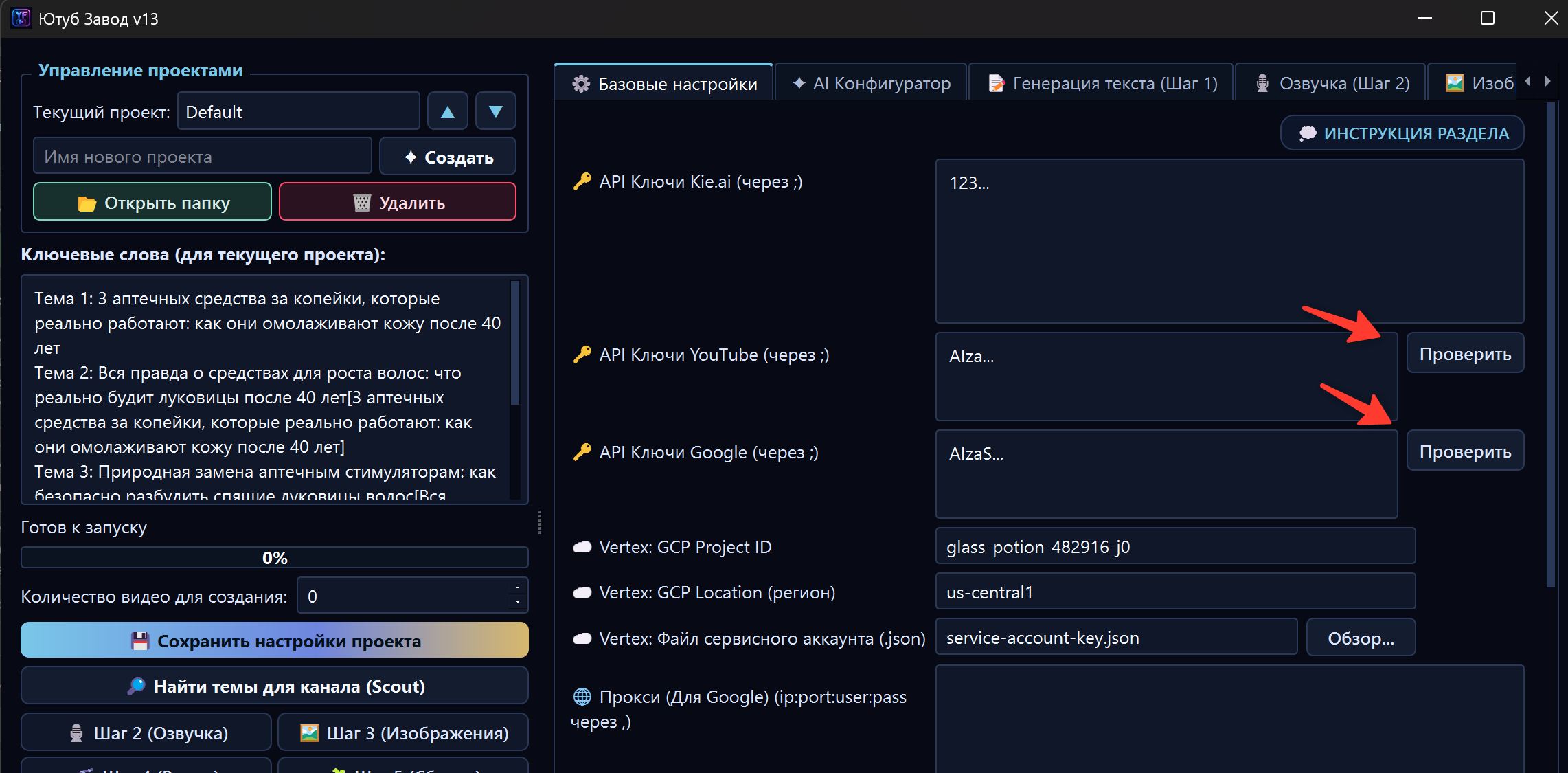
Open project settings in FOXI and paste the key into the YouTube API field.
If you have several keys, paste them separated by semicolons:
AIzaSy...;AIzaSy...;AIzaSy...
Step 6. Check the keys
Use the key check button in FOXI. It helps verify whether the service can see the key and access YouTube.
The check may show:
- key works;
- key is empty or invalid;
- YouTube Data API v3 is not enabled;
- quota is exhausted;
- Google temporarily rejected the request;
- key was created in the wrong project.
How many keys are needed?
For the first tests, one key is often enough. For active Scout usage, it is better to have several keys from different Google Cloud projects.
Approximate guide:
| Scenario | Keys to prepare |
|---|---|
| Just test Scout | 1 key |
| Occasionally search topics for one channel | 2–3 keys |
| Actively run several channels | 5–10 keys |
| Large-scale research in difficult niches | 10+ keys if you have time to configure them |
Do not create dozens of keys in advance if you have not tested the project itself yet. First make sure the niche, style, and video generation are good.
YouTube OAuth: what it is for
YouTube OAuth is used to publish videos to your channel. This is not just reading public data. You allow FOXI to perform actions on behalf of your YouTube account within the granted permissions.
OAuth is needed if you want to:
- upload finished videos to the channel;
- attach a thumbnail;
- send title, description, and tags;
- schedule publication;
- automate publishing for several projects.
When to connect OAuth
Do not connect auto-publishing too early. First check quality.
Correct order:
- Create a project.
- Generate 1–2 test videos.
- Download the result manually.
- Check sound, script, images, subtitles, and thumbnail.
- Fix settings if needed.
- Only then enable YouTube OAuth and auto-publishing.
This prevents a random test video with a bad thumbnail, wrong voice, or unfinished script from appearing on your channel.
Publishing schedule
After connecting YouTube, you can configure a schedule. This is useful if you want videos to go live on specific days and times.
Example:
Monday: 12:00 | 18:00
Wednesday: 12:00
Friday: 18:00
Scheduling is especially useful if you manage several channels and do not want to publish every video manually.
Key security
Do not send keys, OAuth files, or tokens to external chats. Do not show them in screenshots. If you make a screenshot for support or documentation, blur secret values.
If you do not understand an error, message the AI assistant inside FOXI:
Check the YouTube settings in my project and explain why Scout or publishing does not work.
You do not need to send the full key to the AI assistant. It is enough to describe the error or show a safe part of the message.
Common mistakes
| Mistake | Why it is a problem | What to do |
|---|---|---|
| Creating many keys in one Google Cloud project | Quota will not increase | Create a separate project for each key |
| Not enabling YouTube Data API v3 | Key exists, but data cannot be read | Enable the API in the correct project |
| Enabling auto-publishing immediately | A test video may appear on the channel | Check video manually first |
| Pasting OAuth instead of API key | Scout will not work as expected | Separate API key and OAuth |
| Showing a key on a screenshot | Someone else can steal the secret | Blur keys and tokens |
What to ask the AI assistant
Useful requests:
- “Do I need a YouTube API key if I write topics manually?”
- “Why does Scout say the limit is exhausted?”
- “Check if I understand the difference between API key and OAuth correctly.”
- “When is it safe to enable auto-publishing?”
- “How should I configure the schedule for a US channel?”
- “Why does YouTube upload not start on my plan?”
Where to go next
If you only need topic research, configure YouTube API key and go to Scout. If you want auto-publishing, first generate a high-quality test video, then configure the YouTube publishing section.