Internal AI Models and Google Vertex
In FOXI Studio, most AI connections are handled by the service. Users do not need to manually create keys for every neural network, fund many different dashboards, or understand which provider is responsible for text, voice, images, or video.
The normal logic is: you top up the shared FX balance, choose project settings, and FOXI uses the required AI models for each stage.

What “internal AI models” means
Internal AI models are AI connections available inside FOXI Studio without requiring the user to register manually in each separate service.
FOXI can use different models for different tasks:
- script and outline;
- text improvement;
- titles and metadata;
- voiceover;
- image prompts;
- images and thumbnails;
- video clips;
- final assembly and extra operations;
- Scout and analytics.
For the user, this is simpler: you choose a mode or model in the interface, and costs are charged from FX.
Why you do not need to connect everything manually
If you produced videos manually, you would need to manage several separate dashboards:
- one service for text;
- another for voiceover;
- another for images;
- another for video;
- separate rendering or server tools;
- separate limits, keys, balances, errors, and billing rules.
FOXI combines this into one workflow. This reduces errors and makes launch easier for beginners.

What FX means for AI models
FX is the shared balance used to pay for AI operations. Each operation has its own cost: text is calculated one way, voiceover another, images another, and video clips or rendering separately.
In the costs window, you can see:
- which project spent FX;
- which video or task caused a charge;
- which stage was launched;
- which operation was most expensive;
- how much FX is available and how much is temporarily held.

How beginners should choose models
You do not need to choose a model by name if you do not understand the differences. Start with recommended or default options.
Simple rule:
| Goal | What to do |
|---|---|
| First project test | Keep default values |
| Cheaper idea validation | Use standard quality and a short video |
| Better text | Ask the AI assistant to choose a script model |
| Better images | First clarify the visual style, then change generator |
| Video becomes expensive | Ask the AI assistant to review costs and suggest savings |
If a model name looks too technical, do not guess. Ask the AI assistant:
Review my project and tell me which models I should keep for the first test so I do not overpay.
When Google Vertex may be needed
Google Vertex is an advanced backup option for cases where the user intentionally wants to use their own Google Cloud infrastructure for specific AI tasks.
Most users do not need it for the first launch.
Vertex may be useful if:
- you already have a configured Google Cloud account;
- you understand Google Cloud billing;
- you need your own backup generation source;
- you want to use specific Google models under your control;
- you need to split costs between FOXI and your Google Cloud.
If you do not understand why you need Vertex, you probably do not need it right now. Start with FOXI internal models first.
Important warning about Google Cloud Billing
Google Cloud may charge the linked card according to its own rules. Credits and trials do not always apply to AI models the way users expect.
Before configuring Vertex, make sure you understand:
- which card is linked to Google Cloud;
- whether the billing account is active;
- which services may charge money;
- where to view limits and costs;
- how to disable a project if it is no longer needed.
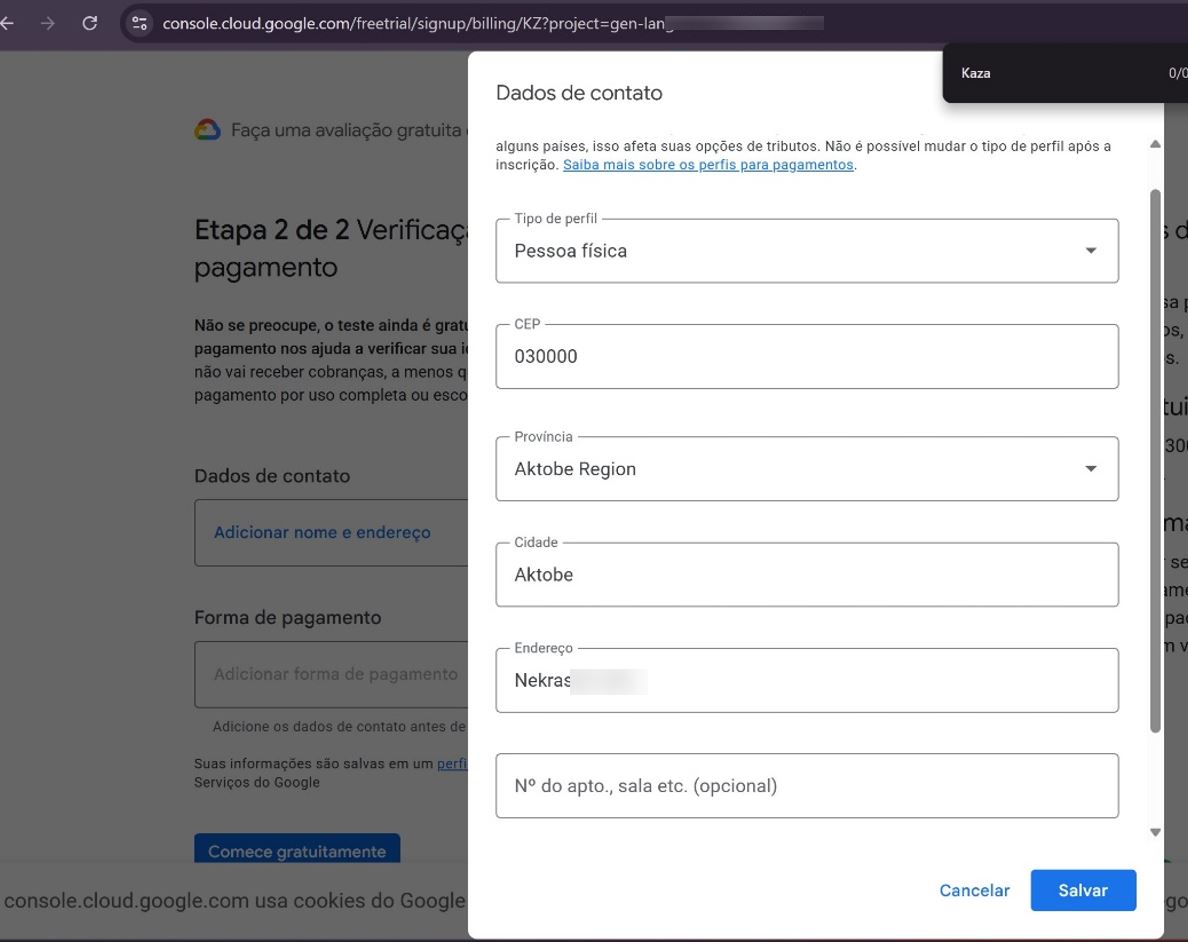
This screenshot was copied from the previous documentation because it shows the external Google Cloud Billing interface, not the FOXI Studio interface. You do not need to recapture it unless the Google Console UI changes in an important way.
What Vertex requires if you still use it
Advanced setup usually requires:
- Google Cloud project.
- Enabled billing.
- Project ID.
- Required APIs enabled.
- Service account.
- Service account JSON key.
- Access permissions, for example Vertex AI User.
- Careful key storage.
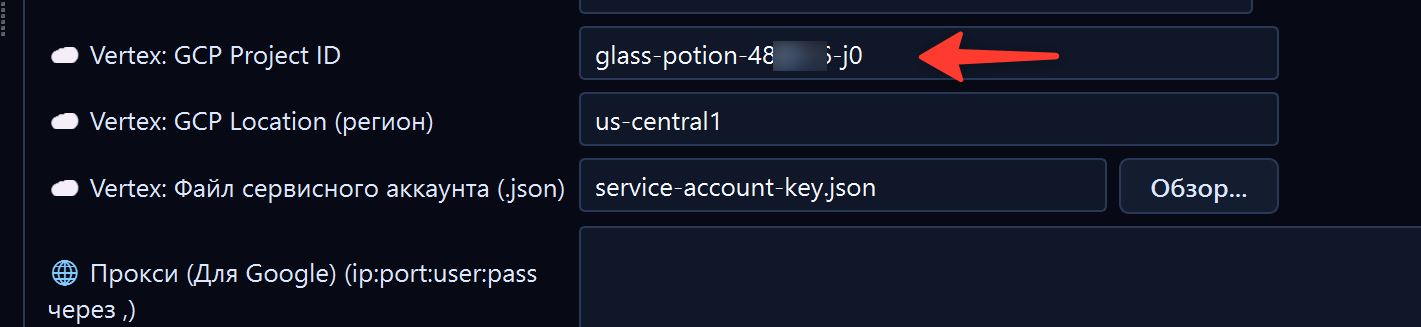
This screenshot was also copied from the previous documentation: it shows the external Google Cloud interface with the Project ID. A new screenshot is only needed if Google changes the interface or if another safe example project must be shown.
JSON key security
A service account JSON key is a sensitive file. Do not publish it, send it to other people, attach it to screenshots, or store it in public folders.
Security rules:
- do not show JSON file contents in screenshots;
- do not send the file to external chats;
- if the key leaks, delete it in Google Cloud and create a new one;
- store the key only where it is actually needed;
- do not use the same key for random experiments.
If you are not sure what you are doing, stop and ask the AI assistant inside FOXI.
How to know that you do not need Vertex
Vertex is not needed if:
- you are just starting;
- you do not want to deal with Google Cloud;
- the shared FX balance works for you;
- you do not want to risk unexpected Google charges;
- you simply want to create videos through FOXI.
In this case, use FOXI internal AI models and do not spend time on advanced setup.
Common mistakes
| Mistake | Why it is bad | Better approach |
|---|---|---|
| Configuring Vertex before the first test | You can waste time and get confused | Test the project with internal models first |
| Thinking Google Cloud is always free | The card may be charged | Check Billing and limits |
| Sending a JSON key to chat | The key can be stolen | Never send secret files |
| Changing models without understanding | Can increase cost and worsen output | Ask the AI assistant to explain the choice |
| Comparing only one operation price | Final cost depends on the whole pipeline | Check total cost history |
What to ask the AI assistant
Useful requests:
- “Do I need Google Vertex for my project?”
- “Which models should I keep for the first test so it is not expensive?”
- “Why did the video become more expensive than usual?”
- “Review the costs and tell me which stage is the most expensive.”
- “What should I change: text model, image model, or Builder?”
- “Explain in simple words how internal models differ from Vertex.”
Where to go next
If you are a regular user, continue project setup through Quick Setup and the core modules. If you are an advanced user and definitely want your own Google Cloud, configure Vertex only after understanding billing and risks.