System Requirements
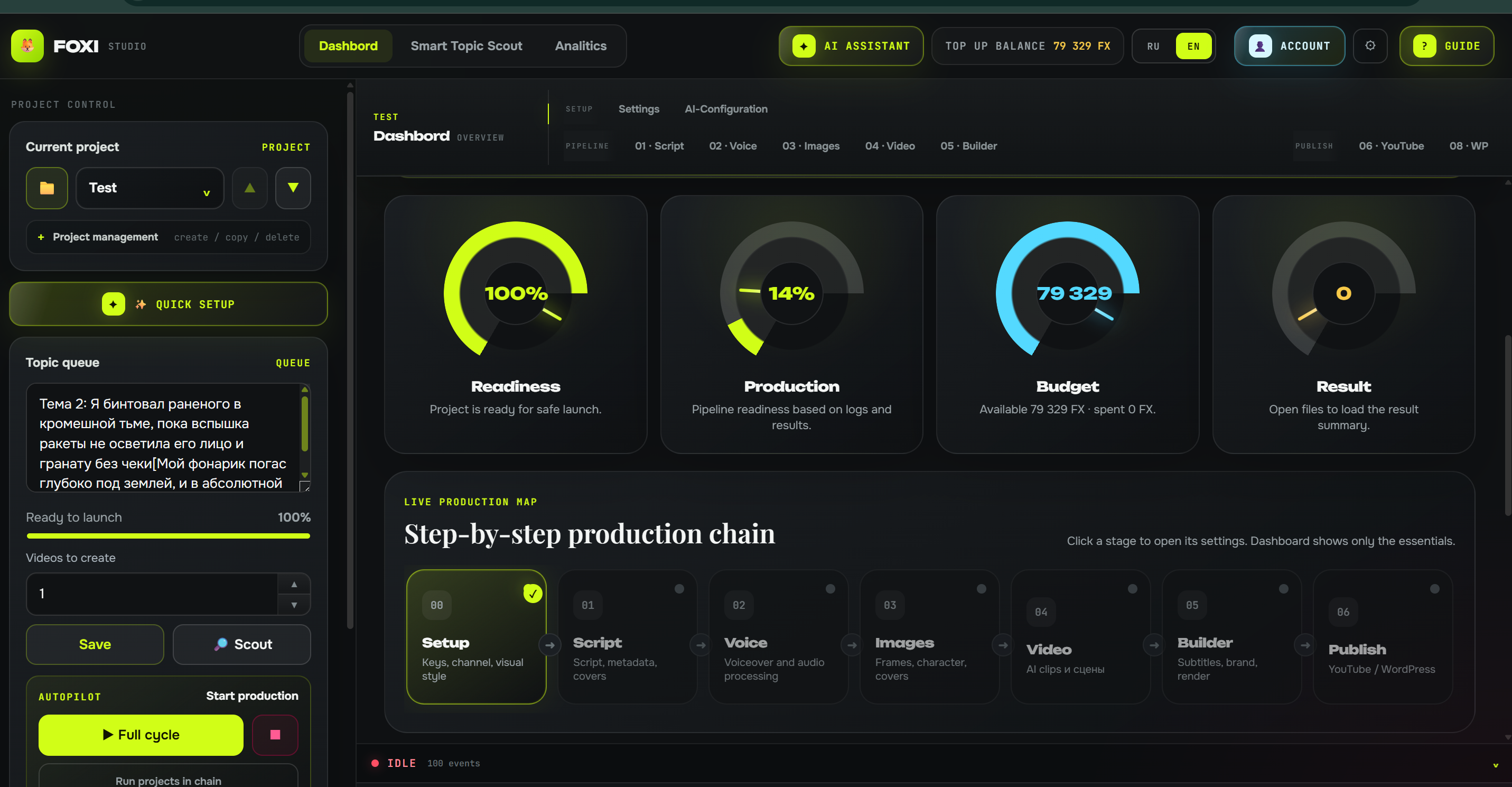
FOXI Studio works through a web interface. The user does not need to prepare a complex technical environment. You need a device with a browser, internet access, an active account, and FX balance for paid generations.
Minimum requirements
Almost any modern device is enough:
- a Windows, macOS, or Linux computer or laptop;
- a tablet;
- a smartphone;
- a modern browser: Google Chrome, Microsoft Edge, Safari, or Firefox;
- stable internet connection;
- FOXI Studio account;
- active plan or available trial mode;
- FX balance for paid tasks.
If the device can comfortably open modern websites and play videos in the browser, it is usually enough to control FOXI.
What affects comfort
FOXI can be opened from a phone, but project setup is easier on a larger screen. The more fields and tabs you edit, the more useful a laptop or monitor becomes.
Comfortable recommended setup:
- screen size from 13 inches;
- latest Chrome or Edge browser;
- stable internet without frequent drops;
- ability to download large video files;
- free space on the device for finished videos and thumbnails.
Internet and file uploads
Internet is needed not only to open the site. You use it to:
- save project settings;
- start tasks;
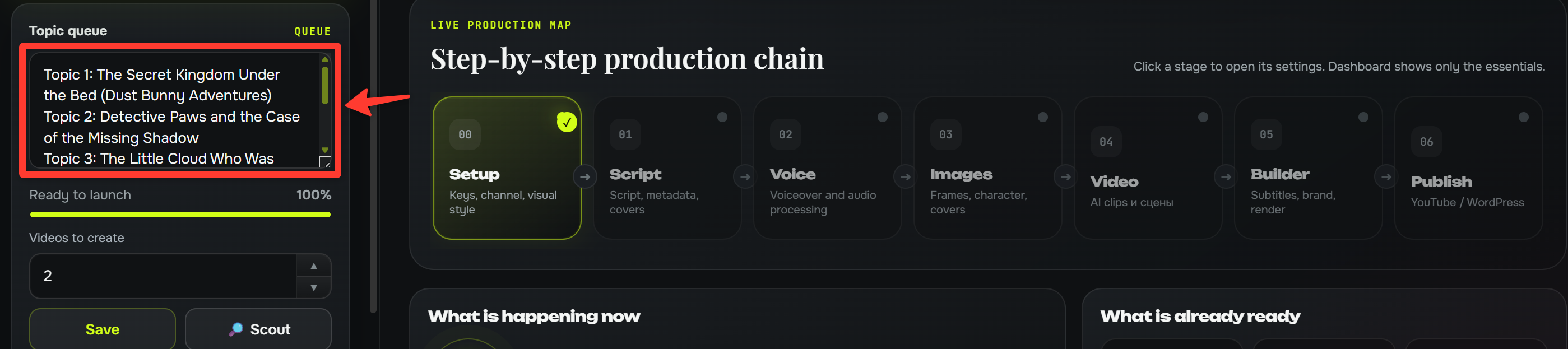
- upload assets: music, fonts, avatar, overlays;
- watch the execution log;
- download finished videos;
- connect YouTube or WordPress;
- communicate with the AI assistant.
If the internet connection drops after you start a task, the task may continue running. But you will not see log updates or download the result until the connection is restored.
FX balance as a working requirement
You do not need balance just to view the interface. But generations require FX.
FX is spent on:
- text and script;
- voiceover;
- images and thumbnails;
- video clips;
- final Builder rendering;
- analytics;
- additional AI operations.
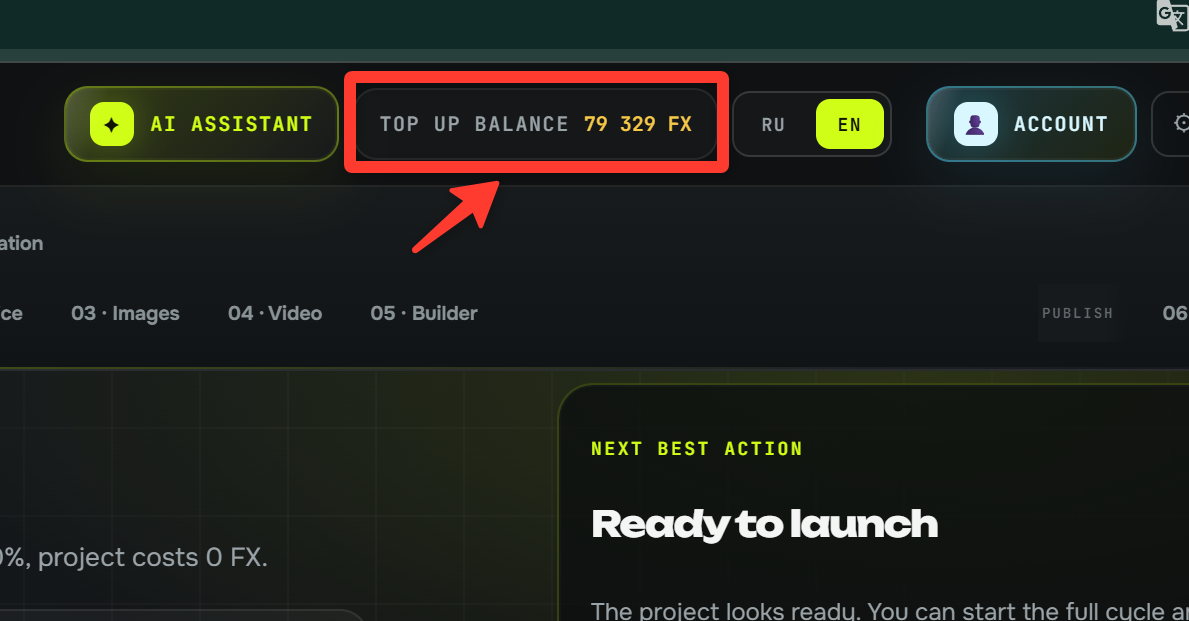
If there is not enough FX, the task may not start or may stop until you top up. Before a large run, check the balance in the top panel.
Plan as a functional requirement
Some features depend on the plan. For example, one plan may allow only short generation, while another may unlock Scout, Analytics, YouTube upload, WordPress, Anti-Detect, or longer videos.
If a button does not start or a limitation message appears, it is not always an error. Often it means the feature is unavailable on the current plan.
What to do:
- Check the plan status in the bottom bar of the interface.
- Check the plan description in the account area.
- If it is unclear, open the AI assistant and ask: “Why is this feature unavailable in my project?”
Files and result storage
Finished project materials are stored on the server for a limited time. After a successful render, download:
- final video;
- thumbnail;
- important source files;
- text materials if you need them for archive.

Do not treat cloud storage as a permanent archive. Its purpose is to let you receive the result, not to store all materials forever.
Frequently asked questions
Can I run FOXI from a phone?
Yes. But long setup, tables, file review, and managing several projects are more convenient from a computer or tablet.
Do I need to keep the tab open after starting?
Usually no. After launch, the task runs on the service side. You can return later and check the log or result.
What if the page opens slowly?
Check your internet, update the browser, close unnecessary tabs, and try again. If the problem happens only in one project, message the AI assistant and describe the situation.
Why can't I download the video?
Possible reasons: the file is still being created, the storage period expired, you do not have access to the project, the internet is unstable, or there is a server error. First check the log, then the project files window.