Quick Setup
Quick Setup is the project launch wizard in FOXI Studio. It works directly in the browser and guides the user through the key steps: voice, channel description, language, country, YouTube API, character, visual style, competitors, balance, and final confirmation.
The main idea is simple: beginners should not have to understand every tab and every prompt manually. The user answers in normal language, and FOXI saves the project settings, runs the AI configurator, analyzes competitors, updates prompts, and adds discovered topics to the queue.
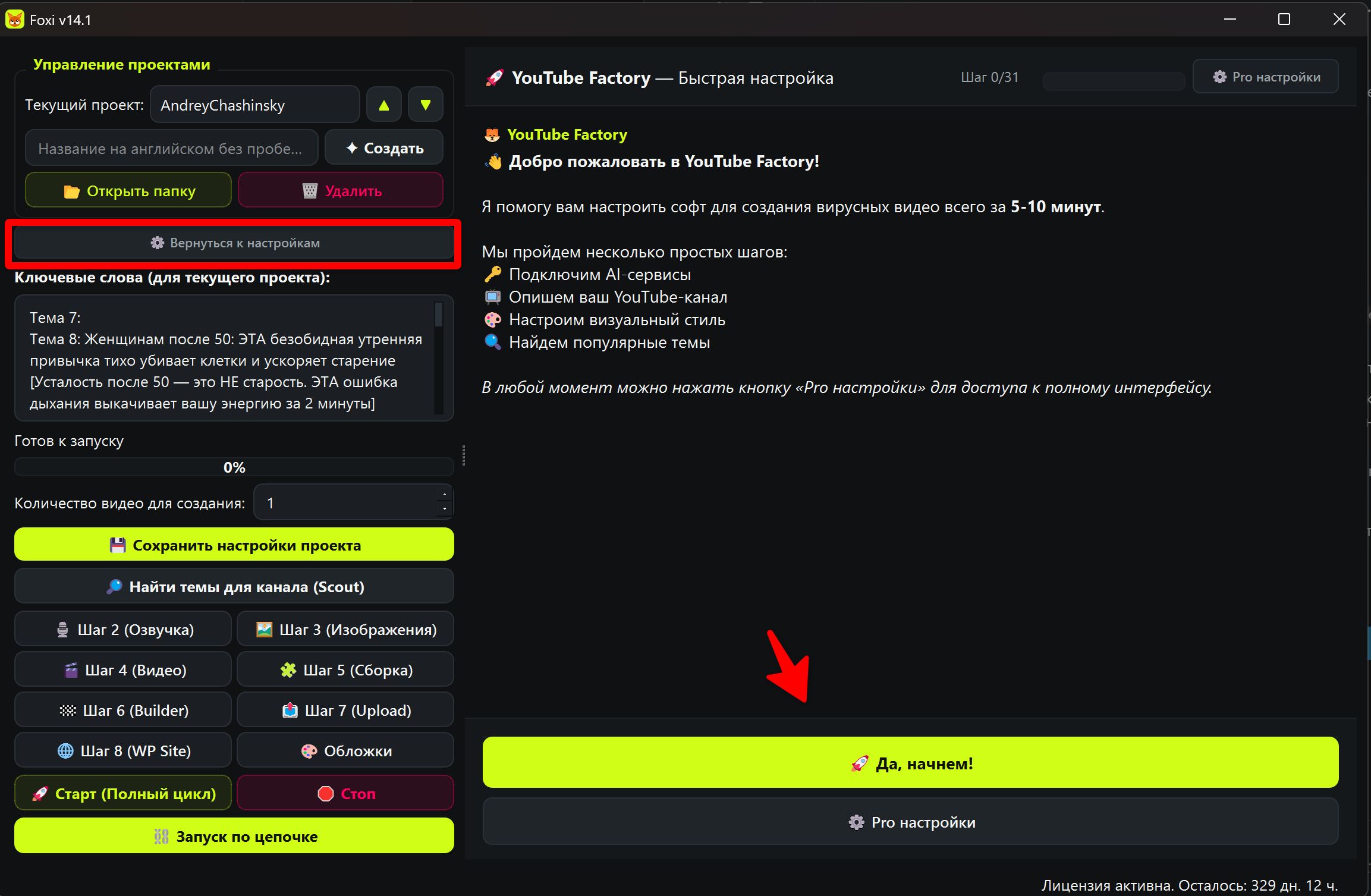
Where to open Quick Setup
The “✨ Quick Setup” button is located on the left side of the interface, near project management.
Use it when:
- you create a new project;
- you do not know which settings to choose;
- you want to prepare a channel for the first test quickly;
- you want FOXI to build the brief, prompts, and topics automatically;
- you want to return to the simple wizard after checking Pro settings.
When the wizard is open, the main workspace switches into a chat-like mode. At the top you see progress, on the left you see phases, and in the center you see the current question.
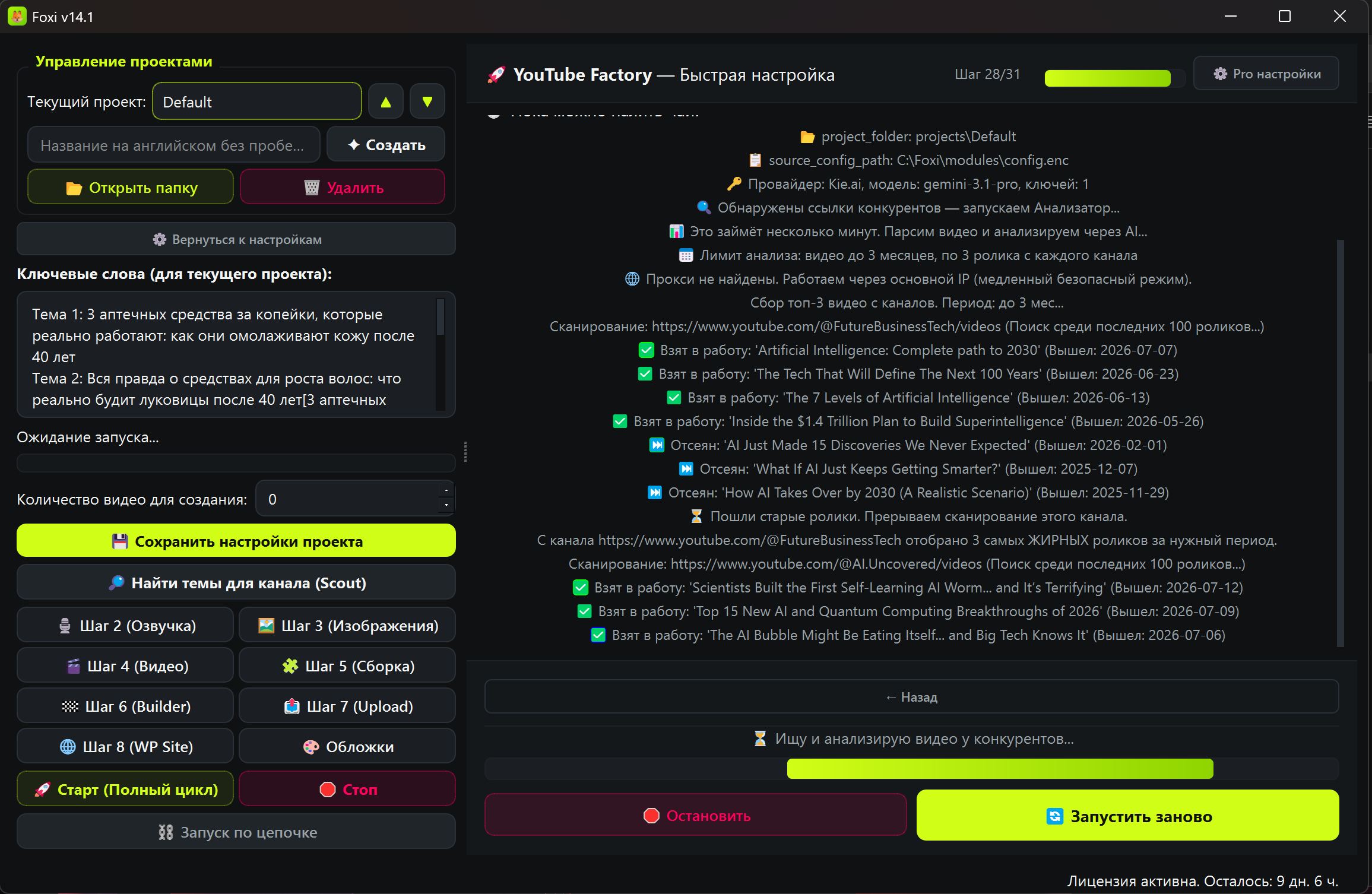
Quick Setup vs Pro settings
FOXI has two ways to configure a project:
| Mode | Best for | What happens |
|---|---|---|
| Quick Setup | Beginners and fast launch | FOXI asks questions and maps answers into the required settings |
| Pro settings | Experienced users | You manually edit tabs, models, prompts, Builder, YouTube, files, and publishing |
If you are just starting, use Quick Setup. It is better to open Pro settings after the first test, when you already know what you want to improve.
The “⚙ Pro settings” button at the top of the wizard returns the full interface. It does not delete your answers: you can review settings and open the wizard again.
How the wizard works
The wizard asks a question, and you answer with a button, text field, dropdown, or file upload. The answer is saved into the project and connected to the correct internal FOXI field.
For example:
- channel description goes into channel and AI configurator settings;
- content language affects script, voiceover, subtitles, and Scout;
- country affects topic research and regional recommendations;
- competitor links go into competitor analysis;
- avatar, character, and overlay files are uploaded to the project cloud storage.
If you close the browser or switch sections, answers are saved. Still, it is better to complete the wizard step by step so you do not lose context.
Step 1. Voice
The first practical step is selecting an ElevenLabs voice template through Lumean. The voice defines how future videos will sound.
Inside the wizard, you can:
- Click “+ Create template” and create a new voice template.
- Click “↻ Refresh templates” if the template already exists in Lumean.
- Select the required template from the list.
- Click “✎ Edit” if you need to modify the selected template.
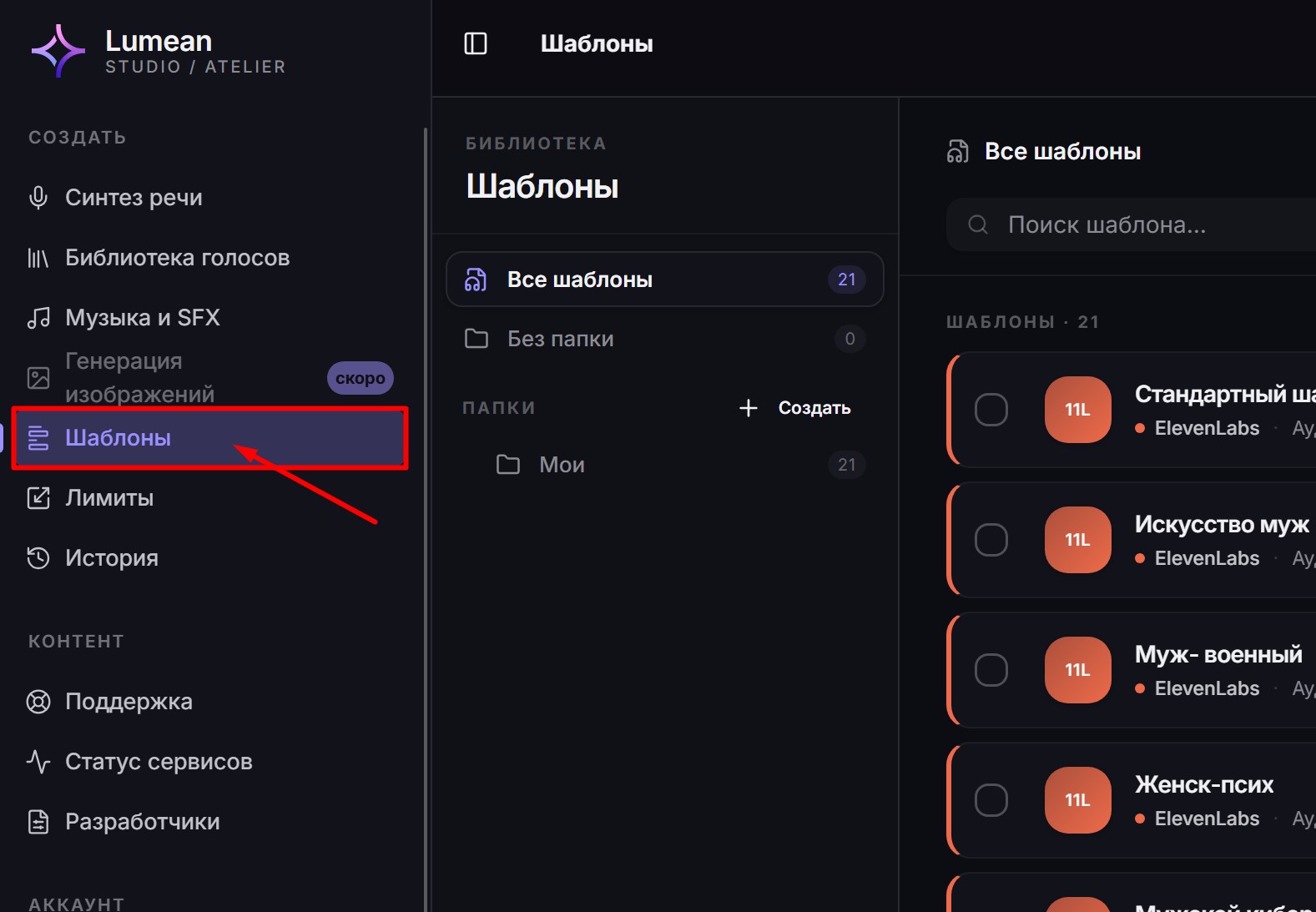
For the first test, do not spend too long choosing a voice. Pick one understandable voice, generate a short video, and improve the voice later if needed.
Step 2. Channel
At this stage FOXI asks what channel or video you want to create. This is one of the most important steps because the AI configurator uses your description to build style, audience, script format, visual rules, and prompts.
Bad answer:
I want a history channel.
Good answer:
I want an English-language channel about mysterious historical events for a US audience aged 30–60. The style should be dramatic documentary storytelling, dark atmosphere, intrigue from the first seconds, realistic cinematic illustrations, and no modern objects in the scenes.
The more specific your answer is, the less manual prompt editing you will need later.

Content language
Choose the language of your videos. This affects not only script text, but also:
- voiceover;
- subtitle style;
- YouTube metadata;
- topic search through Scout;
- image prompt wording.
For a US channel, the usual choice is English and USA. For a German channel, use German and Germany.
Audience country
Country helps FOXI focus on the market, interests, and regional wording. This is especially important for YouTube Scout because the same topic may perform differently in the USA, Germany, Spain, or Brazil.
Step 3. YouTube API key
The wizard may ask for a YouTube API key. This key is not used for publishing videos. It is used for competitor analysis and topic search through the YouTube Data API.
You should create several keys, usually from 7 keys and more, because one key has a relatively small quota. Paste them separated by semicolons:
KEY_1;KEY_2;KEY_3
To understand where to get the key, use the separate YouTube API guide.

Step 4. Character
The wizard asks whether the video should have a recurring main character.
| Choice | When it fits |
|---|---|
| Yes, with a character | The channel needs a recognizable expert or character, host, doctor, or narrator |
| No, without a character | Videos are based on illustrations, facts, stories, lists, or documentary style |
If you choose a character, FOXI asks how to get it:
- generate with AI — good when you do not have a ready character: FOXI will generate one on the fly and create a character suitable for the video topic;
- upload a photo — good when the brand already has a character or reference.
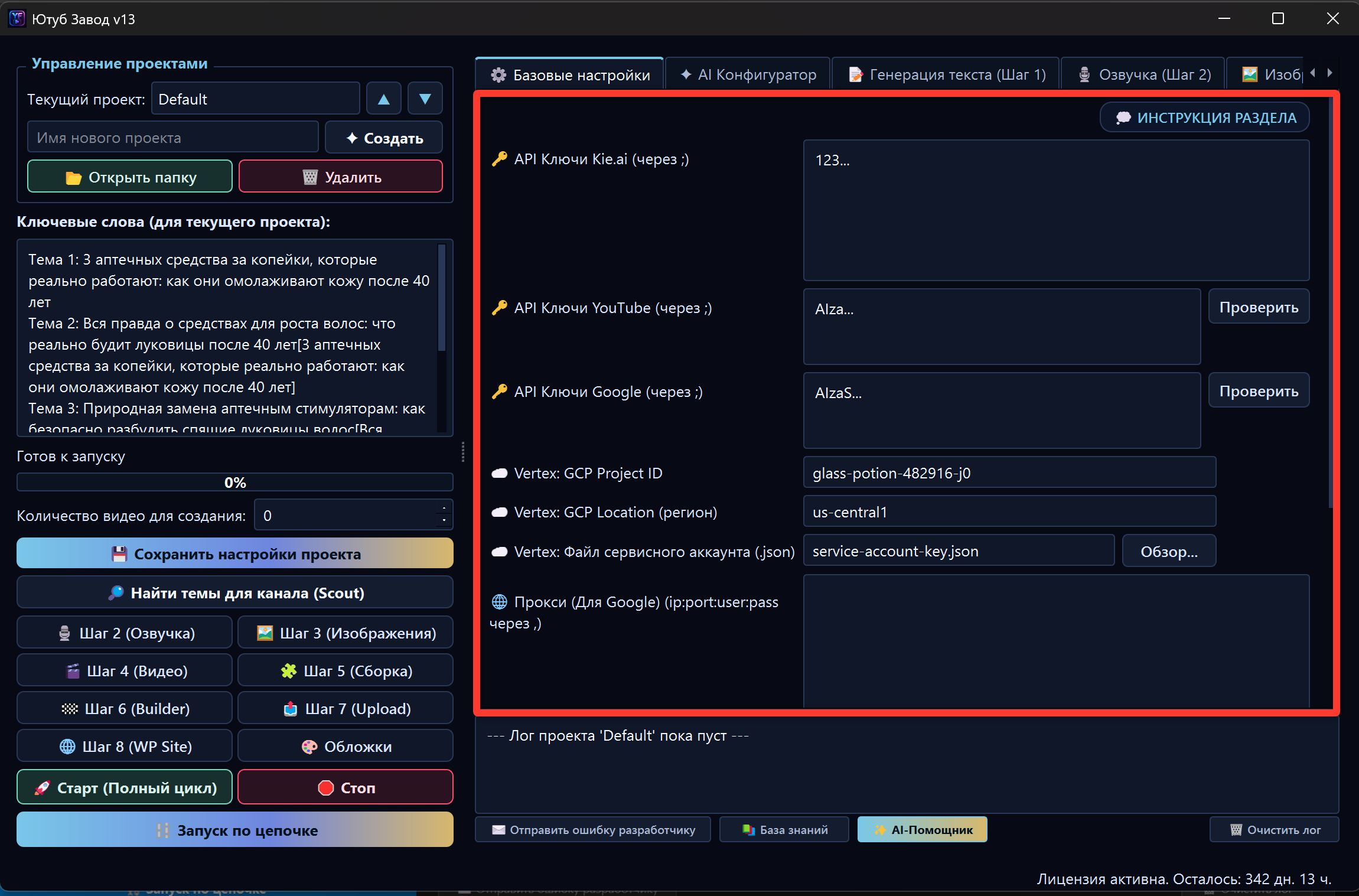
For the first test, you can choose without a character if you are not sure. You can add a character later in project settings.
Step 5. Visual style
At this stage the wizard collects video appearance settings.
It may ask:
- whether you need an avatar in the corner;
- whether to upload
avatar.mp4; - whether to remove the avatar background;
- whether to use a background under the avatar;
- whether top and bottom overlays are needed;
- whether subtitles are needed;
- which subtitle style to use;
- how strong the image zoom should be;
- whether slide transitions are needed.
Beginner-safe choices
For the first test, use safe settings:
| Setting | First-test recommendation |
|---|---|
| Avatar | Disable it if you do not have a ready avatar video |
| Character | Disable it or generate with AI only if a character is important |
| Overlays | Disable them if branded design is not ready yet |
| Subtitles | Enable them, especially for Shorts and older audiences |
| Subtitle style | Start with a ready preset |
| Zoom | Keep around 1.3 |
| Transitions | Enable smooth transitions |
Do not try to make the project perfect before the first launch. First get a test video and then decide what to improve.
Step 6. Competitors
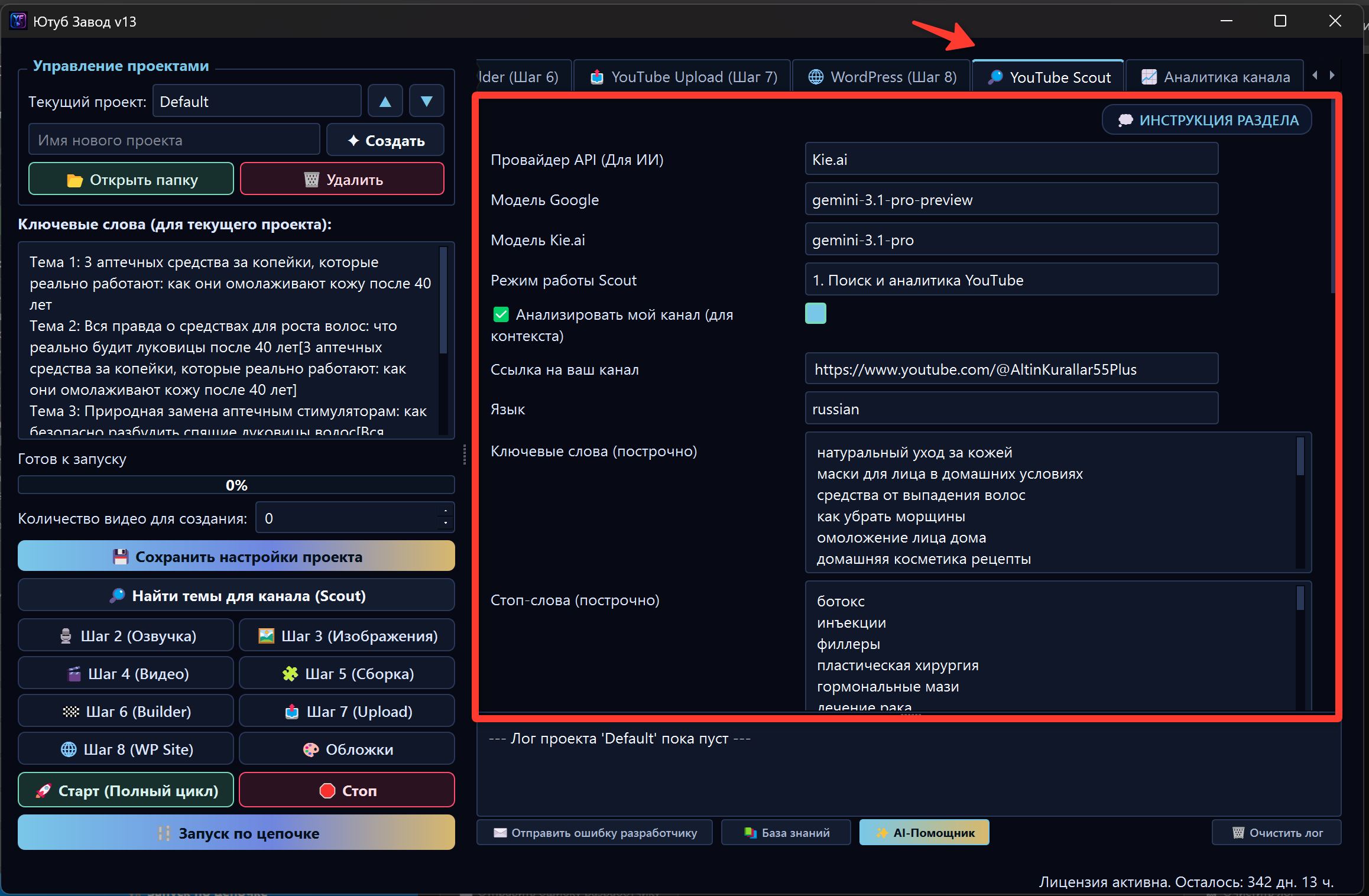
The wizard asks for YouTube competitor channel links. You can paste up to five links, each on a new line.
Example:
https://www.youtube.com/@HistoryChannelExample
https://www.youtube.com/@MysteryStoriesExample
https://www.youtube.com/@DocumentaryExample
FOXI uses these links to:
- detect successful formats;
- understand which topics already work in the niche;
- collect signals for the AI configurator;
- run Scout and suggest topics for the queue.
If you do not have competitors, find 2–3 channels manually on YouTube. Avoid channels that are too broad if your project is narrow.
Step 7. Balance
Before launch, the wizard offers to top up the balance. This is needed because after confirmation FOXI may immediately run paid operations:
- competitor analysis;
- strategic brief generation;
- prompt generation;
- YouTube Scout;
- adding topics to the queue.
A comfortable starting amount is 500–1000 FX. If your balance is already funded, choose “Continue without top-up”.
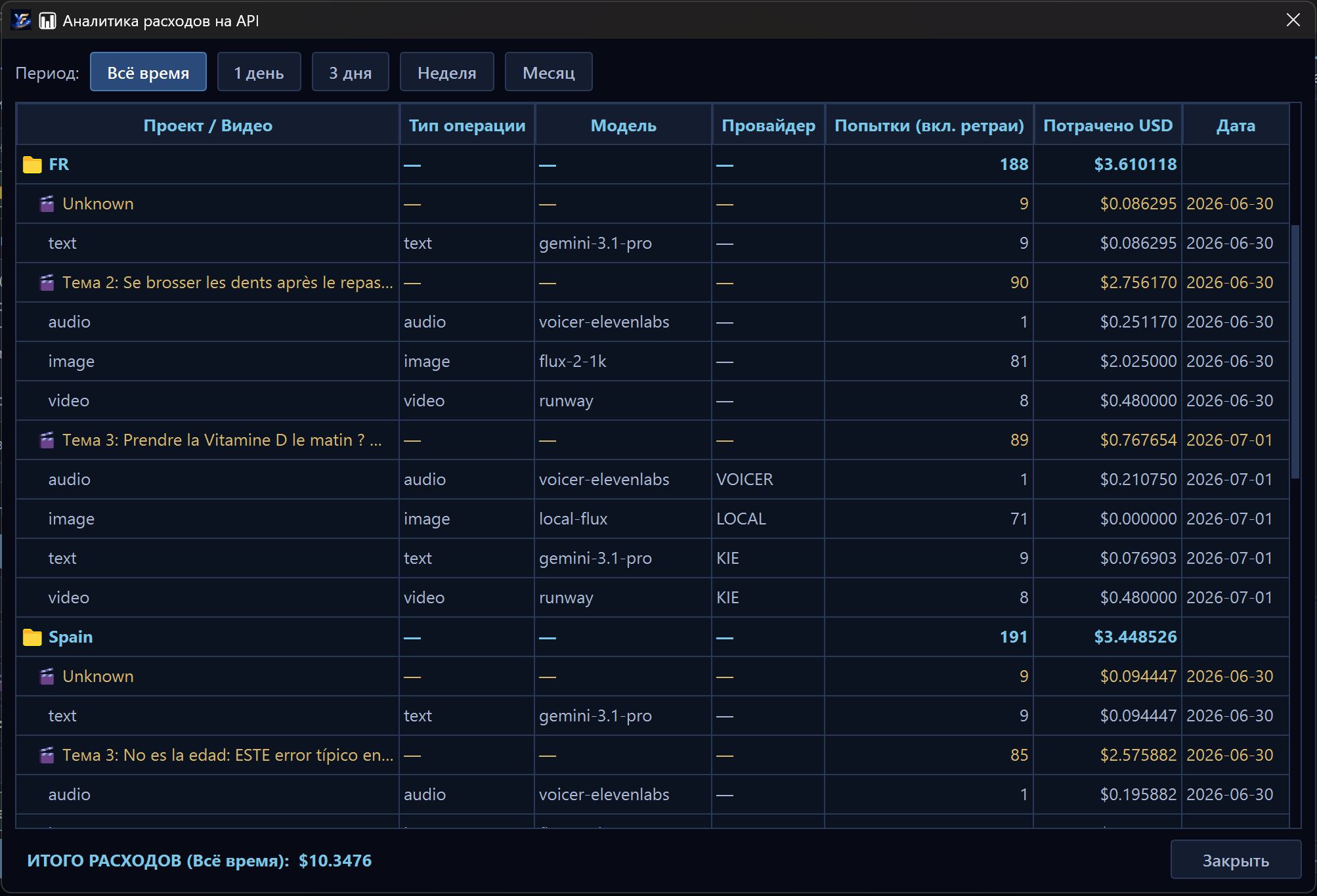
If the balance is too low, the wizard or later steps may stop. This does not mean the project is broken: top up FX and run the required step again.
Step 8. Confirmation
On the final step, the wizard shows an answer summary. Check that:
- the correct voice is selected;
- the channel description is accurate;
- language and country are correct;
- no wrong YouTube API keys are pasted;
- character and avatar settings are not mixed up;
- competitors are added;
- there is enough FX for launch.

After confirmation, FOXI automatically starts the chain:
Save settings → competitor analysis → AI configurator → prompt generation → Scout → add topics to queue
This usually takes several minutes. The interface will show a status panel and a live event log.

What happens after completion
If the wizard completes successfully, FOXI:
- saves project settings;
- creates the project brief;
- saves competitor analysis results;
- updates prompts for your niche;
- runs Scout;
- adds discovered topics to the queue on the left;
- prepares the project for the first video production run.
On the final screen, you can proceed to generate the first video.

If the wizard stops
The wizard may stop if:
- no project is selected;
- FX balance is too low;
- the YouTube API key is invalid or quota is exhausted;
- a competitor link is unavailable;
- file upload failed;
- a cloud task is still running and you need to wait;
- the current plan limits the action.
What to do:
- Check the status and log at the bottom of the interface.
- Check FX balance.
- Check the YouTube API key.
- Make sure the correct project is selected.
- If it is unclear, open the AI assistant and ask:
Quick Setup stopped. Review the project settings and log, then explain in simple words what I should fix.
The AI assistant sees the project context and can help identify which step blocks the launch.
Common beginner mistakes
| Mistake | Why it is bad | Better approach |
|---|---|---|
| Writing a very short channel description | AI does not understand audience and style | Describe niche, viewer, country, emotion, and format |
| Trying to perfect everything before the first test | You can spend too much time without output | Make a simple test first, improve later |
| Pasting OAuth instead of YouTube API key | Scout will not be able to search topics | Use the API key from Google Cloud |
| Uploading random avatar files | The result may look bad | Disable avatar first or upload a suitable vertical file |
| Not funding the balance before launch | The chain may stop | Keep at least 500–1000 FX for the start |
| Closing the page immediately after launch | You may miss status or errors | Wait for status or check the log later |
What to ask the AI assistant
Useful requests:
- “Help me describe my channel for Quick Setup.”
- “Review my wizard answers and tell me what to improve.”
- “Which subtitle style should I choose for my audience?”
- “Do I need a character, or should I start without one?”
- “Why did Quick Setup stop and what should I fix?”
- “Which competitors are suitable for analyzing my niche?”
Where to go next
After Quick Setup, open the main project interface, check the topic queue, and run the first short test. Do not start with a large expensive video immediately: first make sure the topic, voice, style, and prompts work correctly.