Prompts and Change History
Prompts are internal instructions used by FOXI Studio to write scripts, create frame descriptions, prepare thumbnails, metadata, video hints, Scout rules, and analytics.
In the FOXI cloud/web version, most prompts are hidden from regular users. This is not a limitation; it is a safety measure. There are many prompts, they are connected to each other, and an accidental edit can break project style, script structure, or frame generation.
What beginners should understand
You do not need to study dozens of technical prompts manually to create videos. The normal workflow is:
- You describe the channel in Quick Setup.
- The AI Configurator creates a working prompt foundation.
- You run a test video.
- If the result needs improvement, you describe the change to the AI Assistant in normal language.
- The AI Assistant suggests a safe edit and can apply it to the project.
- If the new version becomes worse, you restore the old one through Prompt History.
This protects the project from accidental mistakes and lets you improve style without technical chaos.
Why prompts are hidden
Prompts may contain:
- script structure rules;
- hook and retention rules;
- safety restrictions;
- speech style;
- audience rules;
- metadata format;
- image rules;
- negative prompts;
- Scout templates;
- system variables.
If an important line is removed, FOXI may start writing scripts that are too short, lose structure, generate wrong frames, or ignore niche restrictions.
That is why direct prompt editing is not the main path for beginners. It is safer to change the result through the AI Assistant.
Where Prompt History is located
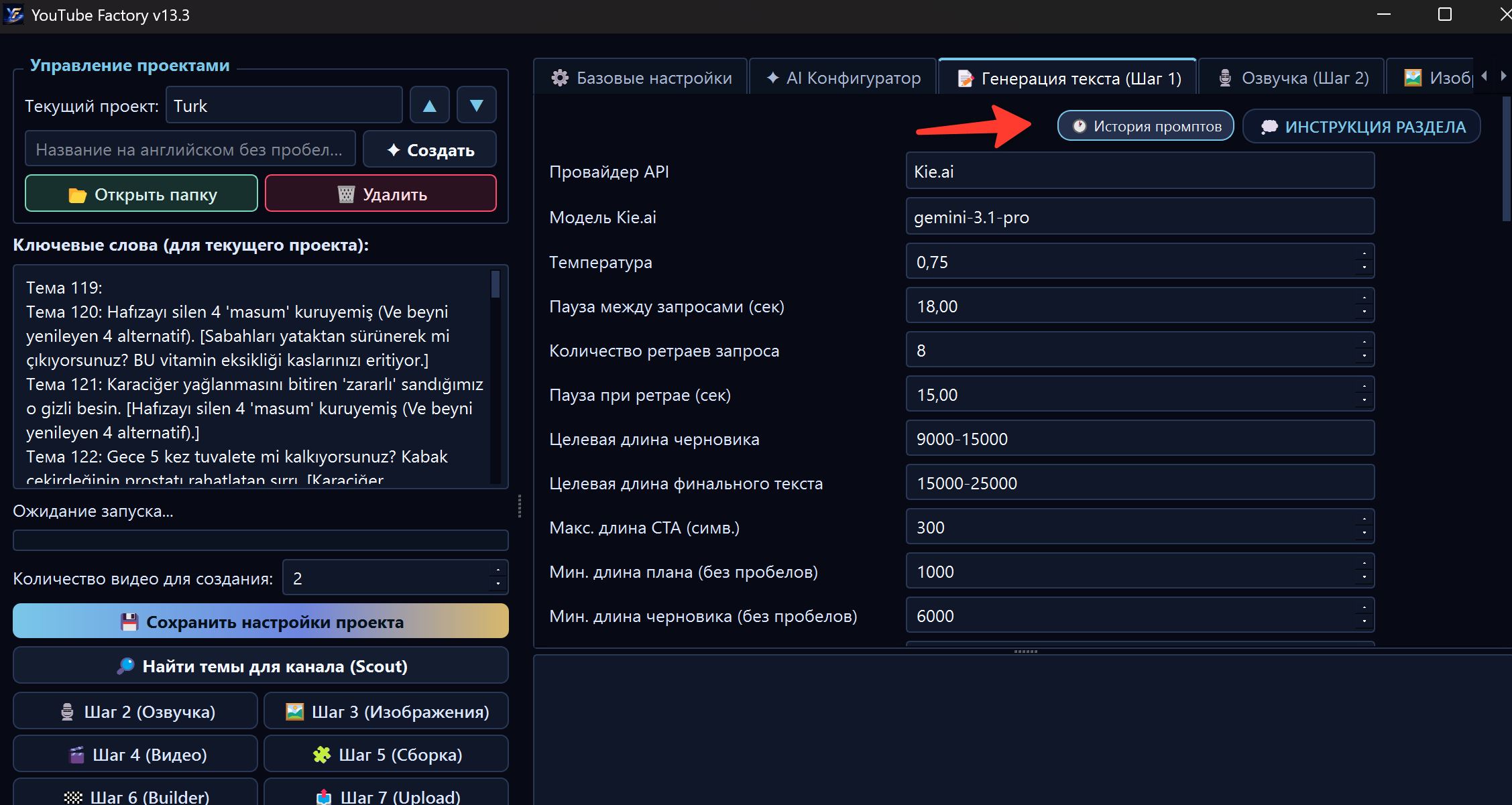
The “Prompt History” button is located on the 01 · Text tab. This is where you can view prompt snapshots and restore a previous version.
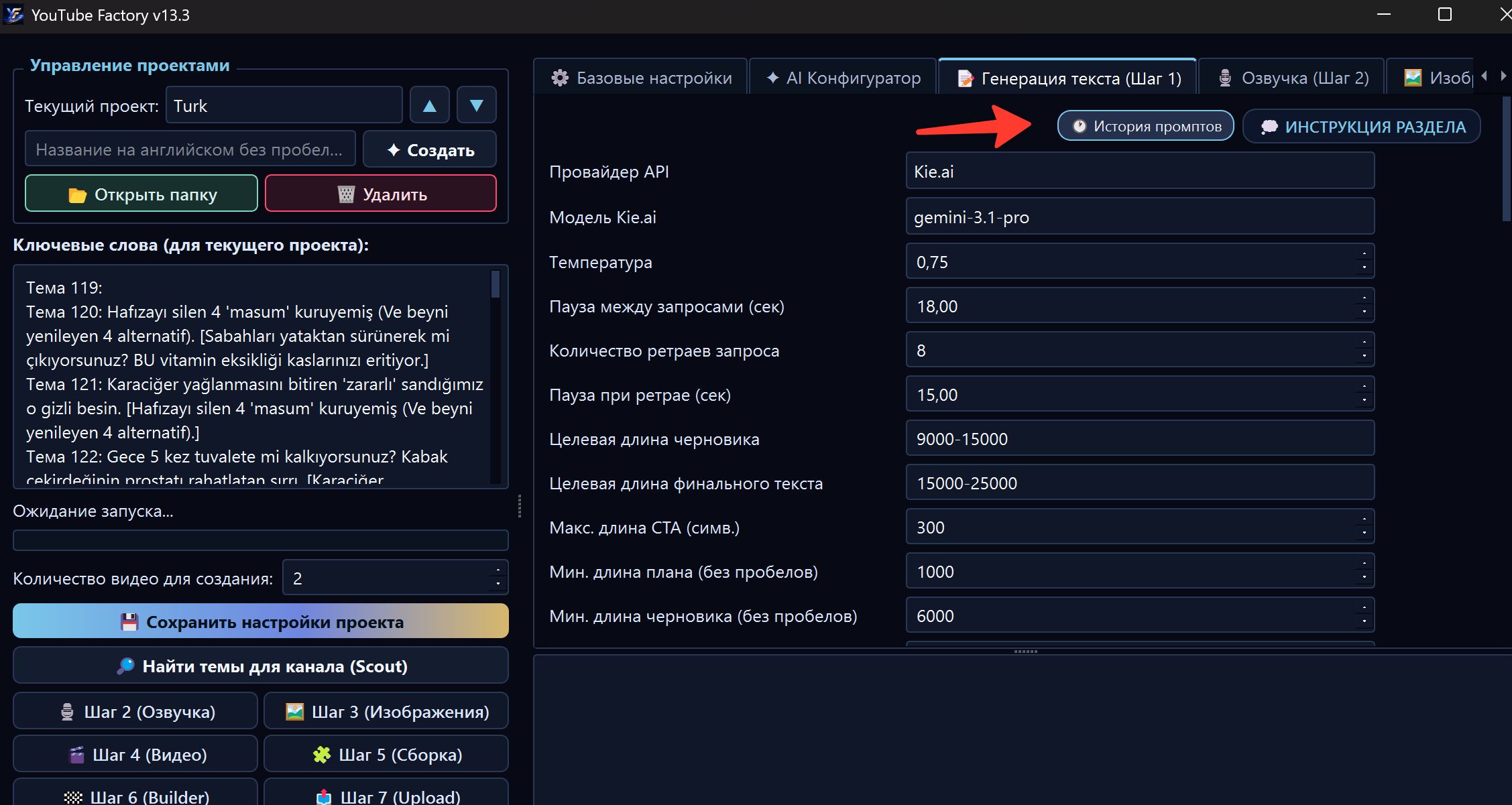
Open history when:
- the result became worse after AI Configurator;
- the AI Assistant applied a change that was too strong;
- you want to compare old and new versions;
- you need to roll back an experiment;
- the project used to work better than it does now.
What a prompt snapshot is
A snapshot is the saved state of project prompts at a specific moment.
It usually stores:
- date and time;
- creation reason;
- list of saved prompts;
- version before or after a change;
- data that can be restored.
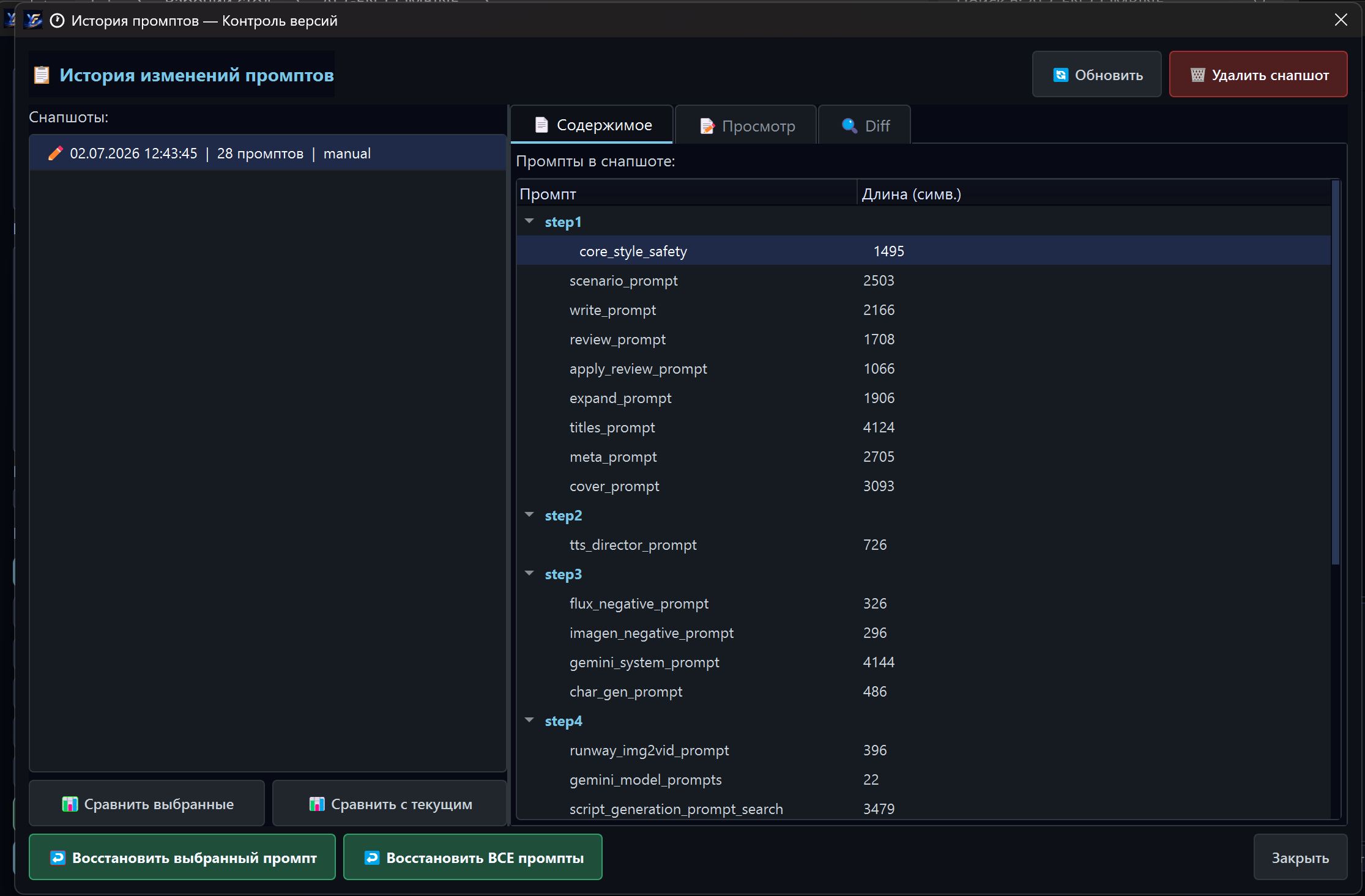
Snapshots let you experiment without fear. If a new setting is not good, you can go back.
When snapshots are created
Snapshots may be created in different situations:
| Reason | Meaning |
|---|---|
| Autosave | FOXI saved project state after changes |
| Manual save | The user or interface explicitly saved settings |
| AI Configurator | Prompts changed after strategy generation |
| AI Assistant | A change suggested by the AI Assistant was applied |
| Recovery | A protective version is created before rollback, so even the rollback can be undone |
Not every small click must create a new snapshot. If prompts have not changed, FOXI may avoid creating duplicates to keep history clean.
How to edit prompts safely
The safest method is not to write a technical prompt manually, but to describe the desired result to the AI Assistant.
Bad request:
Rewrite all prompts somehow better.
Good request:
In this project, scripts are too aggressive. Make the tone more documentary, remove phrases like “shocking truth”, add more cause-and-effect explanations, and keep intrigue in the first 30 seconds.
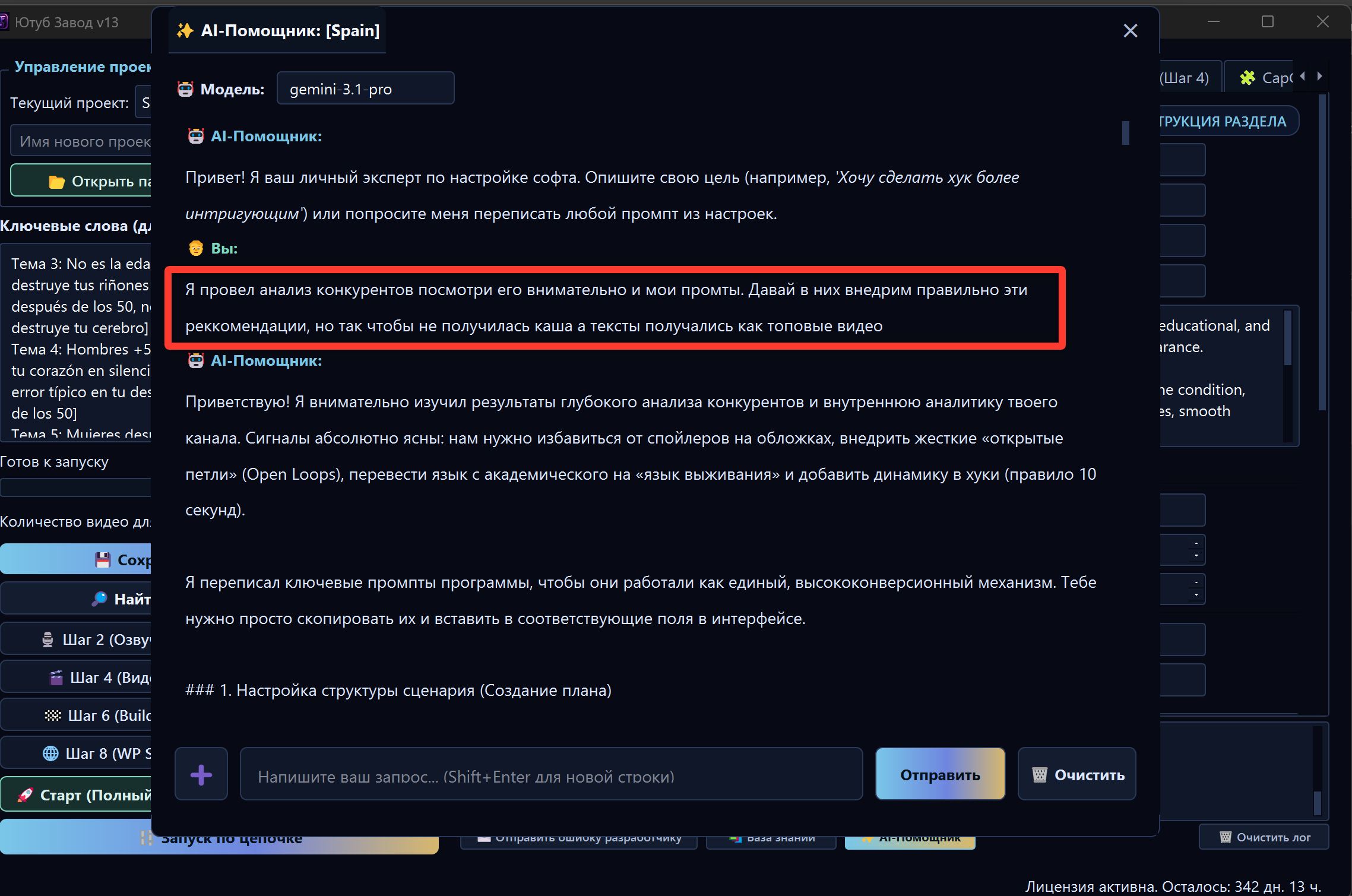
A good request explains:
- what exactly is wrong;
- what result you want;
- what must not be broken;
- where current logic should stay.
How AI Assistant edits are applied
The AI Assistant can prepare changes for specific prompts. In the interface, this appears as a safe suggestion: you can see what will change and click an apply button.
After applying an edit:
- FOXI saves changes to the project.
- Prompt History receives a new version.
- You can run a test generation.
- If the result is bad, you can restore the previous snapshot.
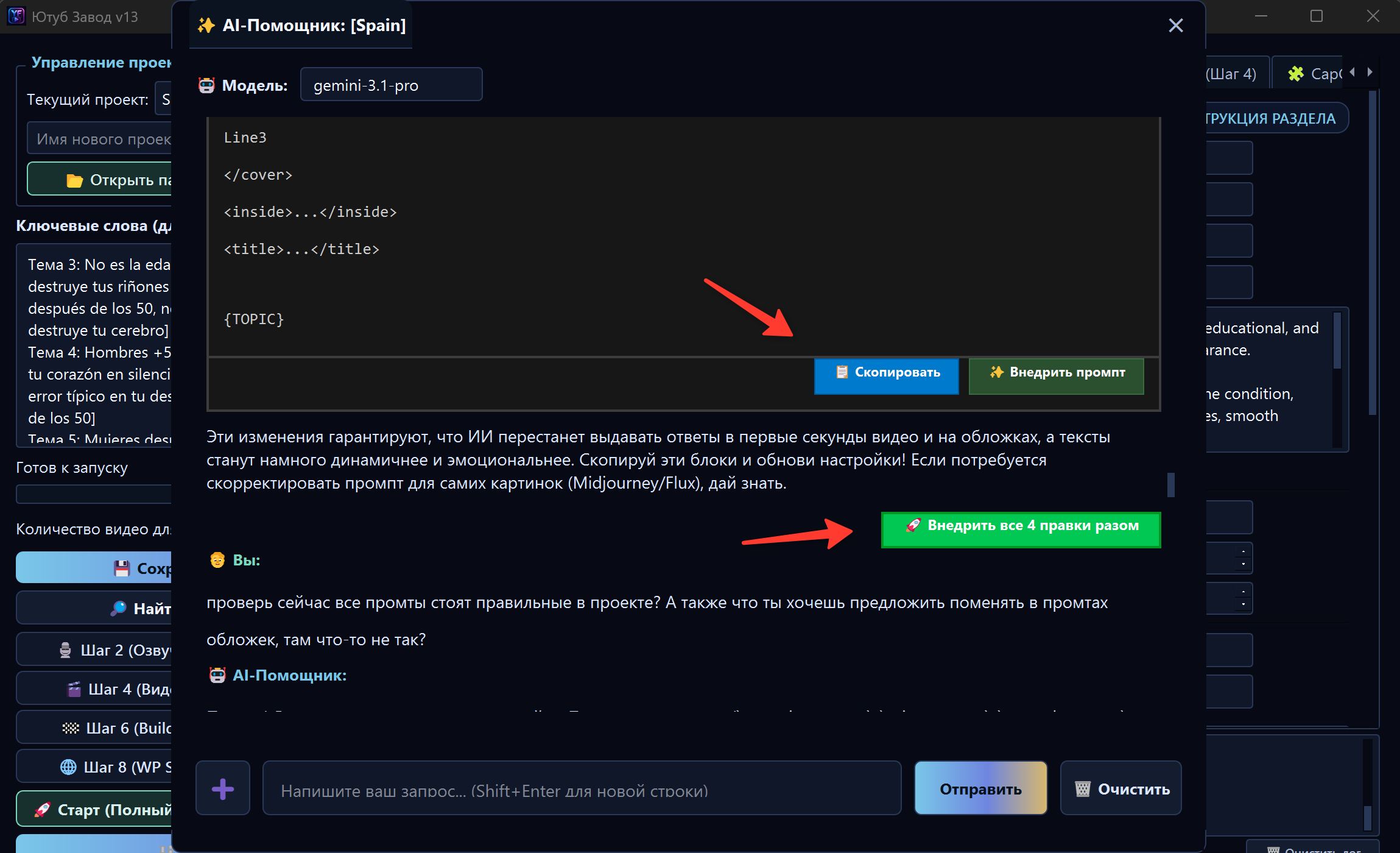
Do not apply too many changes at once if you are not sure. It is better to change one major idea at a time: for example only script tone or only thumbnail style.
How to restore an old version
If the result became worse after changes:
- Open 01 · Text.
- Click “Prompt History”.
- Find the snapshot before the failed change.
- Review contents or comparison if available.
- Restore the required prompt or the full prompt set.
- Save the project and run a short test.
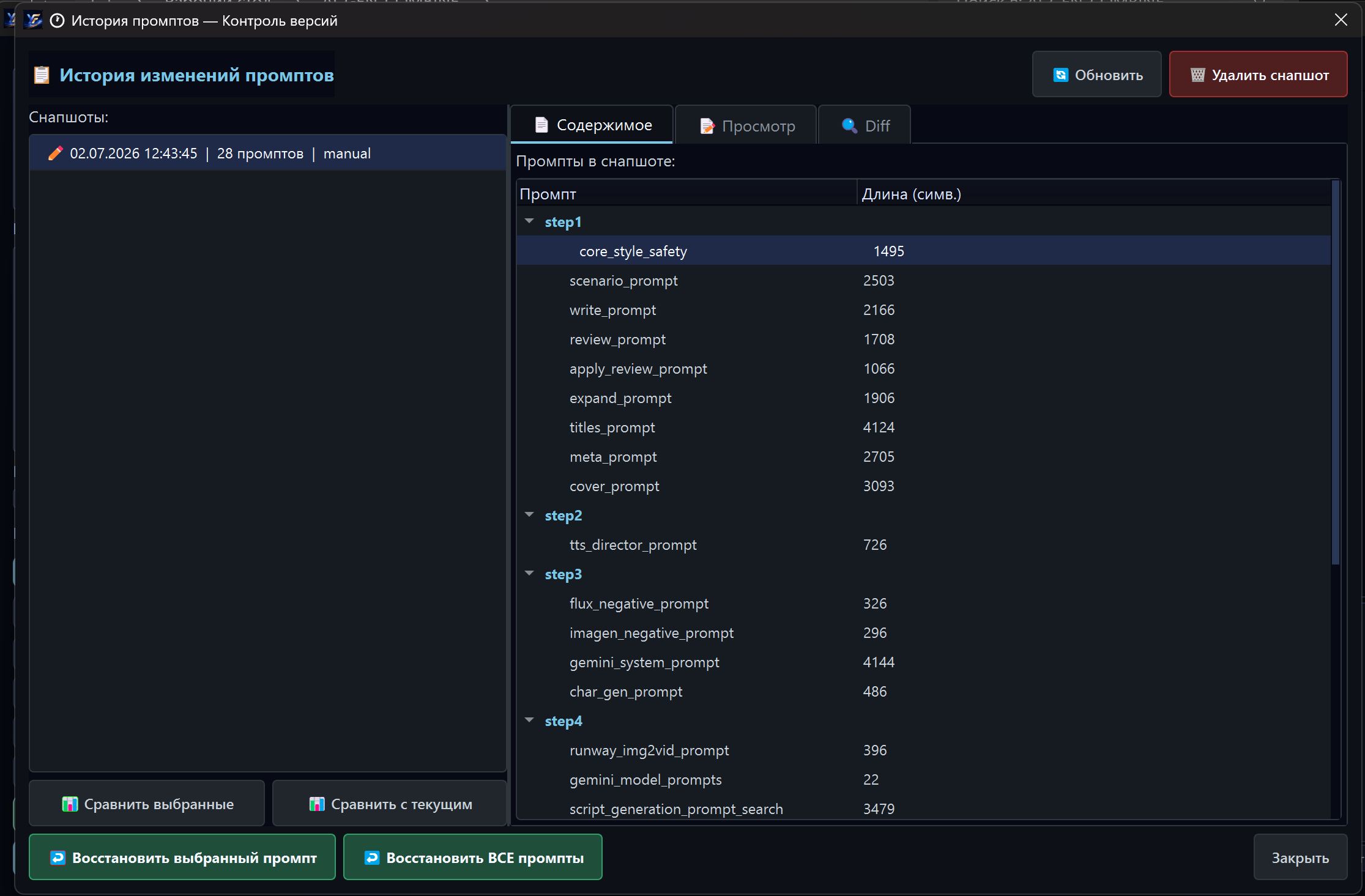
If you do not know which snapshot to choose, ask the AI Assistant:
I want to roll prompts back to the version before the last AI Configurator run. Tell me which snapshot to choose and what to restore.
Restore one prompt or all prompts
Sometimes you do not need to restore everything, only one part.
| Situation | What to restore |
|---|---|
| Only script style is broken | One text prompt or a group of text prompts |
| Everything changed badly after AI Configurator | Full prompt set from the previous snapshot |
| Images started generating in the wrong style | Image prompts and negative prompts |
| Scout started finding unsuitable topics | Scout prompts and niche rules |
| Thumbnails became too clickbait-heavy | Title and thumbnail prompts |
If you are unsure, start with targeted recovery and check with a short test.
Version comparison
Version comparison helps understand what changed between two prompt states.
It is useful when:
- the result used to be better;
- tone changed after an edit;
- you need to find which line changed behavior;
- the AI Assistant made several edits and you want to understand them.
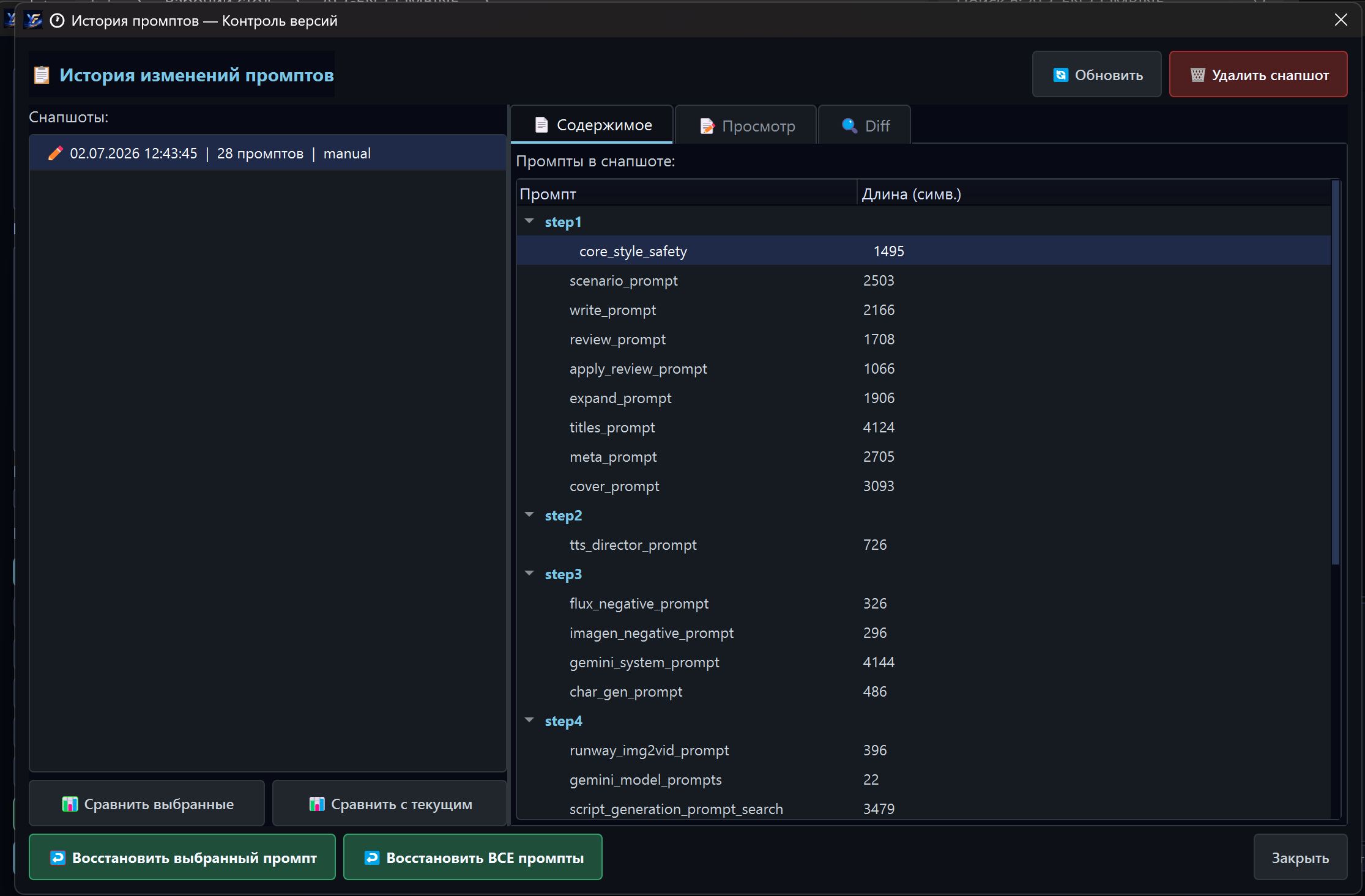
You do not need to read the whole diff like a programmer. It is enough to understand the general meaning: what was added, what was removed, and which block may be responsible for the worse result.
Which prompts exist in a project
Names may differ depending on project version, but common groups are:
- script prompts;
- text review and improvement prompts;
- title and metadata prompts;
- thumbnail prompts;
- voiceover prompts;
- image prompts;
- negative image prompts;
- video prompts;
- Scout prompts;
- analytics prompts.
Regular users do not need to memorize all names. Just tell the AI Assistant which part of the result is wrong: text, voice, images, topics, thumbnails, or publishing.
What must not be removed from prompts
If you see prompt text or ask the AI Assistant to change it, do not remove system elements without understanding them.
Potentially dangerous elements include:
- variables in braces, for example
{TOPIC}; - XML-like tags, for example
<hook>; - answer format rules;
- safety restrictions;
- language instructions;
- block structure rules.
If such elements are removed, generation can become unstable. It is better to describe the change in normal language and ask the AI Assistant to preserve system variables.
Practical scenarios
Scenario 1. AI Configurator made the style too aggressive
- Open the AI Assistant.
- Ask it to make the tone calmer.
- Apply the suggested edit.
- Run a short test.
- If it is worse, open Prompt History and restore the previous version.
Scenario 2. Images no longer match the desired style
- Describe the problem to the AI Assistant.
- Specify the required style: realism, cinematic, illustration, minimalism.
- Ask it not to change text prompts.
- Apply only the image-related edit.
- Compare the result on one topic.
Scenario 3. You need to return everything to yesterday's version
- Open Prompt History.
- Find the snapshot by date.
- Restore the required version.
- Run a test topic.
- If everything is normal, continue production.
Common mistakes
| Mistake | Why it is bad | Better approach |
|---|---|---|
| Changing many prompts at once | It is hard to know what broke the result | Make one meaningful change at a time |
| Not testing after edits | The issue may appear only during a large launch | Run one short video after each edit |
| Removing variables | FOXI may lose topic, structure, or format | Preserve system variables |
| Restoring everything when not needed | Good changes can be lost | Try targeted recovery first |
| Not using the AI Assistant | The user wastes time in technical fields | Describe the desired result in normal language |
What to ask the AI Assistant
Useful requests:
- “Review my prompts and explain why scripts became too long.”
- “Make the tone calmer, but do not remove the retention structure.”
- “Which prompts should I restore if images became worse?”
- “Compare the current style with the previous version and explain the difference.”
- “Help me roll back changes after the last AI Configurator run.”
- “Suggest a safe prompt edit without removing system variables.”
Where to go next
After understanding Prompt History, continue to the project file structure. This will help you know where to find final videos, thumbnails, assets, and intermediate materials.