Main Screen and Launch
The FOXI Studio main screen is the control center for cloud video production. Here you select a project, add topics, start generation, track task status, review costs, and open finished files.
Important: FOXI works in the browser, while heavy operations run in the cloud. After starting a task, you do not need a powerful computer for rendering. You can launch production, return later, and check the result inside the project.
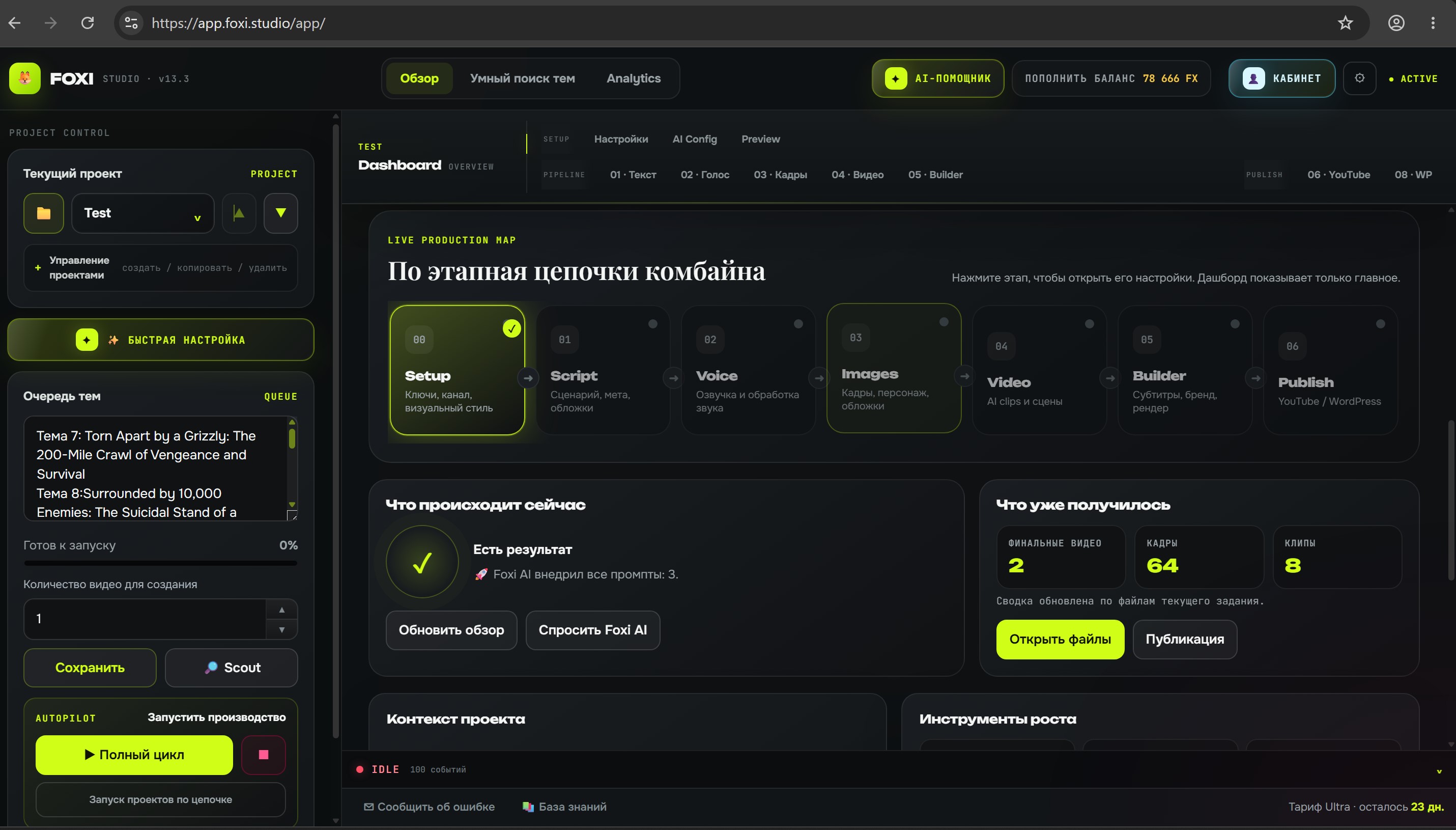
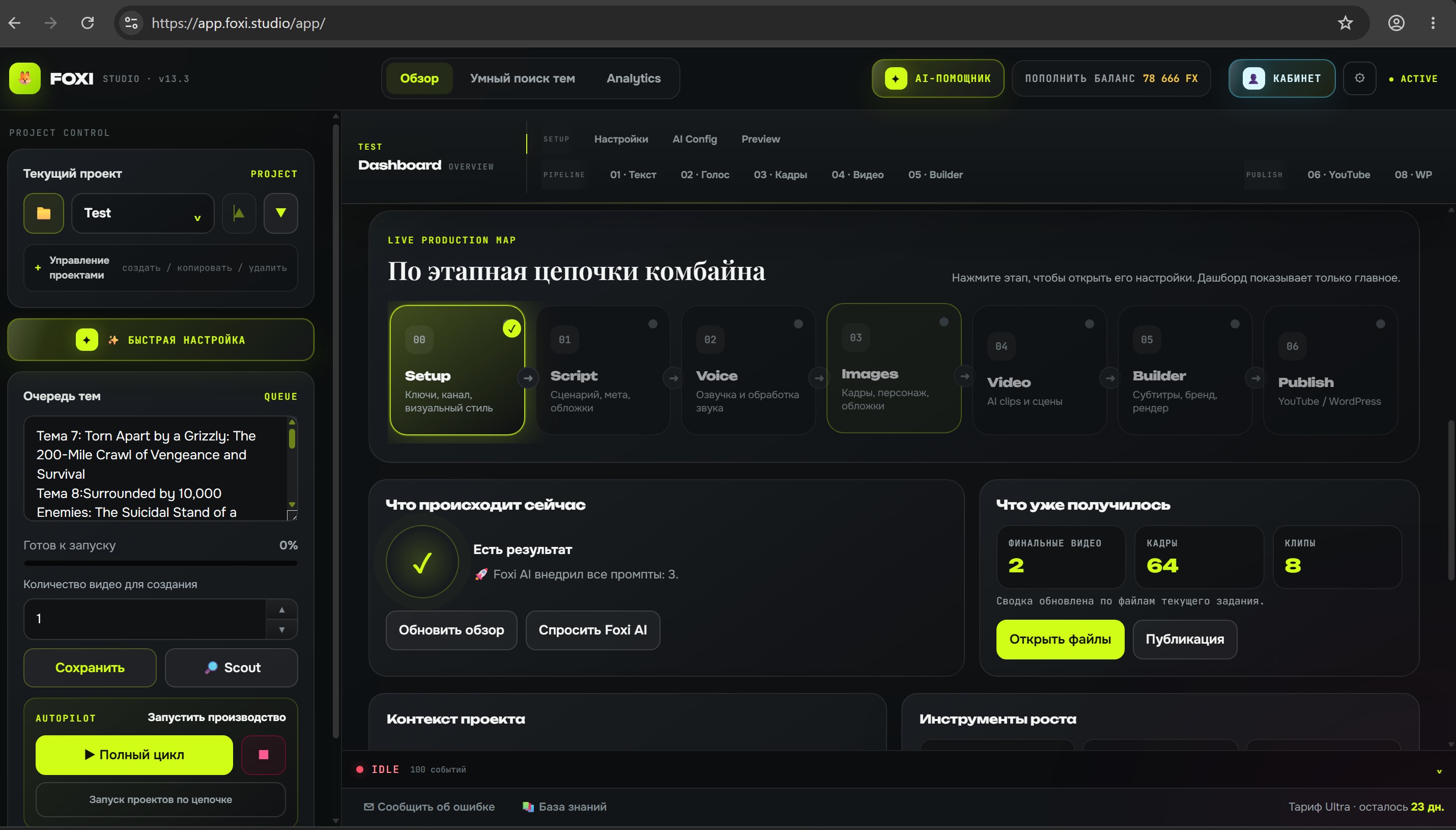
Main interface zones
The main screen has several key zones:
| Zone | Purpose |
|---|---|
| Left panel | Projects, topic queue, Quick Setup, full cycle launch |
| Top panel | Main sections, FX balance, account, AI assistant, documentation |
| Central area | Dashboard, module settings, results, and working tabs |
| Bottom log | Server messages, errors, cloud task progress |
| Dialogs | Balance, project files, prompt history, AI assistant, reports |
You do not need to learn everything at once. For the first launch, understand the left panel, topic queue, full cycle button, and log.
Left panel: projects and queue
The left panel is where most work starts.
It contains:
- current project selector;
- project create, copy, and delete controls;
- “✨ Quick Setup” button;
- topic queue for future videos;
- number of videos to create;
- full cycle button;
- manual buttons for individual stages;
- access to project files and results.
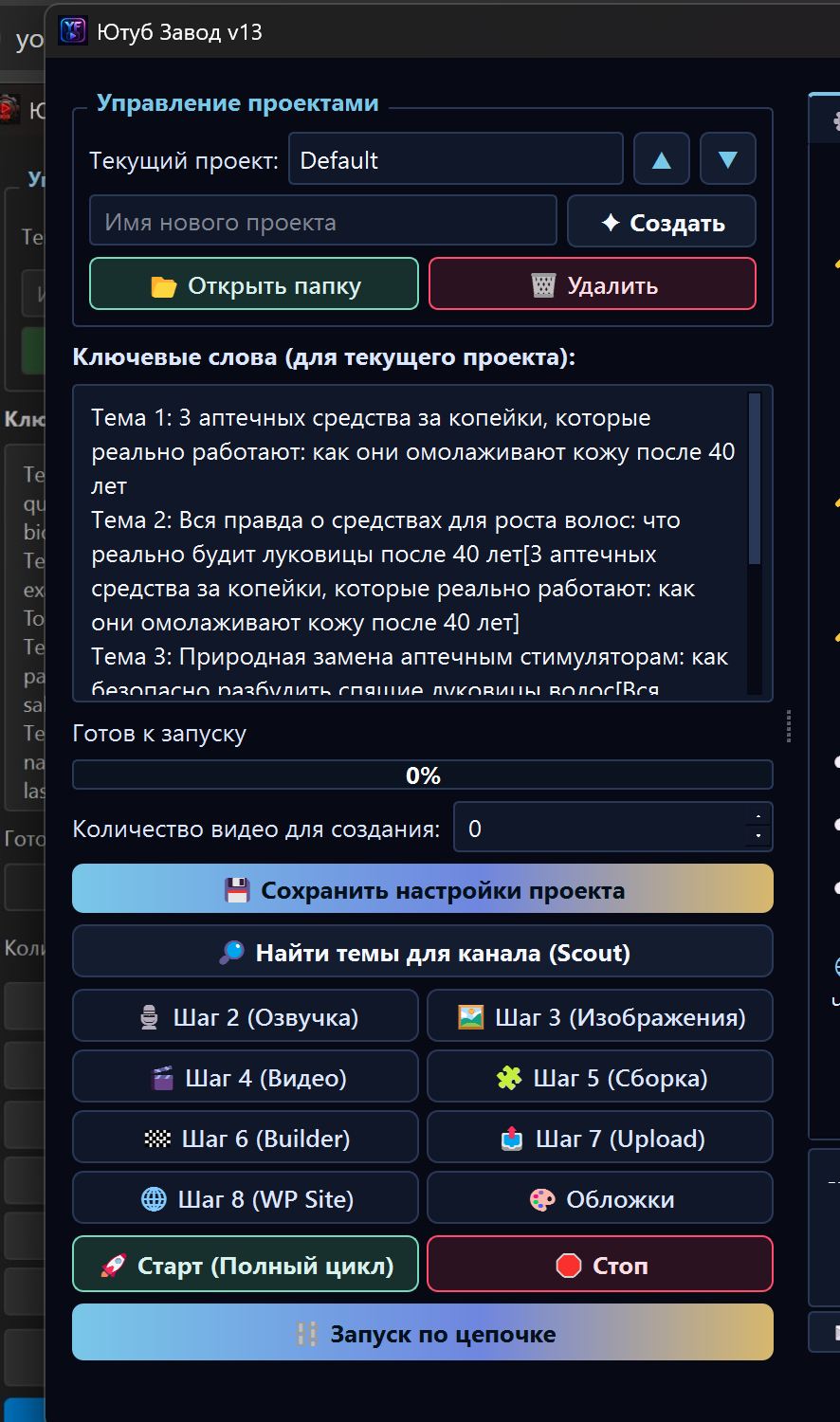
What a project is
One project usually means one YouTube channel, niche, or production style.
Examples:
History_US— English history channel for the USA;Health_50plus— health channel for a 50+ audience;Space_Shorts— short videos about space;Finance_DE— finance channel for Germany.
Each project has its own settings: language, country, voice, prompts, image style, character, YouTube API keys, publishing, files, and cost history.
If you create a new project in a similar niche, it is often easier to copy an existing project and change only the differences.
Topic queue
The topic queue is the list of future videos. Each line is a separate topic or title.
Example:
The Lost City Under the Ocean
The Empire That Vanished Overnight
Why Ancient Maps Still Confuse Scientists
FOXI takes topics from top to bottom. If you launch one video, it usually uses the first topic. If you launch several videos, FOXI takes several lines sequentially.
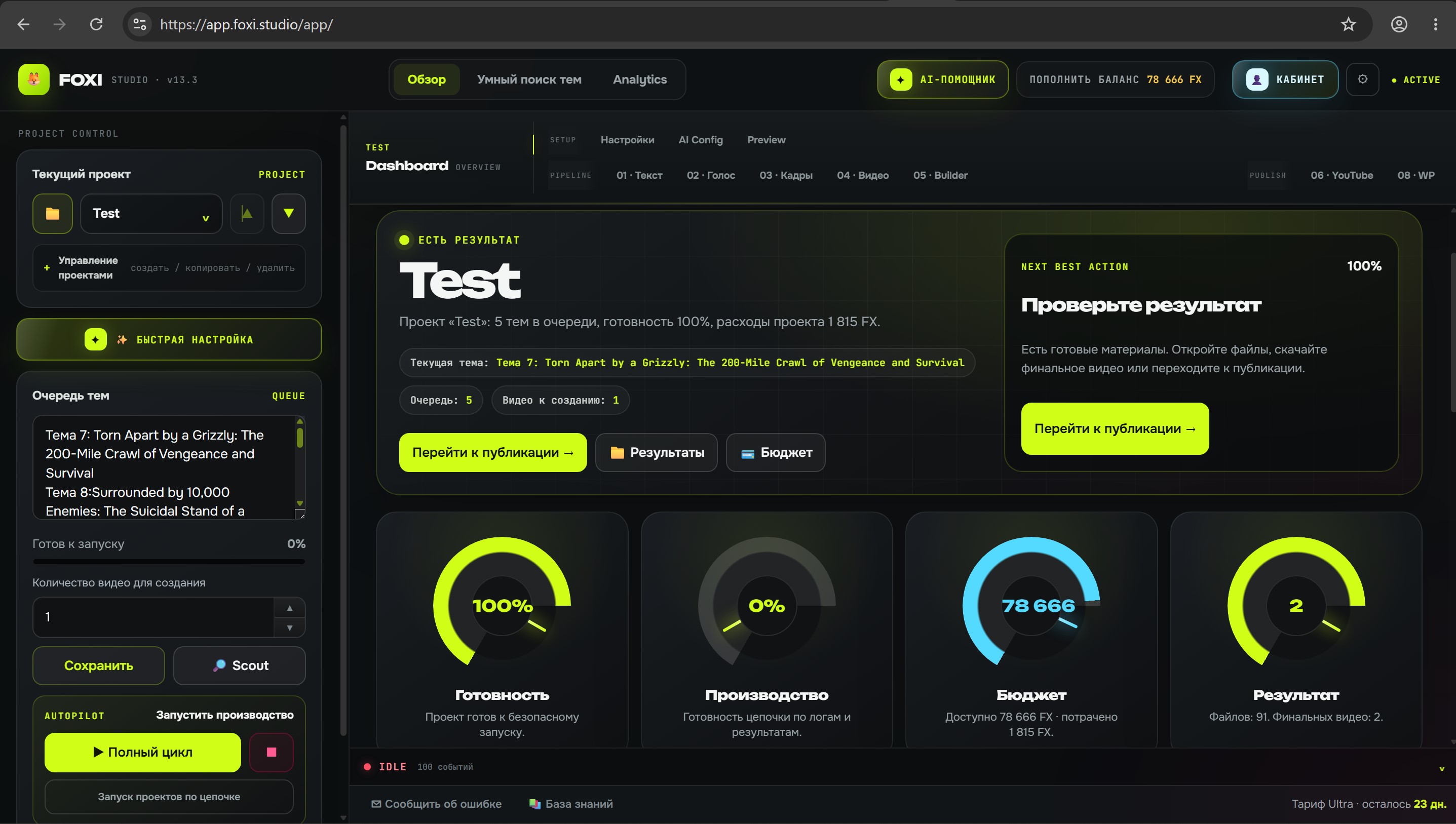
How to write topics
A good topic should be clear and specific enough.
Bad example:
History
Good example:
The Medieval City That Disappeared After One Winter
If topics were discovered by Scout, they may already be adapted to your niche and audience. Still, before launch, check that the queue has no duplicates, random lines, or unsuitable topics.
Dashboard: quick project overview
The Dashboard shows project status without forcing you to open every tab.
It can show:
- selected project;
- readiness of main blocks;
- active tasks;
- latest results;
- quick actions;
- launch hints;
- links to files and materials.
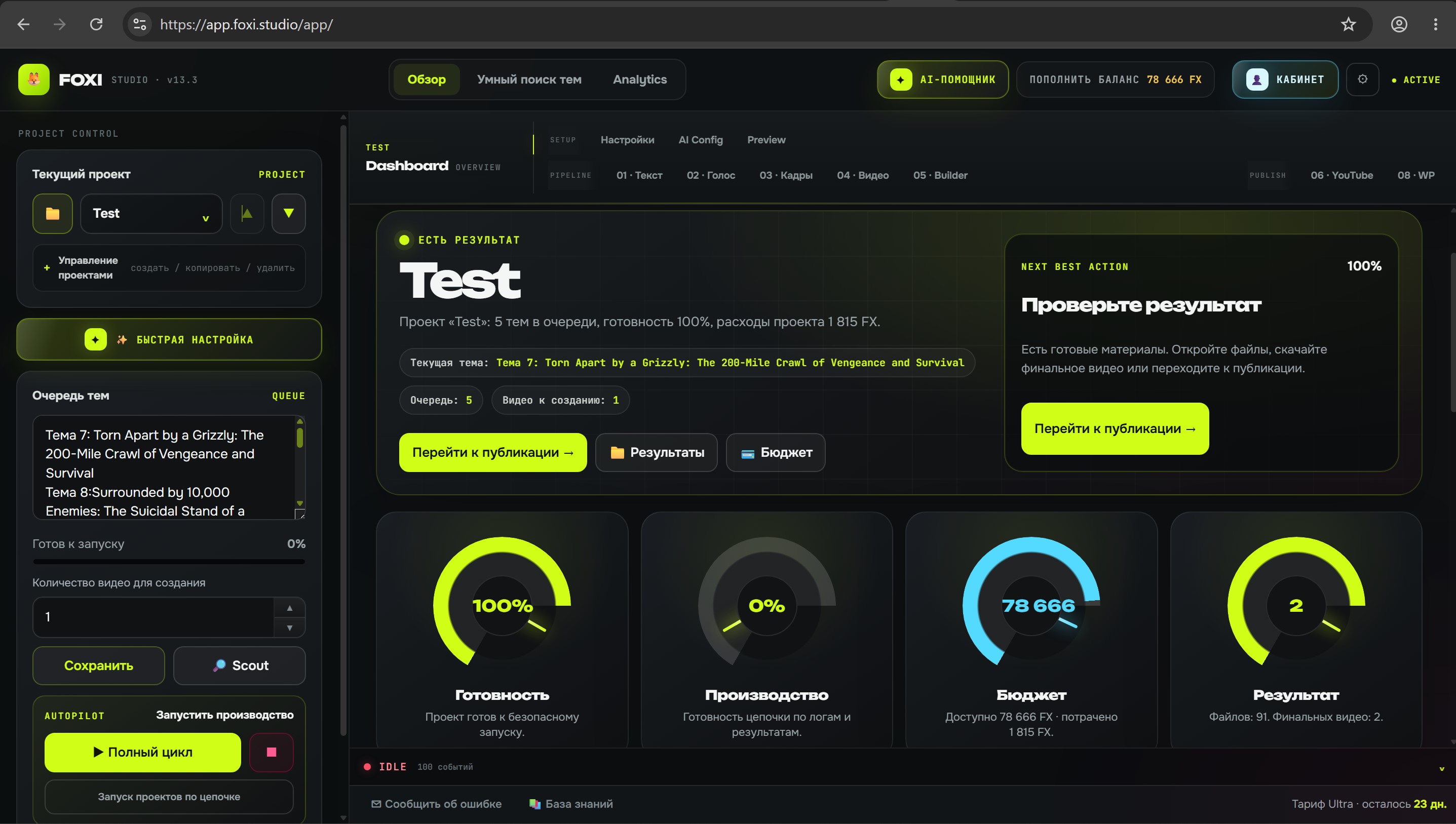
The Dashboard is especially useful after Quick Setup: it helps you see whether the project is ready for the first test and whether any important step was missed.
Top panel
The top panel helps you quickly switch between main sections.
It usually contains:
- overview/Dashboard;
- Scout and analytics;
- production tabs;
- FX balance;
- user account;
- AI assistant;
- documentation link.
If you do not know where to find a setting, use the AI assistant. For example, ask:
Where can I change the subtitle style in my project?
The AI assistant can explain which section to open and what to check.
Full cycle
Full cycle is the main way to produce a video from the current topic.
The usual chain looks like this:
Topic → text → voiceover → images → video clips → Builder/render → publishing or final file
The actual stages depend on project settings. For example, if YouTube publishing is disabled, FOXI will prepare the video but will not publish it to the channel.
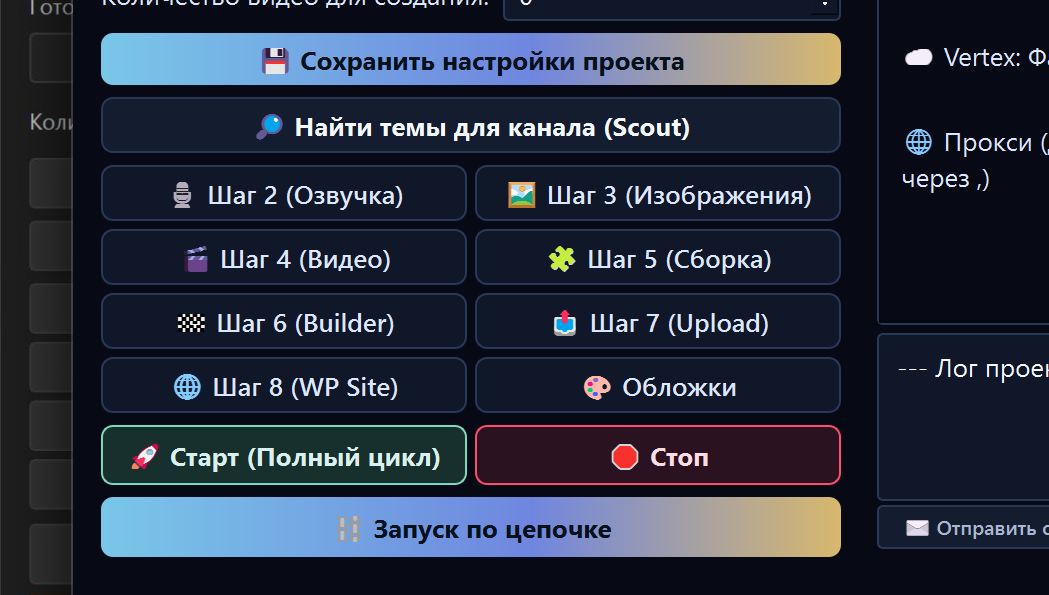
Before launching full cycle, check
- the correct project is selected;
- the queue contains a topic;
- FX balance is sufficient;
- a voice is selected;
- YouTube API key is added if Scout is needed;
- visual style does not contain random files;
- publishing is enabled only if you really want to upload the video.
For the first test, it is better to launch a short video and avoid unnecessary advanced features.
Number of videos to create
The video count field tells FOXI how many topics to take from the queue for one launch.
Examples:
| Value | What happens |
|---|---|
1 | FOXI creates one video from the first topic |
2 | FOXI creates two videos from the first two topics |
5 | FOXI tries to create five videos in a row if balance and limits allow it |
Do not set a large number for the first test. If settings are not checked yet, the same mistake may repeat across several videos and spend extra FX.
Manual stages
Manual stages are used for testing and regenerating specific parts.
For example:
- the script is good, but images are weak — run only the image stage;
- the voice sounds wrong — check the voiceover stage;
- the video is assembled, but the final file must be rebuilt — run Builder;
- publishing is not needed — do not run the upload stage.
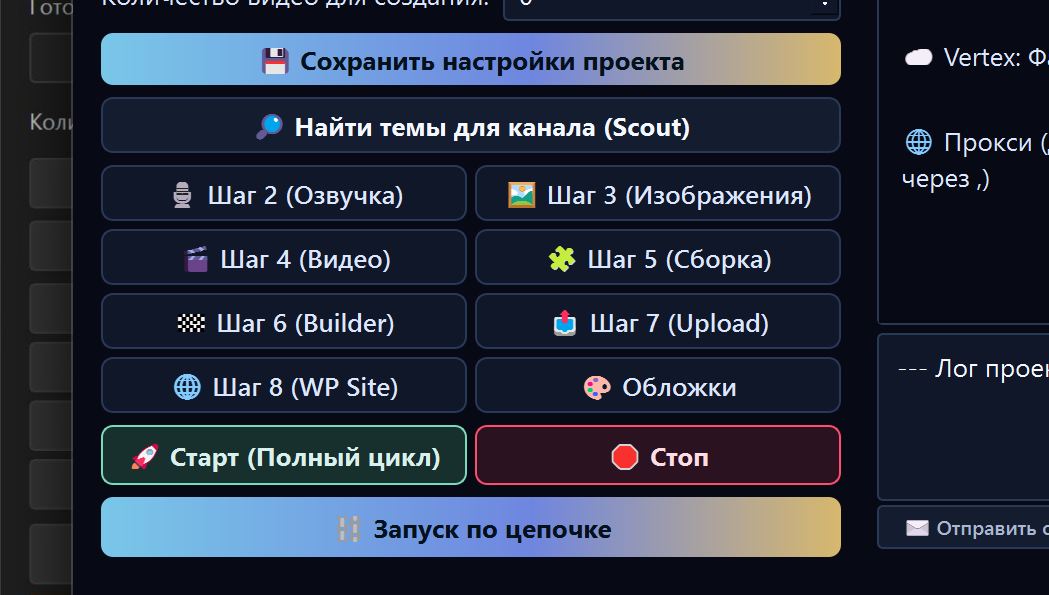
Manual buttons are most useful after the first full cycle, when you already know which stage needs improvement.
Launching several projects
If you run multiple channels, FOXI can work through several projects sequentially. This is useful when you prepare content for different niches.
Example:
| Project | Number of videos |
|---|---|
History_US | 2 |
Health_50plus | 1 |
Space_Shorts | 3 |
FOXI will switch between projects and launch tasks one by one. Before doing this, check every project separately: voice, balance, topics, prompts, files, and publishing.
For beginners, it is safer to get a stable result in one project first and only then launch several projects.
Event log
The bottom log shows what the server is doing.
You can see:
- task start;
- settings saved;
- competitor analysis launch;
- prompt generation;
- Scout launch;
- progress of separate stages;
- errors and warnings;
- messages about ready files.

If something goes wrong, do not close the log immediately. Copy the latest lines or open the AI assistant and ask it to explain the error.
Example request:
Review the latest log messages and explain why the task stopped.
Project files and results
Finished materials are opened through results, completed project cards, or the “Project Files” window.
They may include:
- final videos;
- thumbnails;
- images;
- voiceover;
- subtitles;
- intermediate files;
- uploaded project assets.
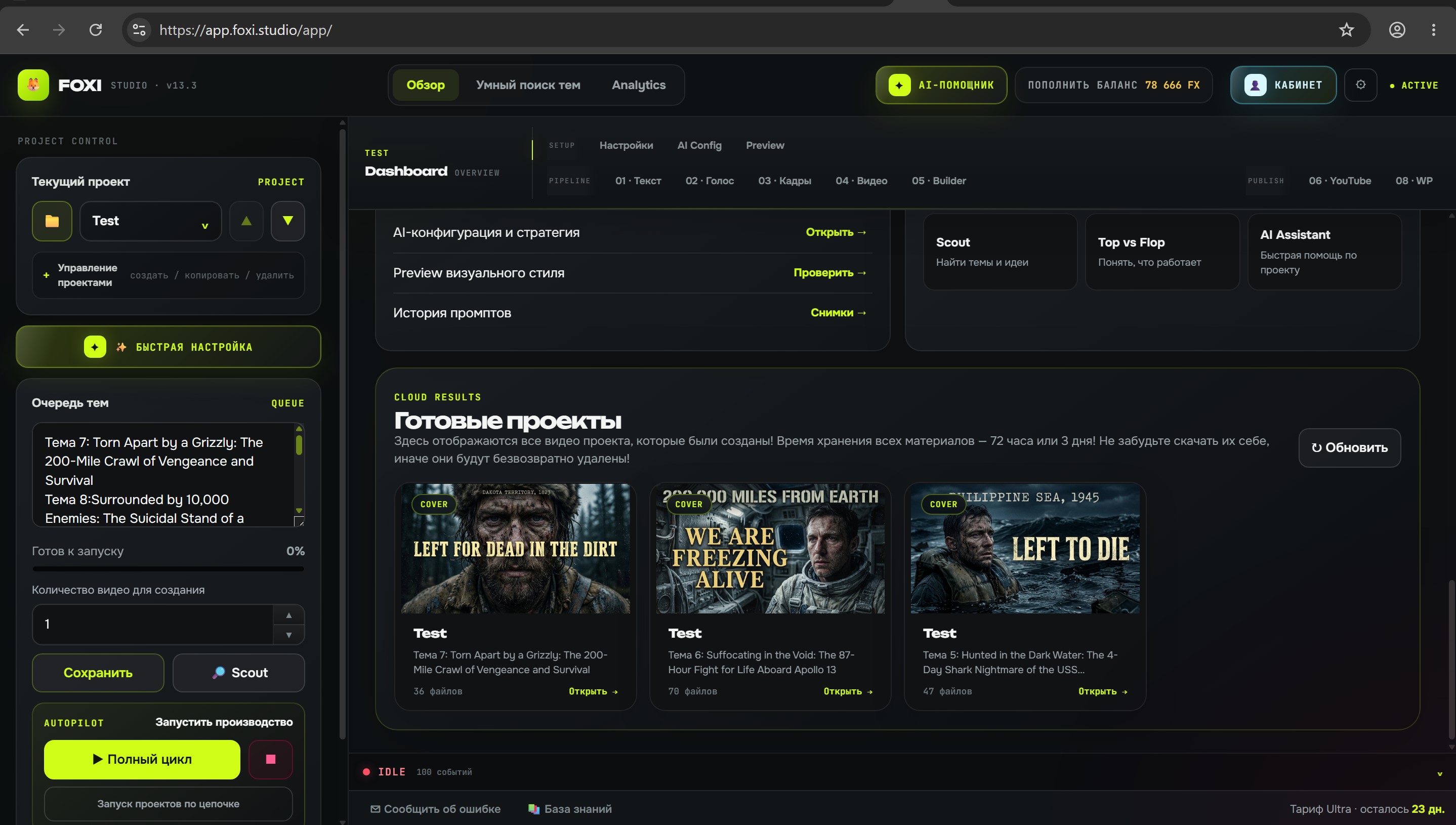
After generation finishes, download important final materials if you need them locally. FOXI stores files in the project cloud storage, but saving final videos on your side helps avoid confusion.
FX balance on the main screen
FX balance shows how much is available for AI operations and cloud tasks. If some amount is temporarily held, a task has already been launched or is waiting for execution.
Before launching several videos, check:
- available balance;
- held amount;
- latest costs;
- which projects spent the most.
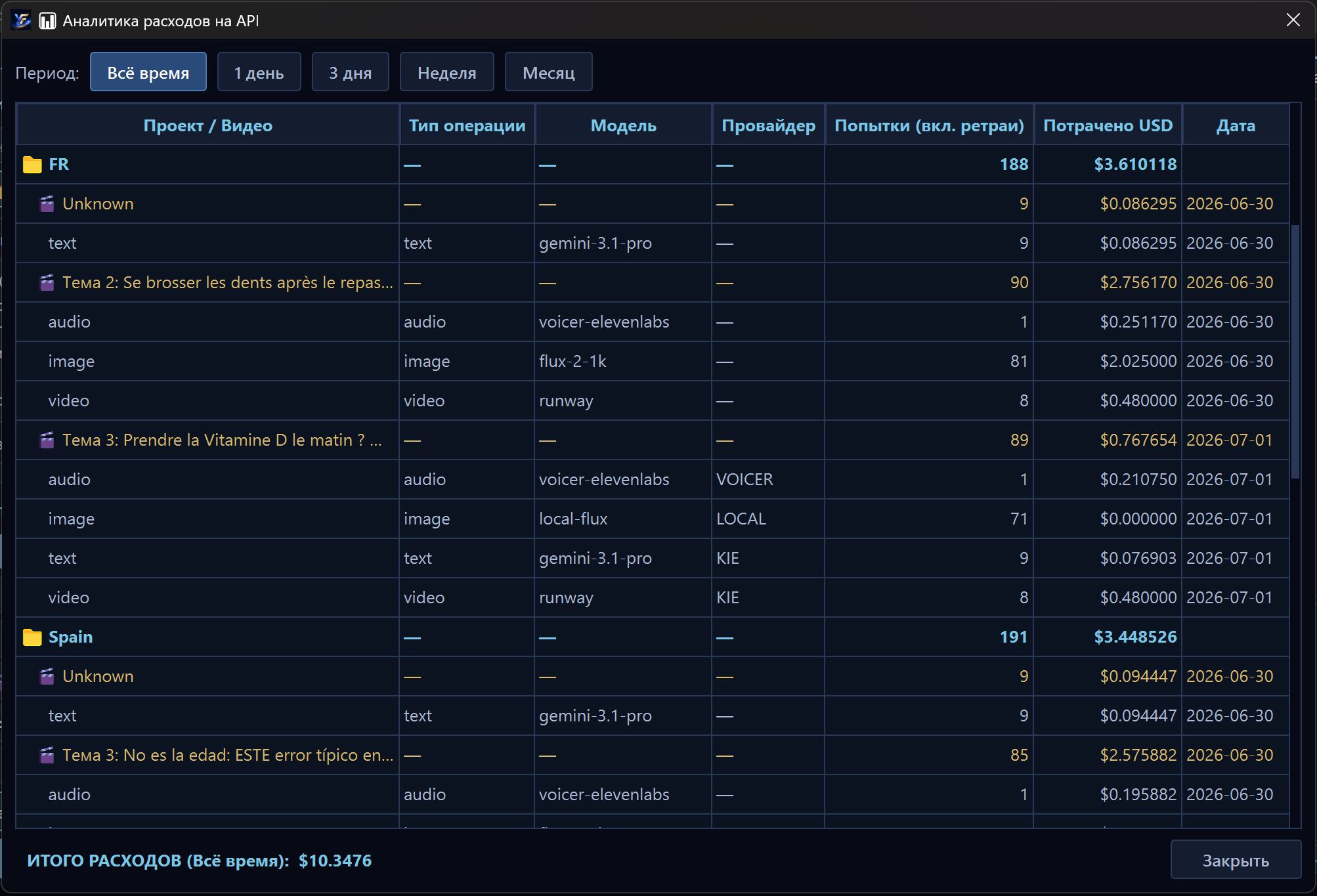
If a video became more expensive than usual, open cost history and ask the AI assistant to explain which stage was most expensive.
Common mistakes
| Mistake | Why it is bad | Better approach |
|---|---|---|
| Launching full cycle without a topic | FOXI does not know what to create | Add a topic to the queue first |
| Selecting the wrong project | The video is created with wrong settings | Check current project before launch |
| Setting many videos for the first test | The same mistake may repeat several times | Start with one short video |
| Ignoring the log | The error remains unclear | Read the latest lines or ask the AI assistant |
| Enabling publishing accidentally | Video may go to the channel before review | Test without publishing first |
| Changing settings during an active task | It becomes unclear which settings were applied | Wait until the task finishes |
What to ask the AI assistant
Useful requests:
- “Check whether my project is ready for the first launch.”
- “Why does full cycle not start?”
- “Which topic will be taken from the queue now?”
- “Review the log and explain the error in simple words.”
- “Can I launch several videos in this project now?”
- “Which stage should I regenerate if I do not like the result?”
Where to go next
After learning the main screen, continue to the AI configurator and core modules. For a safe start, use this order: Quick Setup, check the topic queue, run one short full cycle, review the result, then improve individual stages.