Project Files and Storage
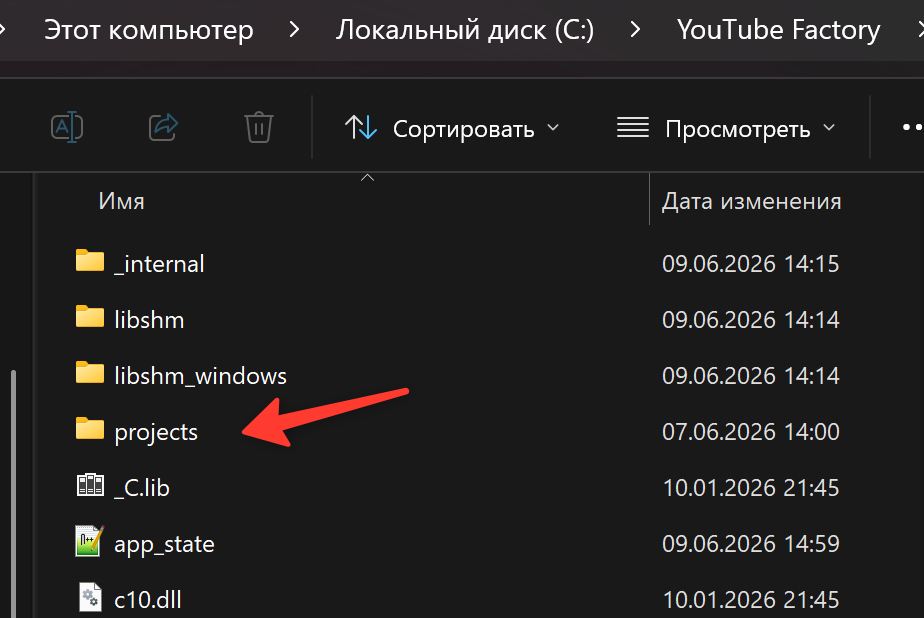
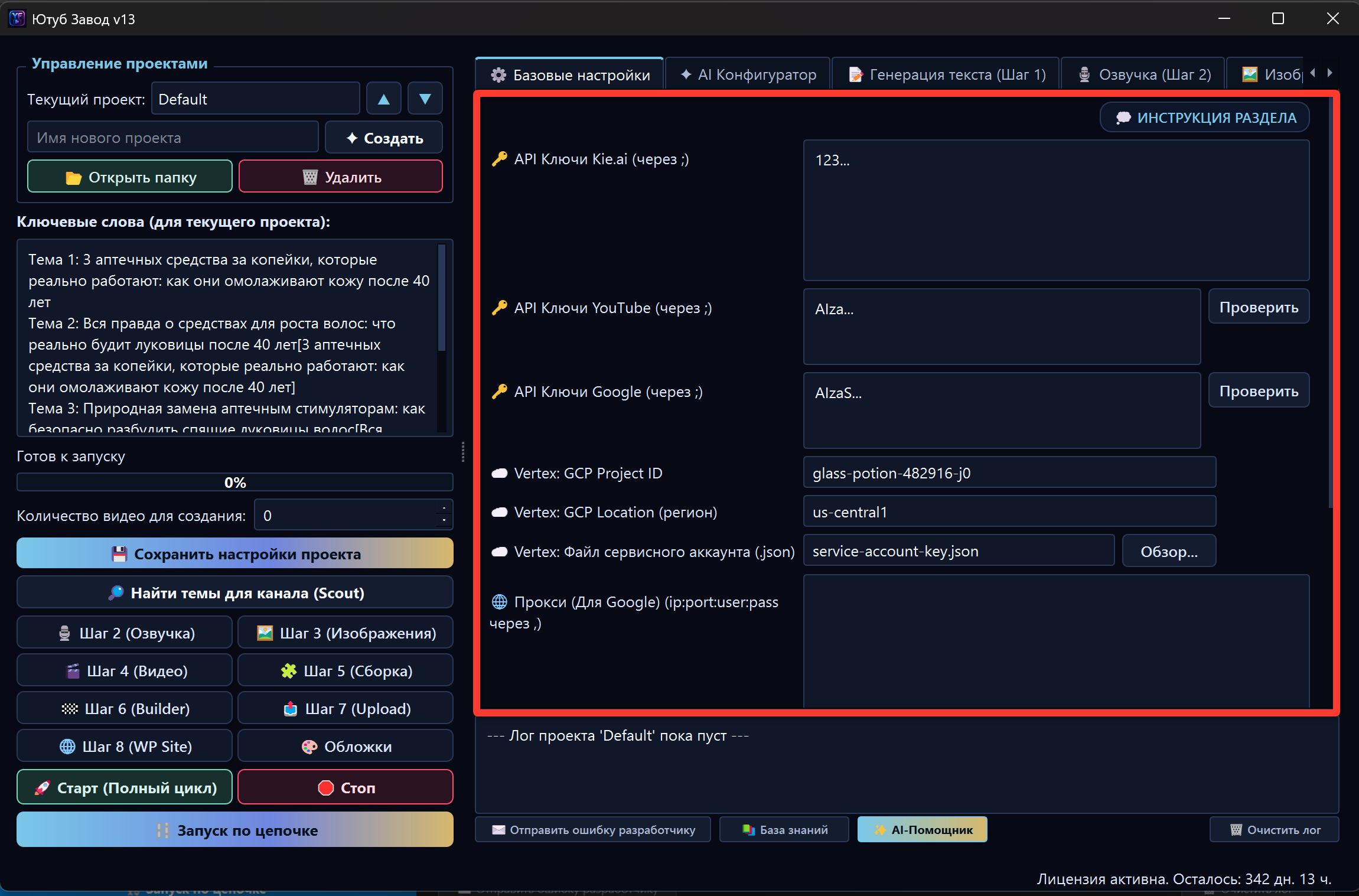
In the FOXI Studio cloud/web version, users do not search for results in local folders on their computer. Project materials are stored in the cloud and opened through the FOXI interface: Project Files, result cards, Dashboard, and completed projects.
You do not need to know any server disk path. Select the correct project in the browser and open its files directly from the interface.
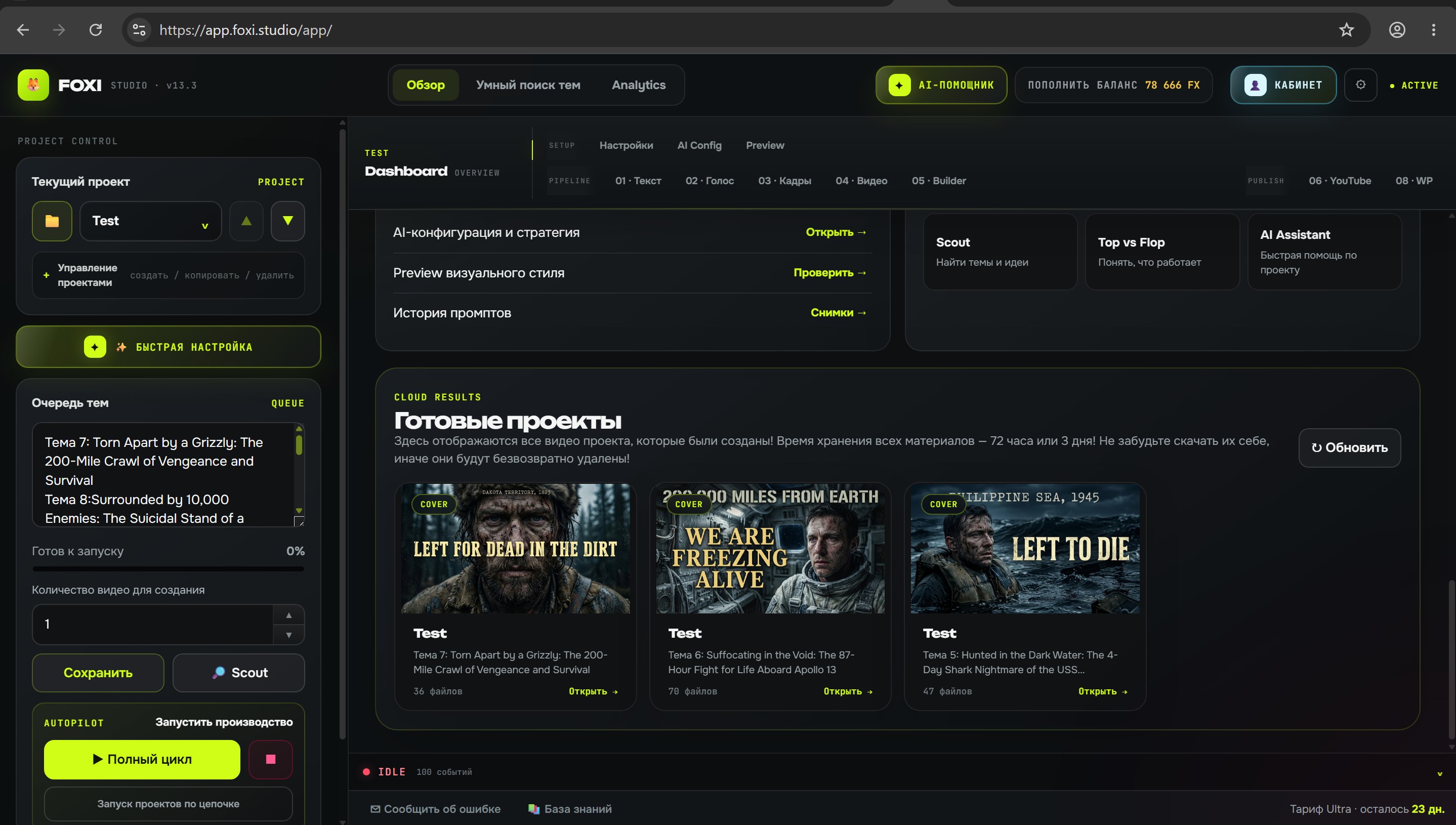
Where to open project files
Files of the current project can be opened from several places:
- Project Files button;
- finished result cards;
- Dashboard;
- completed projects block;
- hints after successful generation.
Usually you first select the project on the left, then open files for that project. If the wrong project is selected, you will see materials from another channel or niche.
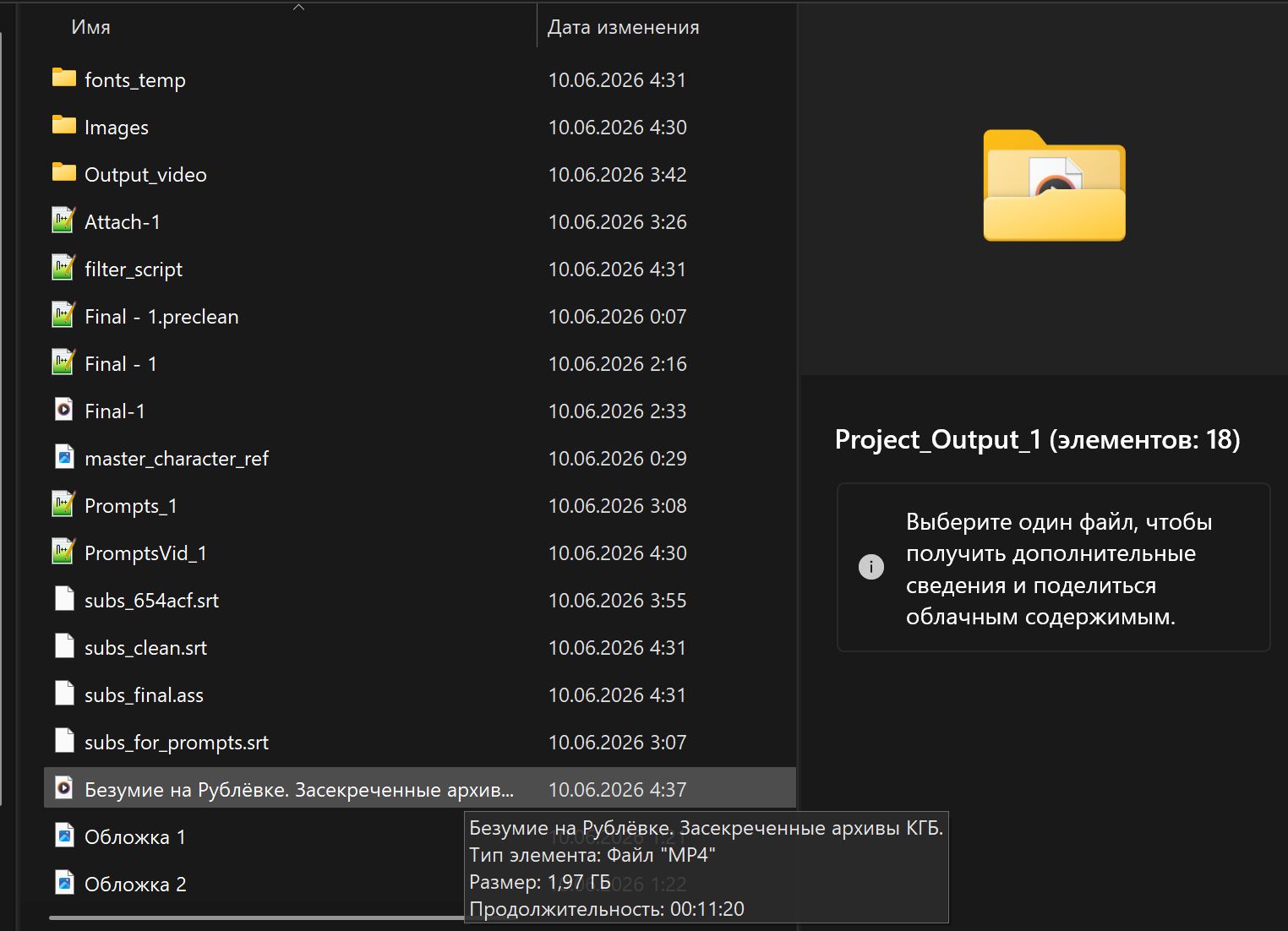
Which files a project may contain
Depending on the stages you ran, a project may contain different materials.
| File type | Meaning |
|---|---|
| Final videos | Completed videos after Builder/render |
| Thumbnails | Generated thumbnails for YouTube |
| Frame images | Images for the video sequence |
| Video clips | Separate clips if video generation is used |
| Voiceover | Audio tracks or intermediate voice files |
| Scripts | Video text, drafts, final versions |
| Metadata | Titles, descriptions, tags, publishing hints |
| Subtitles | Subtitle files or subtitle data if generated |
| User assets | Avatar, music, fonts, overlays, background images |
| Reports | Scout, competitor analysis, Top vs Flop, and other results |
Final videos
The final video is the main result of the full cycle. It usually appears after Builder/render.
Before publishing or downloading, check that the topic is correct, voiceover is present, subtitles match, there are no random frames, overlays or avatar are not cropped, duration is acceptable, and publishing is enabled only when intended.
For the first test, download the final file and watch it fully before enabling automatic publishing.
Thumbnails and images
Thumbnails and images help you quickly understand whether the visual style matches expectations.
If images are bad, you do not always need to rerun the full cycle. Often it is enough to regenerate the image stage or ask the AI Assistant to adjust visual style.
Example AI Assistant request:
The images look too cartoonish. Make the visual style more realistic and cinematic, but do not change the script.
Texts, metadata, and prompts
The project may store text results: script, outline, titles, descriptions, tags, image prompts, thumbnail ideas, and analysis reports.
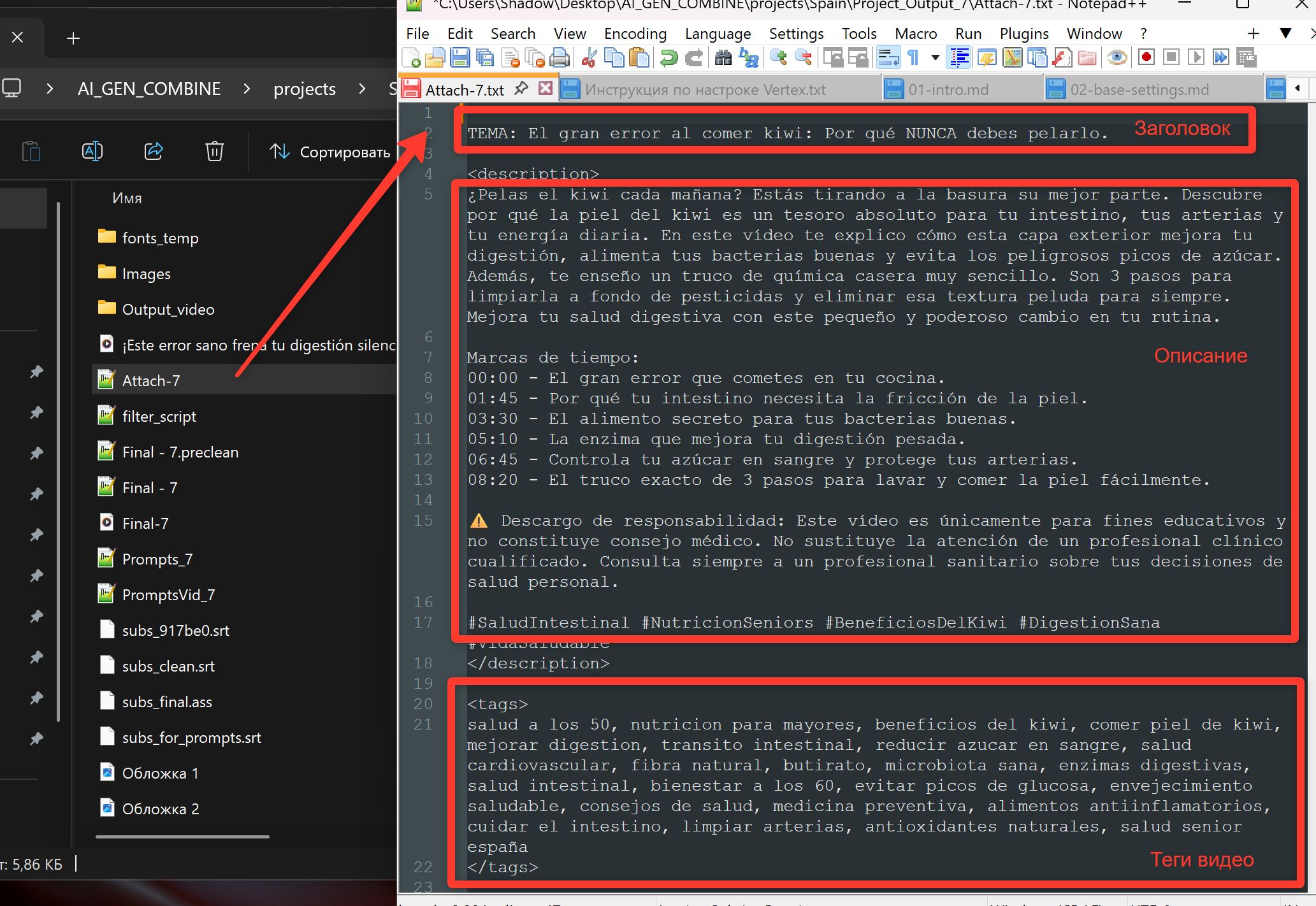
These files are useful when you want to manually check what FOXI prepared for the video and YouTube.
Project assets
Assets are files uploaded by the user into the project: avatar.mp4, character photo, top and bottom overlay, avatar background, music, fonts, and brand images.
If an asset is uploaded incorrectly, the result may look bad. Before a large launch, test assets on one short video.
What you can do in the file window
In the project file window, you can usually open a file, download a file, preview an image or video, open a text material, check result lists, see what was created by a specific stage, and understand whether a task is fully finished.
Some actions depend on plan, task status, and file type.
Important rule: download final materials
FOXI stores project materials in the cloud, but users should still download important final results if they need long-term storage, reporting, or manual publishing.
Always download the final video, selected thumbnail, important source files, reusable materials, and files needed by a client or team.
Do not treat cloud storage as the only permanent archive. Saving final videos locally helps avoid confusion.
If a file did not appear
A file may not appear immediately because the task is still running, the stage was not enabled, FX balance was too low, plan limitations blocked the action, a model returned an error, the file is still uploading to cloud storage, another project is selected, or generation was stopped manually.
What to do:
- Check the bottom event log.
- Make sure the correct project is selected.
- Check FX balance.
- Wait if the task is still active.
- If it is unclear, open the AI Assistant and ask:
The final video did not appear in project files. Review the log and explain which stage stopped.
How not to get confused with several projects
If you run several channels, it is easy to open files from the wrong project. Before downloading, check current project name, video topic, generation date, video language, channel or niche name, and latest log messages.
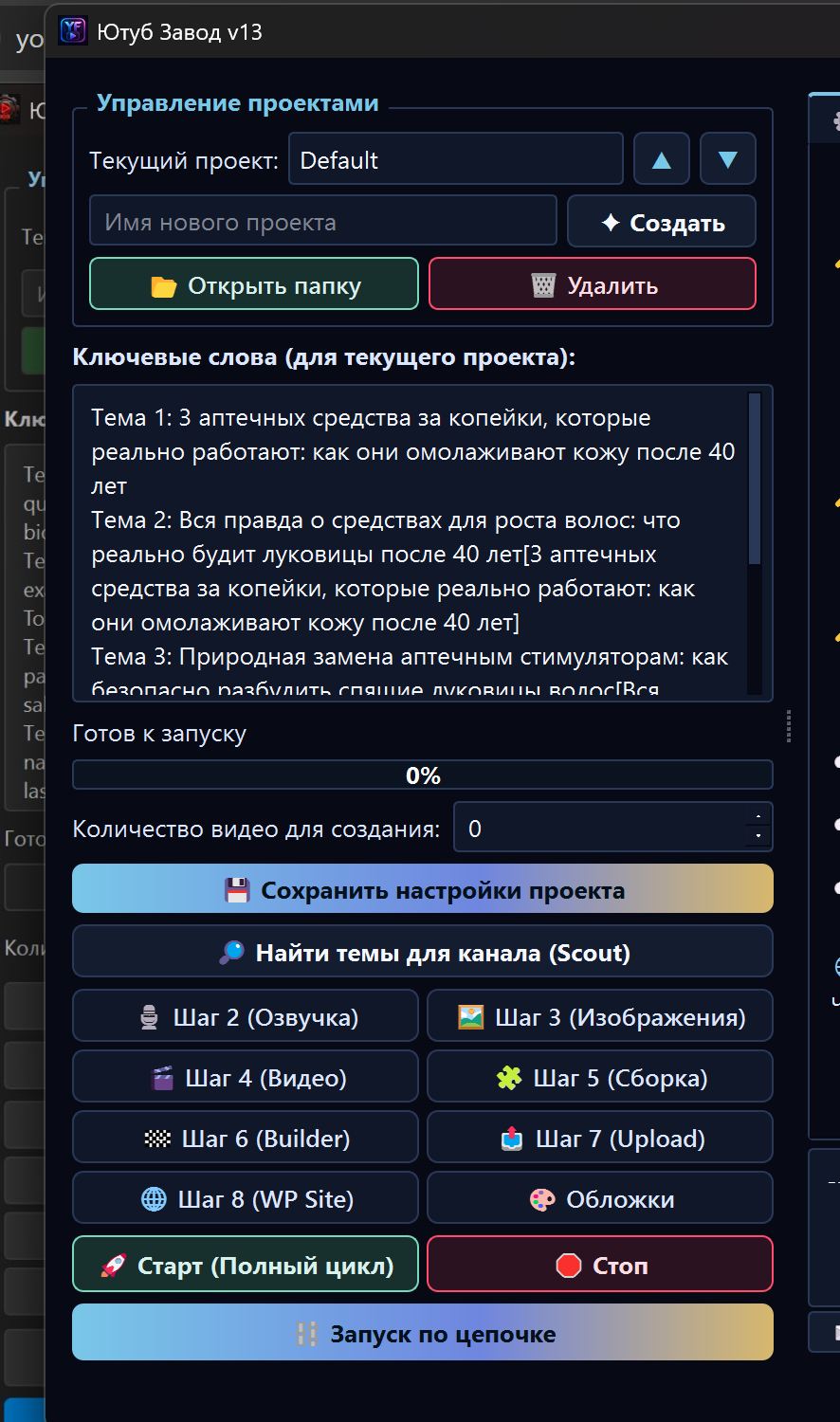
Use clear project names for different channels: History_US, Health_ES, Space_Shorts, Finance_DE.
Common mistakes
| Mistake | Why it is bad | Better approach |
|---|---|---|
| Searching for files on your computer | FOXI works in the cloud; there may be no local result folder | Open files through the project interface |
| Not downloading the final video | It may be harder to find or share later | Download the final after review |
| Opening files from the wrong project | Channels and materials can be mixed up | Check the current project on the left |
| Rerunning full cycle because of one image | Extra FX is spent | Regenerate only the needed stage |
| Ignoring the log when the file list is empty | The reason remains unclear | Read the latest server messages |
What to ask the AI Assistant
Useful requests:
- “Where can I find the final video for the current project?”
- “Why did the thumbnail not appear?”
- “Check the log and tell me whether Builder completed.”
- “Which files should I download after generation?”
- “How can I understand which topic this file belongs to?”
- “Can I regenerate only images without changing the script?”
Where to go next
After understanding project files, continue to the core modules. The next logical step is YouTube Scout: it helps find topics that later enter the queue and become project files after generation.