AI Configurator
The AI Configurator is the FOXI Studio tool that turns a channel idea into a working project structure: strategy, audience, script style, visual rules, retention rules, Scout foundation, and prompts for production stages.
In simple terms: you describe the channel you want to create, add competitors, and FOXI helps build the settings so the project does not start from an empty page.
Why the AI Configurator is needed
Without the AI Configurator, the user would have to manually plan:
- who the target audience is;
- what tone the script should use;
- how the first seconds of the video should work;
- which visuals fit the niche;
- which topics must be avoided;
- which prompts are needed for text, images, thumbnails, and video;
- how your channel differs from competitors;
- which rules Scout should follow when selecting topics.
The AI Configurator does most of this work automatically. It does not replace your decisions as the channel owner, but it gives a strong base that can be improved after first tests.
Where to find it
The AI Configurator is available in the project setup/pro settings area and is connected to Quick Setup.
It is usually launched in two ways:
- Automatically after completing Quick Setup.
- Manually from the AI Configurator section when you want to refresh strategy or prompts.
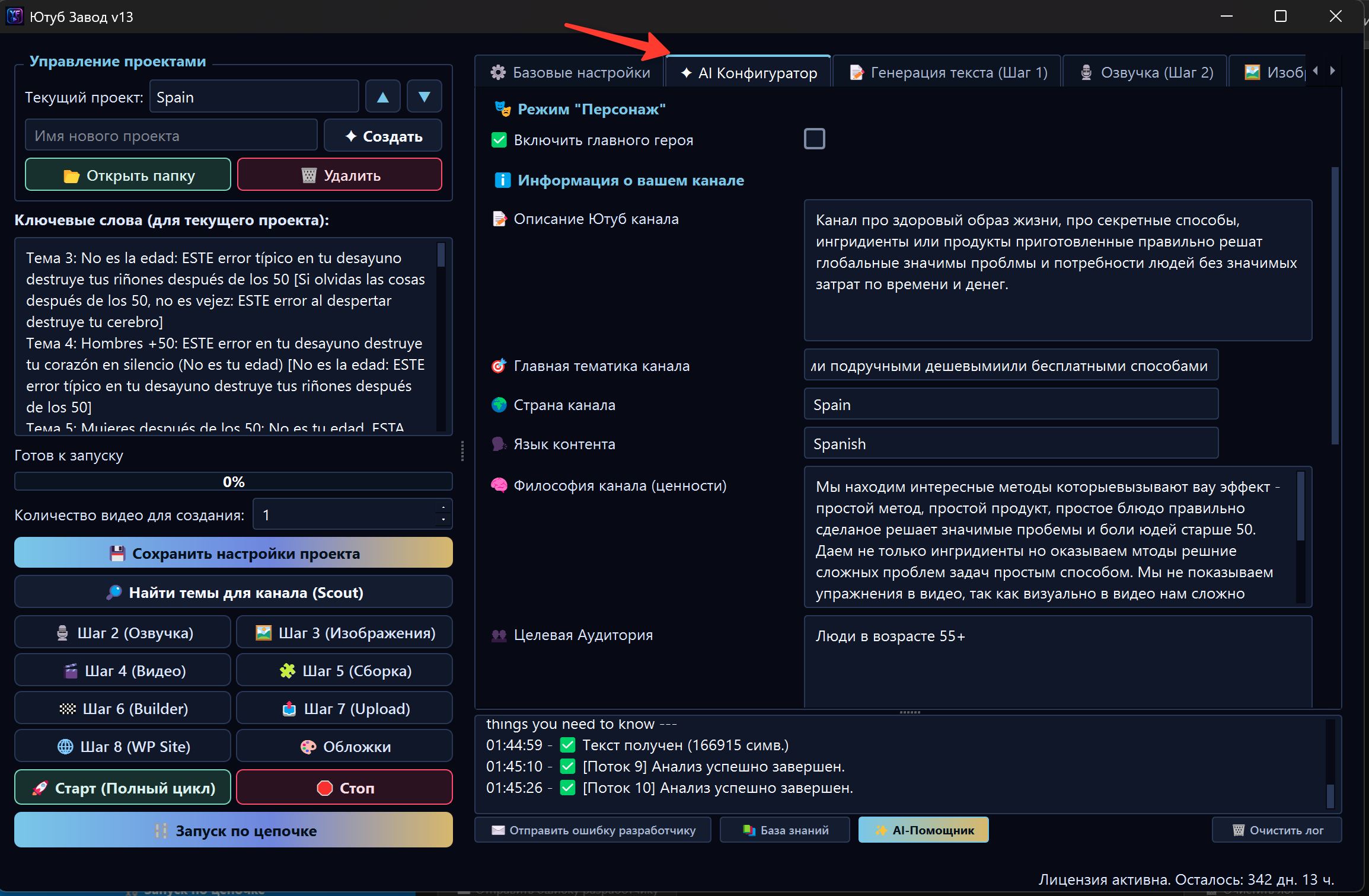
For the first launch, Quick Setup is easier: it passes channel description, language, country, and competitors to the AI Configurator automatically.
What input data is needed
The better the input, the better the result. At minimum, you need:
| Data | Why it matters |
|---|---|
| Channel description | Helps define niche, format, and viewer promise |
| Content language | Affects script, voiceover, subtitles, metadata, and Scout |
| Audience country | Helps account for market and regional interests |
| Competitors | Provide examples of what already works in the niche |
| Character or no character | Affects scripts and visual prompts |
| Visual preferences | Help define image and video style |
Bad description:
Health channel.
Good description:
English-language channel for a US audience aged 50+, about joint and back health. The style is calm expert storytelling without medical promises, simple explanations, practical advice, trustworthy tone, visually clean realistic shots and clear diagrams.
Competitor analysis
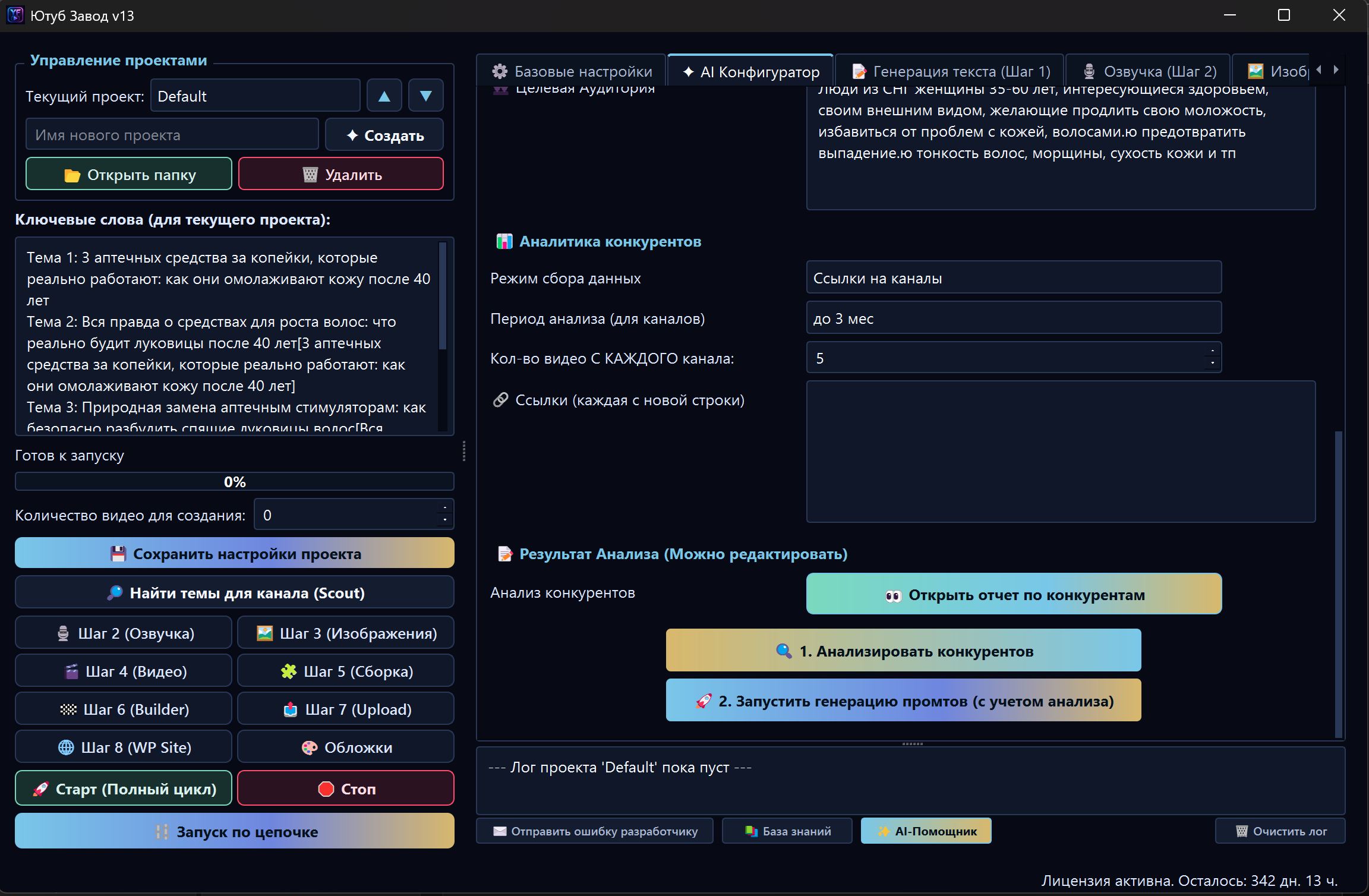
One of the strongest parts of the AI Configurator is competitor analysis. FOXI can use channel or video links to understand which formats already work.
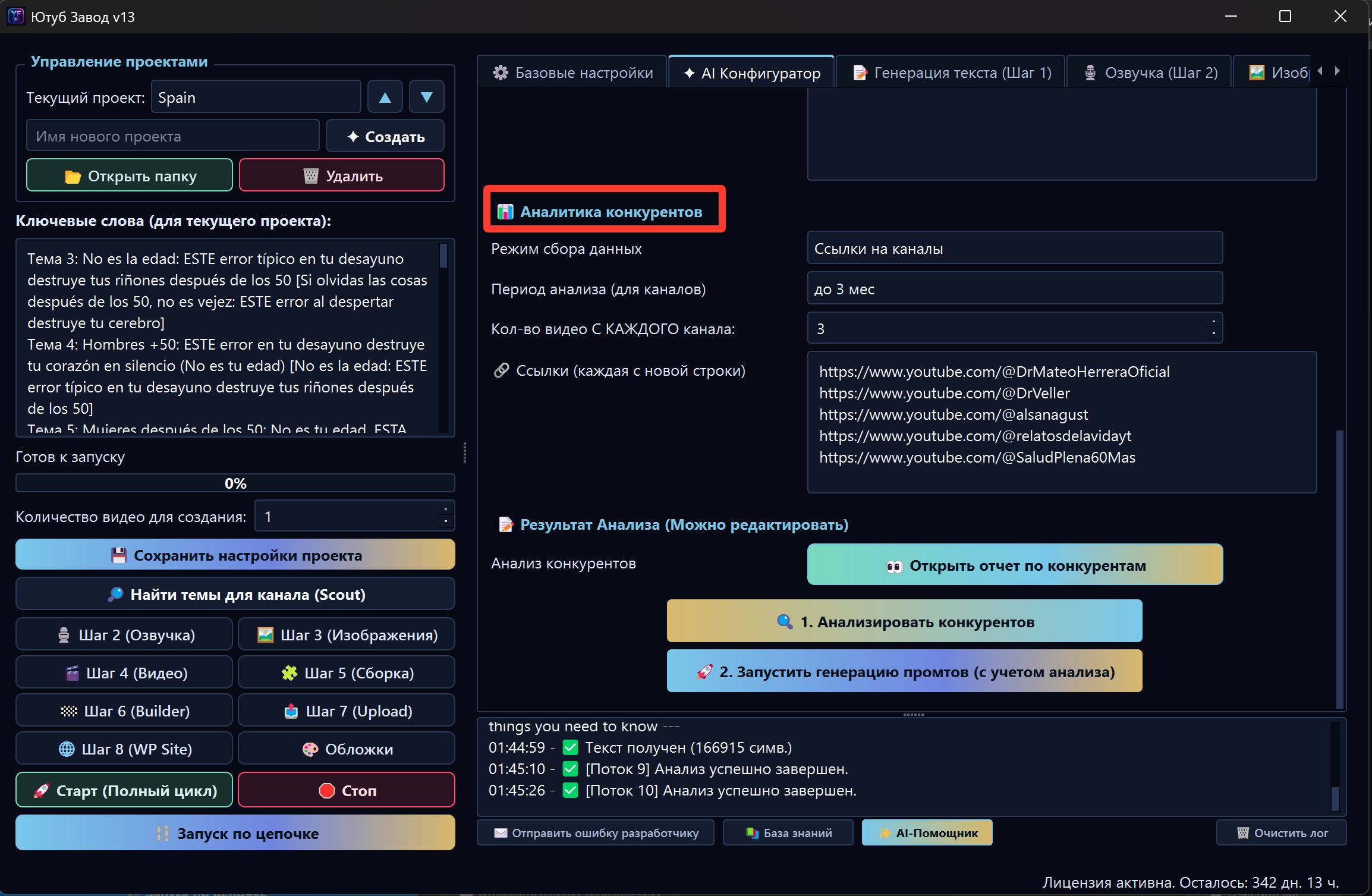
The AI Configurator can extract useful signals:
- how competitors start videos;
- which topics get more views;
- what title style is used;
- which visual decisions repeat;
- how retention is built;
- what promises are made to the viewer;
- which formats should be adapted and which should be avoided.
The goal is not to blindly copy competitors. The goal is to understand niche patterns and build your own working style.
Video links or channel links
Depending on the interface and current task, two approaches can be used.
| Approach | When to use it |
|---|---|
| Channel links | When you want to understand competitor style and find popular topics |
| Specific video links | When you have several strong videos that should be analyzed more deeply |
For the first project, channel links are usually easier. If you already found specific viral videos, use video links.
What the AI Configurator creates
After launch, FOXI may create:
- strategic project brief;
- audience description;
- channel promise for the viewer;
- tone and delivery rules;
- script structure;
- hook and retention rules;
- visual bible;
- character rules;
- topic restrictions;
- recommendations for Scout;
- prompts for the text stage;
- prompts for images and thumbnails;
- rules for video and Builder.
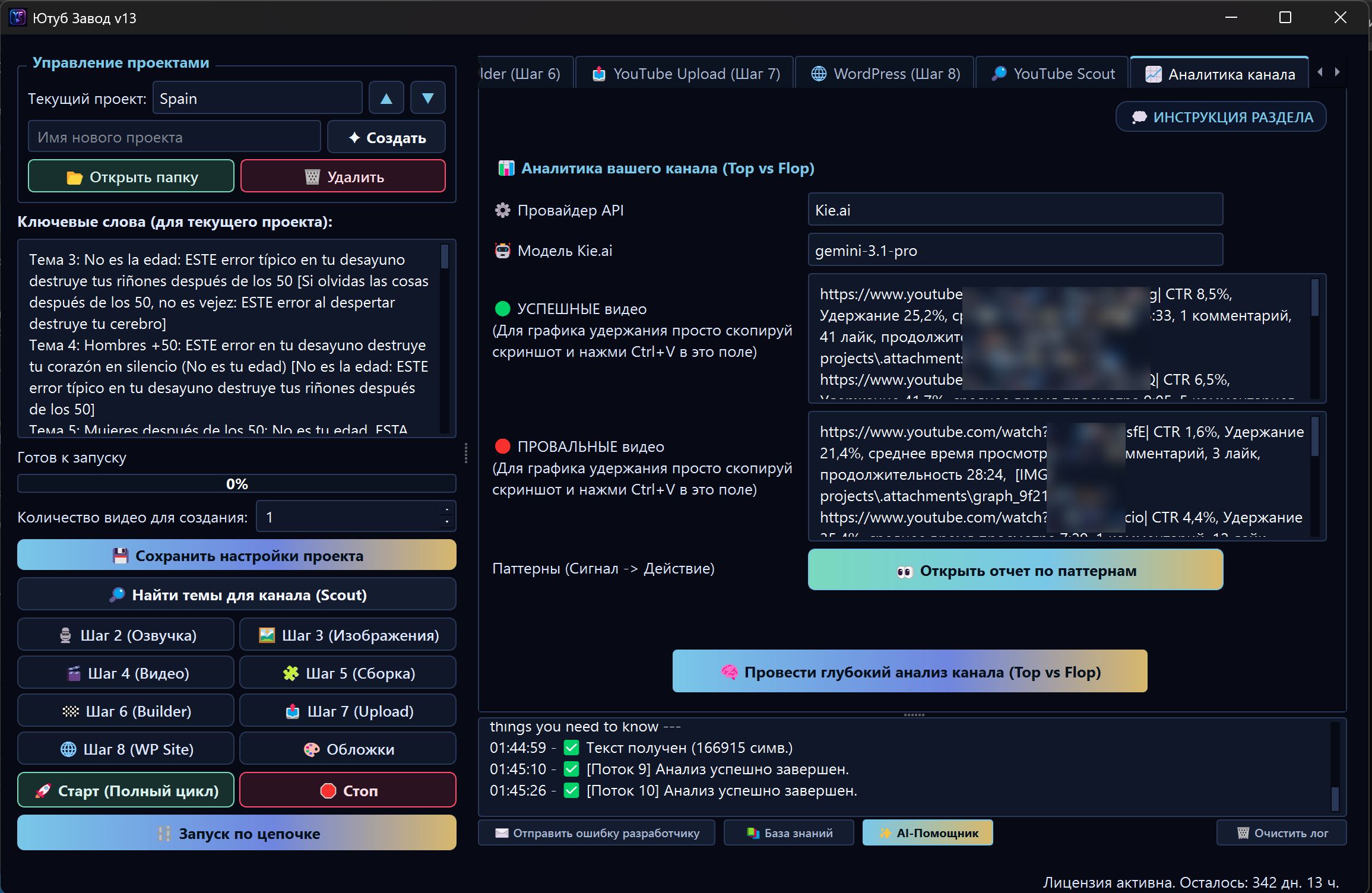
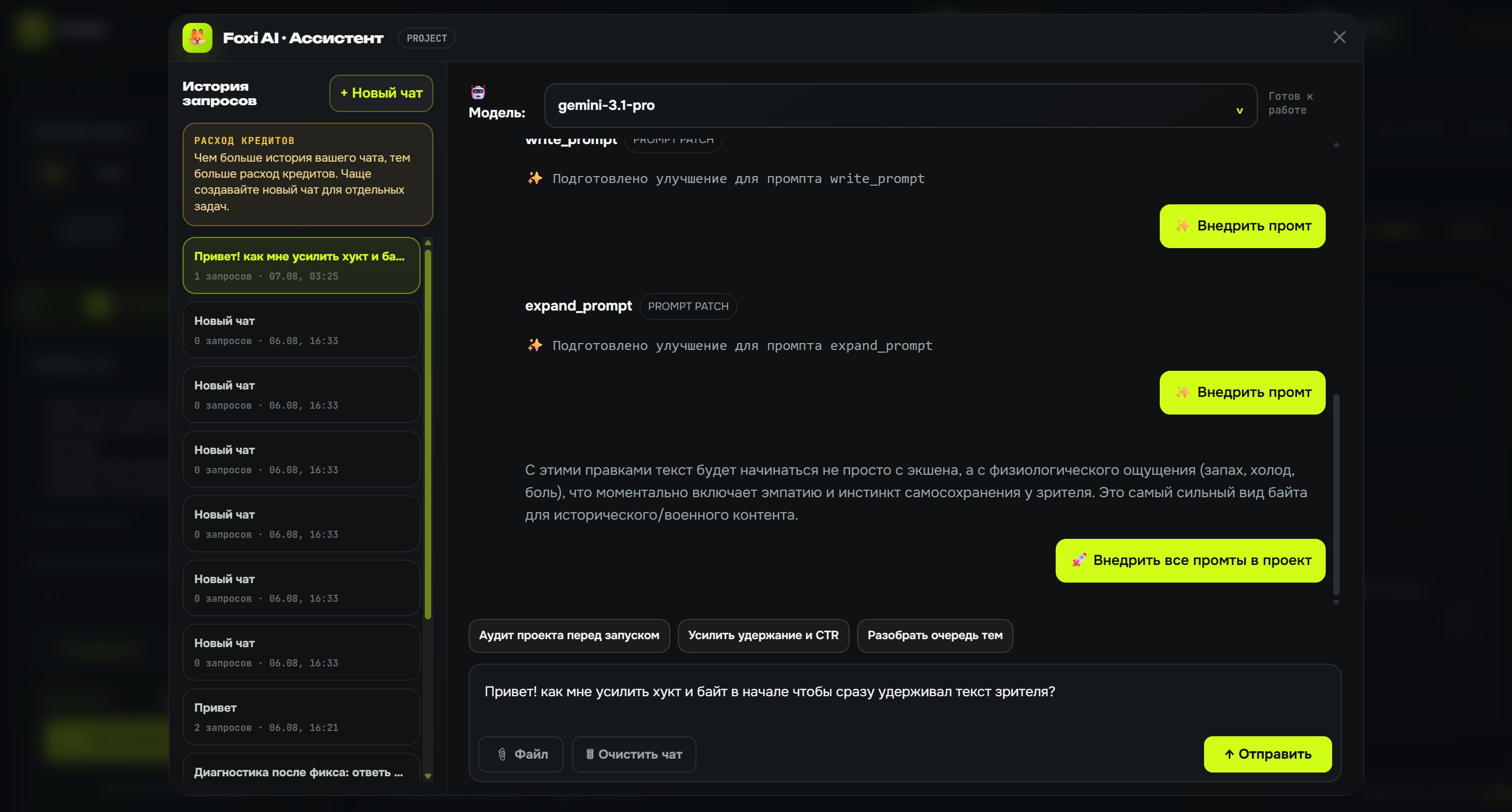
How it relates to prompts
Prompts are instructions used by AI to create scripts, images, thumbnails, video hints, and other materials.
In the FOXI cloud/web version, regular users do not need to manually edit dozens of prompts in complex technical fields. Most prompt work is done through:
- AI Configurator;
- AI Assistant;
- Prompt History on the 01 · Text tab;
- safe buttons for applying suggested changes.
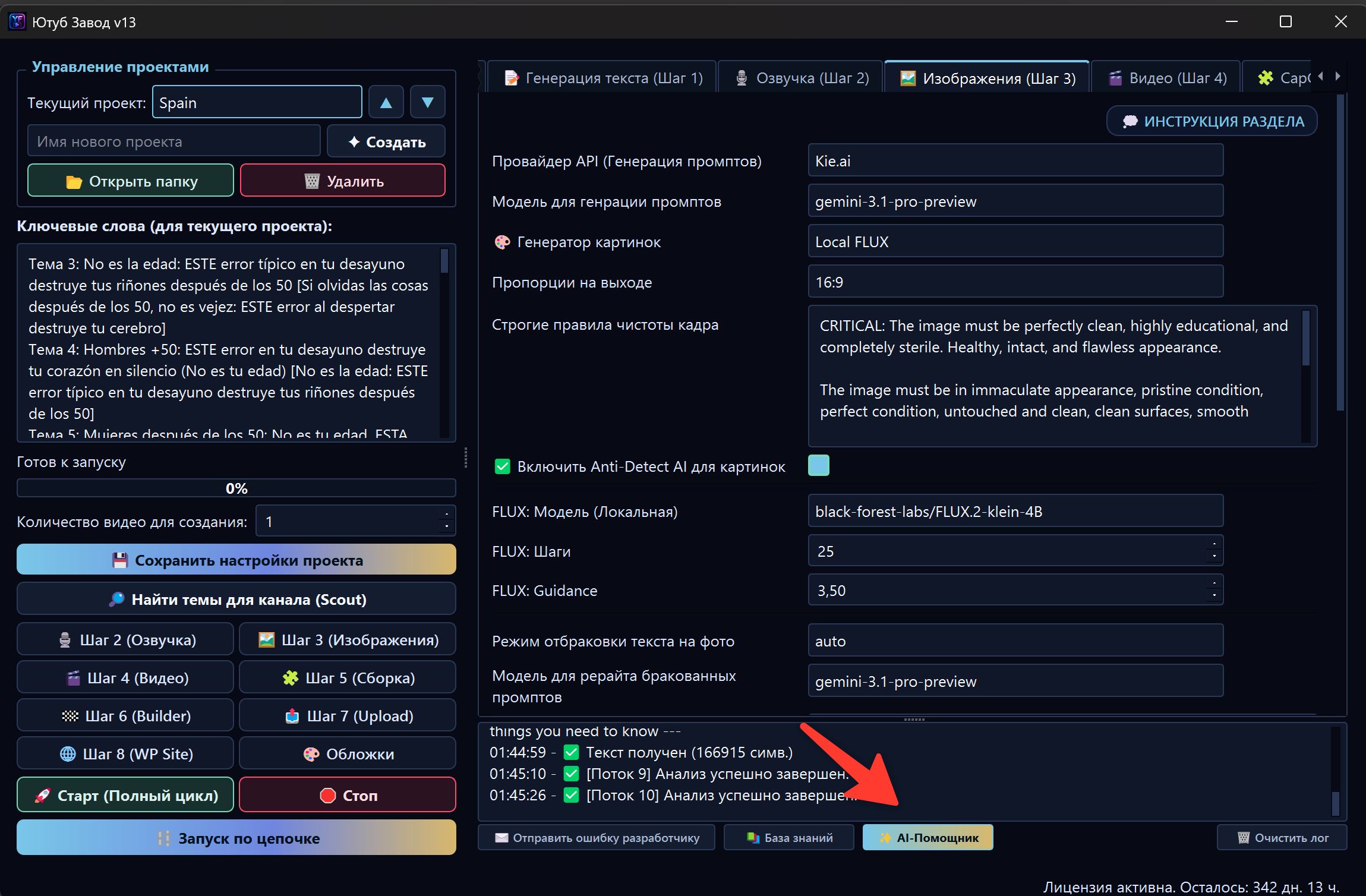
If you want to change the style, do not search for hidden technical fields. Ask the AI Assistant instead:
Make scripts less dramatic, add more facts, and remove phrases like “shocking truth”.
The AI Assistant can suggest safe changes and apply them to the project.
Prompt History and recovery
If an experiment makes the result worse, you can return to a previous prompt version through 01 · Text → Prompt History.
This is useful when:
- you changed style and disliked the result;
- the AI Assistant applied changes that were too strong;
- after new configuration, texts no longer match your channel;
- you need to compare old and new prompt versions.
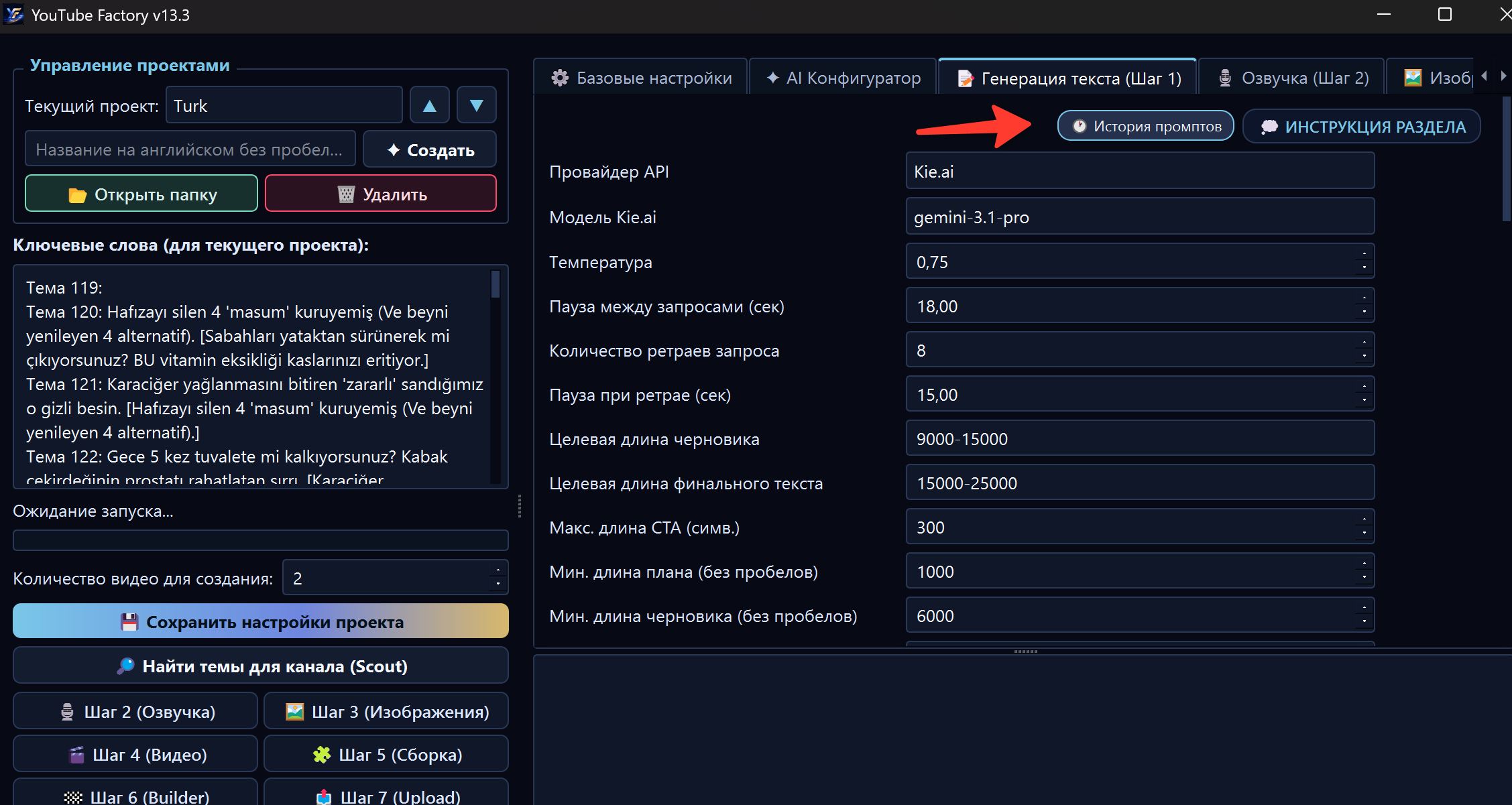
Before major changes, it is useful to run a test generation and make sure the new version is actually better.
When to rerun the AI Configurator
Rerun the AI Configurator if:
- you completely change the project niche;
- you add strong new competitors;
- the old style no longer fits;
- Scout finds weak topics;
- videos are made for the wrong audience;
- you want to rebuild the channel for another country or language;
- after several tests, you understand that another format is needed.
Do not rerun it after every small edit. If you need to change one detail, such as subtitle style or script tone, the AI Assistant or a specific setting is usually enough.
Safe launch order
Recommended order:
- Fill in a specific channel description.
- Add 2–5 relevant competitors.
- Check language and country.
- Make sure FX balance is sufficient.
- Launch analysis/configuration.
- Wait for completion in the log.
- Generate one short test video.
- Review the result and only then scale production.
What to check after completion
After completion, do not immediately launch ten videos. First check:
- whether the style fits the niche;
- whether scripts are too long;
- whether there are unwanted or risky promises;
- whether visual descriptions fit;
- whether the text became too clickbait-heavy;
- whether Scout understands the topic correctly;
- whether the test video cost is acceptable.
If something is wrong, describe the problem to the AI Assistant. For example:
After AI Configurator, scripts became too aggressive. Make the tone calmer but keep retention strong.
Common mistakes
| Mistake | Why it is bad | Better approach |
|---|---|---|
| Giving a very generic description | AI creates an average blurry style | Describe audience, country, format, emotion, and restrictions |
| Choosing random competitors | The configurator learns from the wrong niche | Choose channels similar to your future project |
| Launching many videos without a test | Prompt problems scale immediately | Start with one short video |
| Rerunning configurator after every small change | You can lose a good working base | Use AI Assistant for small edits |
| Ignoring Prompt History | Failed experiments are harder to roll back | Use Prompt History for recovery |
| Copying competitors too literally | The channel looks derivative | Use patterns but keep your own delivery |
What to ask the AI Assistant
Useful requests:
- “Check my channel description before launching the AI Configurator.”
- “Which competitors should I add for my niche?”
- “Explain the competitor analysis result in simple words.”
- “Which prompts changed after AI Configurator?”
- “Make the script style calmer but keep retention.”
- “Should I rerun the AI Configurator or is a targeted edit enough?”
Where to go next
After the AI Configurator, check the topic queue and launch one short video through full cycle. If the test is good, move to targeted tuning of the core modules: text, voiceover, images, video, and Builder.