Step 3 · Images and Covers
03 · Frames is the stage where FOXI Studio turns the script and voiceover into the visual foundation of the video: frame images, prompts, style, character, and thumbnail variants.
This step defines how the video looks. Even a strong script and voice can fail if frames are random, do not match the topic, or look like a mix of unrelated styles.
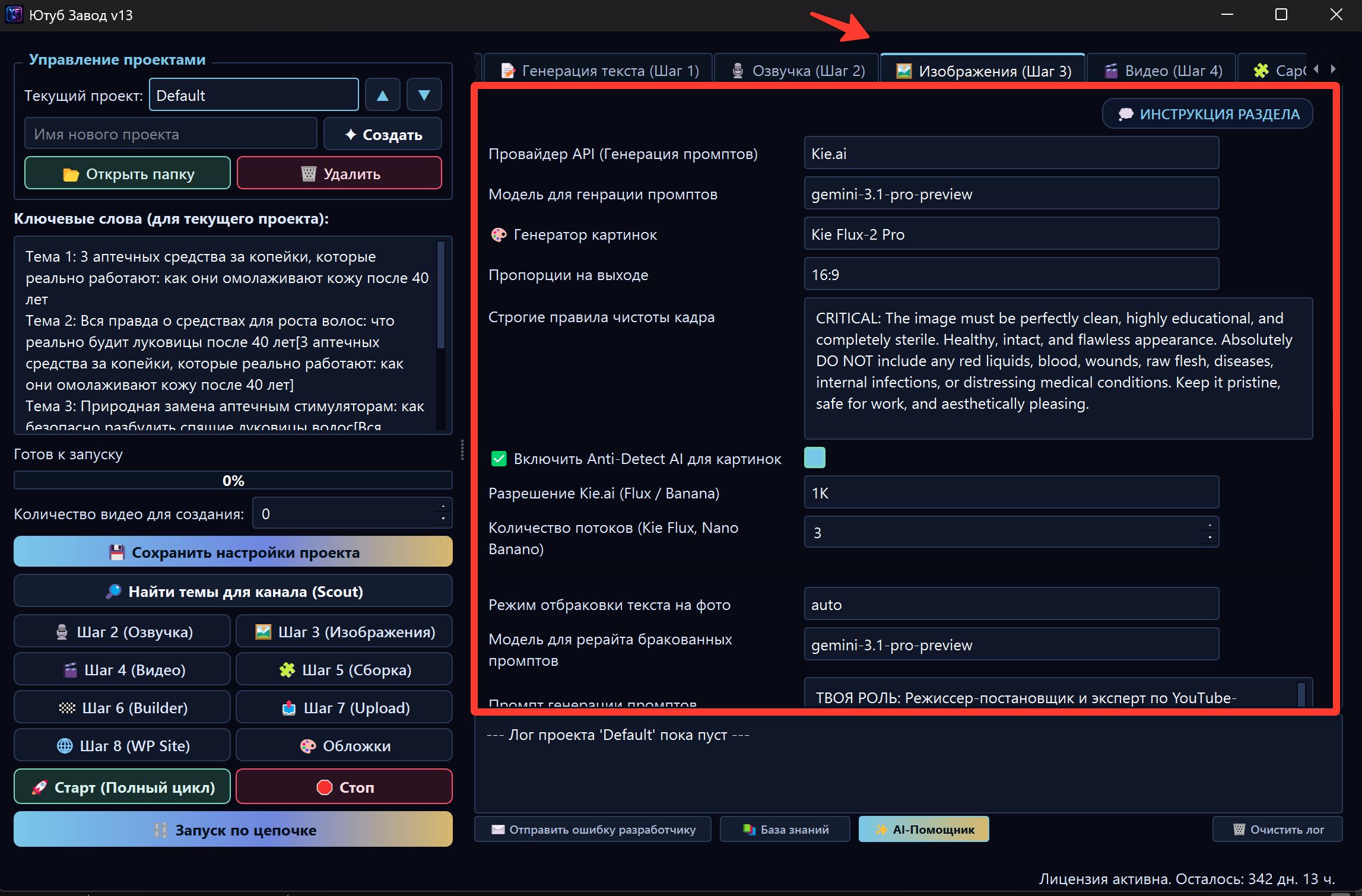
What Step 3 does
At this stage FOXI can:
- split the script into meaningful scenes;
- use voiceover and timing to understand frame duration;
- prepare image prompts;
- choose or apply visual style;
- generate frame images;
- include a recurring character if enabled;
- prepare several thumbnail variants;
- apply image Anti-Detect if available;
- save materials in project files.
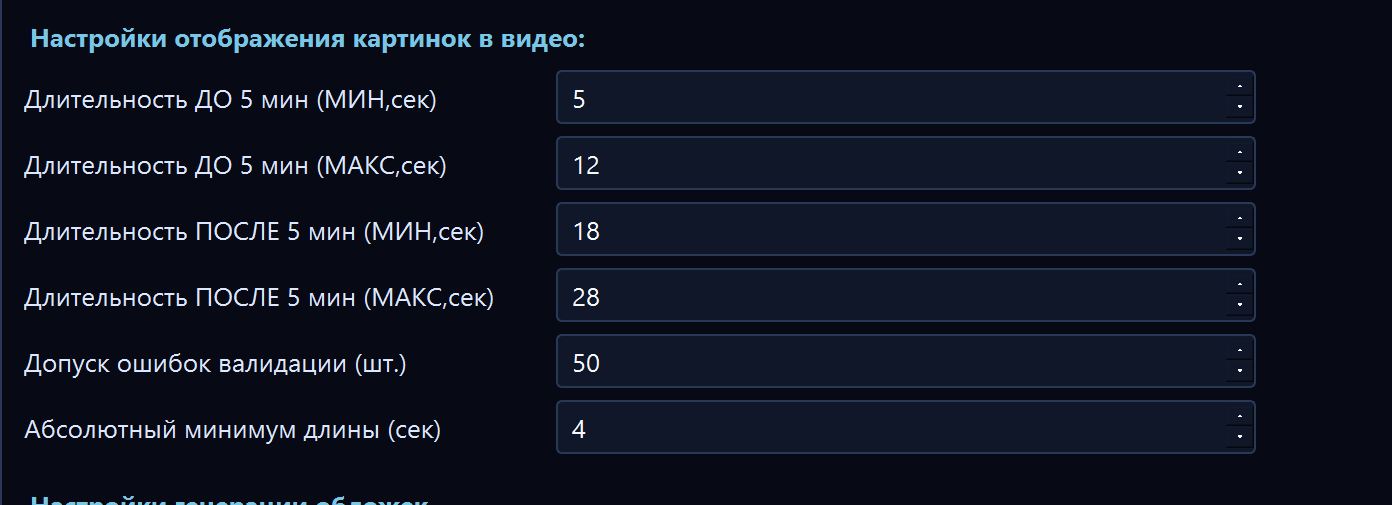
What beginners should choose
For the first test, you do not need to touch every advanced parameter. Check only the important parts:
- the correct project is selected;
- Step 1 has created a script;
- Step 2 has created voiceover if frame timing depends on it;
- a clear visual style is selected;
- the image generator is available on your plan;
- character is enabled only if truly needed;
- negative prompt is not too aggressive;
- FX balance is sufficient.
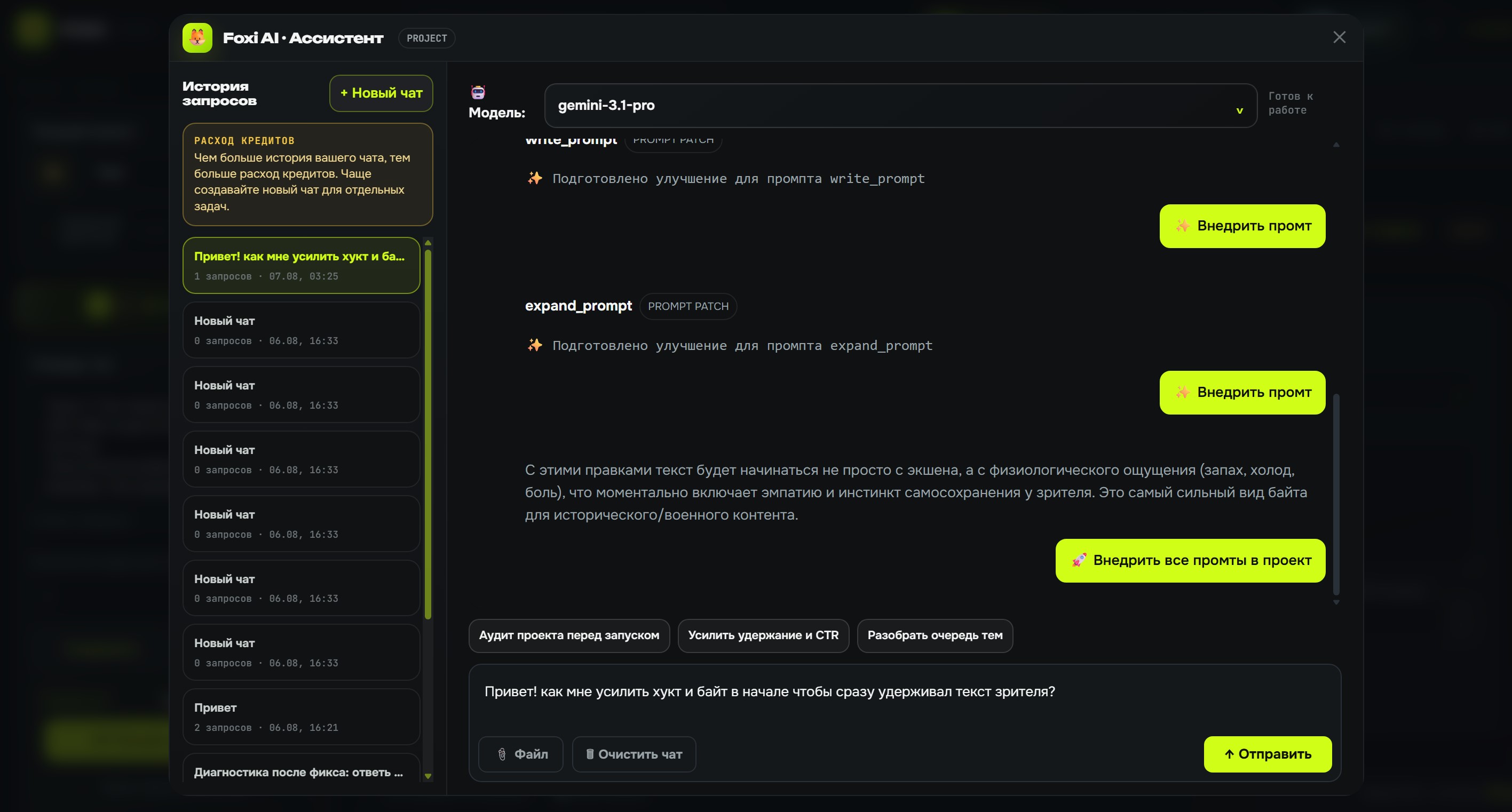
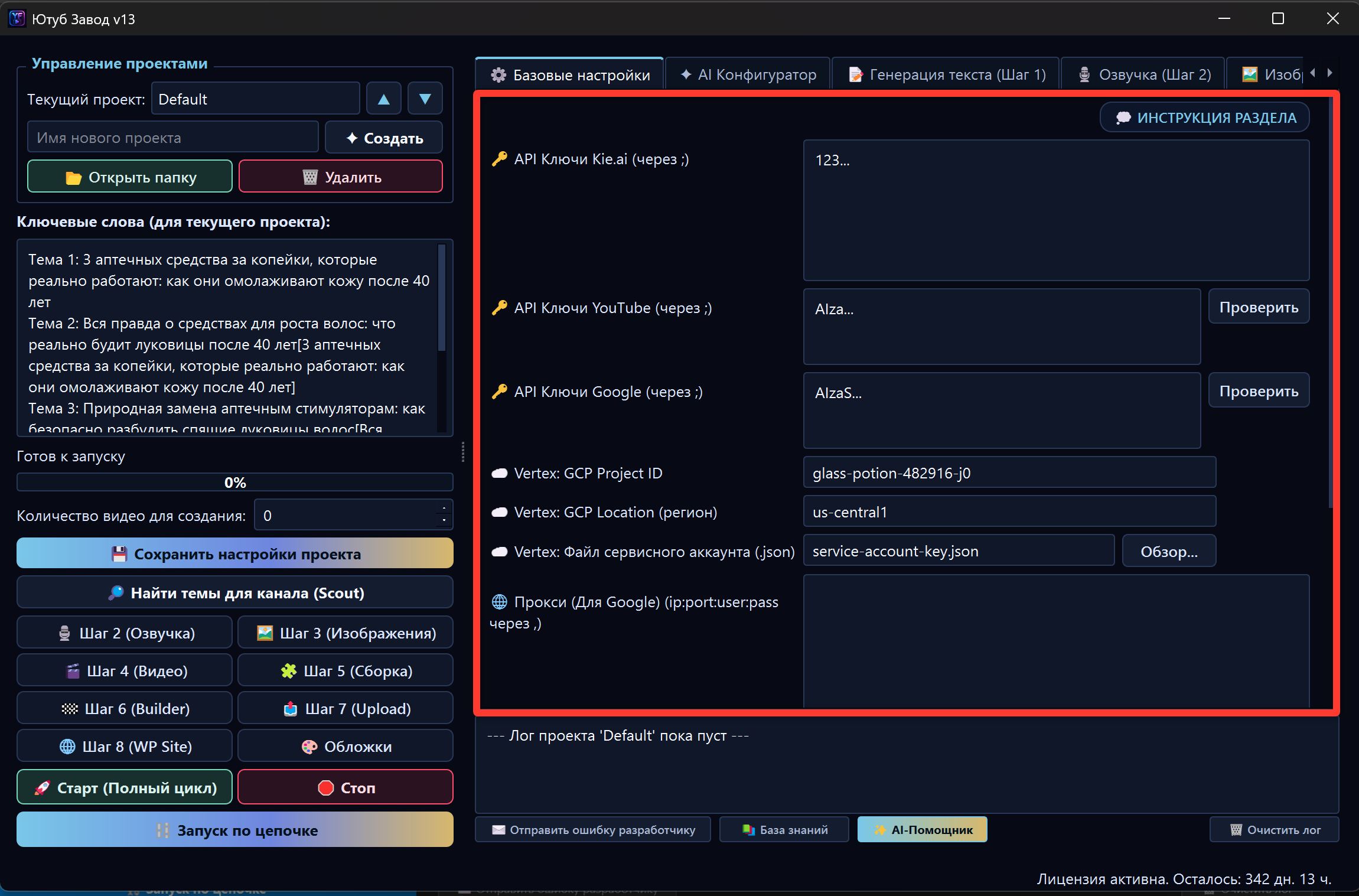
Image generator
The image generator is the model that draws frames and thumbnails. FOXI can use internal models and available external providers.
| Option | When it fits |
|---|---|
| FOXI internal models | Regular work without manual setup of external dashboards |
| KIE/Flux/Nano Banana and similar models | High-quality photorealism and modern visual styles |
| Google/Vertex Imagen | Advanced users with their own Google Cloud setup |
If you do not know what to choose, keep the recommended option or ask the AI Assistant.
YouMind Skill
YouMind Skill is a set of ready visual directions. It helps keep the entire video in one consistent style instead of producing random images with different aesthetics.

Example styles:
- Cinematic & Photoreal — realistic cinematic frame;
- 3D Scientific Render — medical and scientific 3D visualization;
- Macro & Microscopic — microscope, close-ups, details;
- Warm Lifestyle — warm everyday scenes;
- Flat Vector Graphic — simple diagrams and infographics;
- Technical Blueprint — blueprints, grids, engineering look.
Choose the style for the niche. For history channels, cinematic/documentary works well; for health, 3D Scientific Render; for explanatory content, vector or blueprint.
Character in frames
If the project uses a main character, FOXI can include that character in generated frames. This is useful when a channel is built around a recurring host, doctor, expert, or brand character.
For the first test, you can disable the character if you are unsure. A recurring character makes generation more complex: the model must preserve face identity, style, and appearance logic.
Negative prompt
The negative prompt tells the model what should not appear in the image.
Example:
blurry, low quality, extra fingers, distorted face, unreadable text, watermark, logo
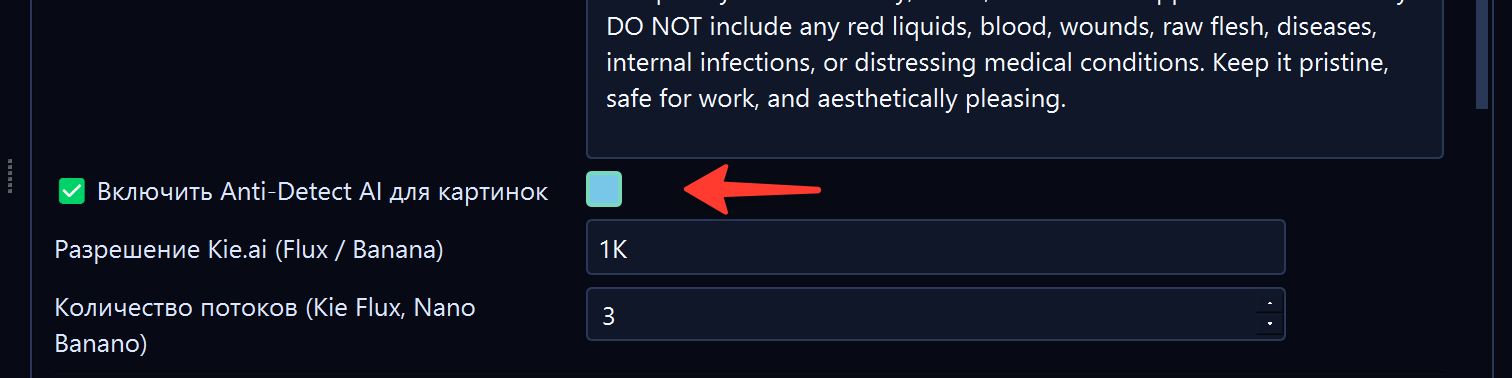
Do not make the negative prompt huge without reason. Too many restrictions can reduce quality and make results less stable.
Thumbnails
Step 3 can prepare several YouTube thumbnail variants. Thumbnail is one of the most important CTR elements, so check it separately.
A good thumbnail:
- explains the topic quickly;
- has strong contrast;
- is not overloaded;
- remains readable on a small screen;
- does not promise what the video does not deliver;
- matches the channel style.
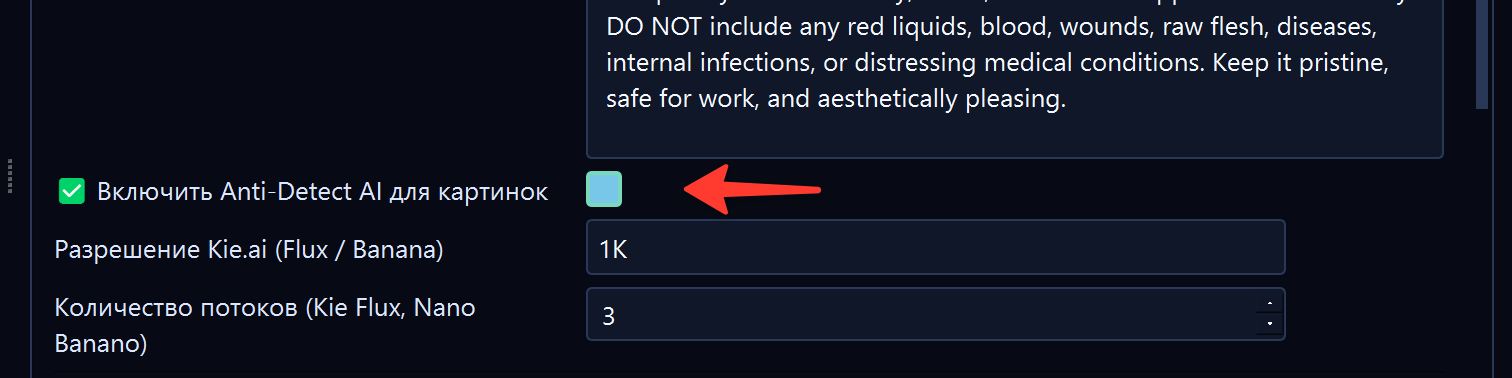
If thumbnails are weak, ask the AI Assistant to change thumbnail rules instead of regenerating the whole video.
Image Anti-Detect AI
Image Anti-Detect AI is post-processing that helps make the image less like a raw AI generation. It may add subtle optics, compression, or processing characteristics.
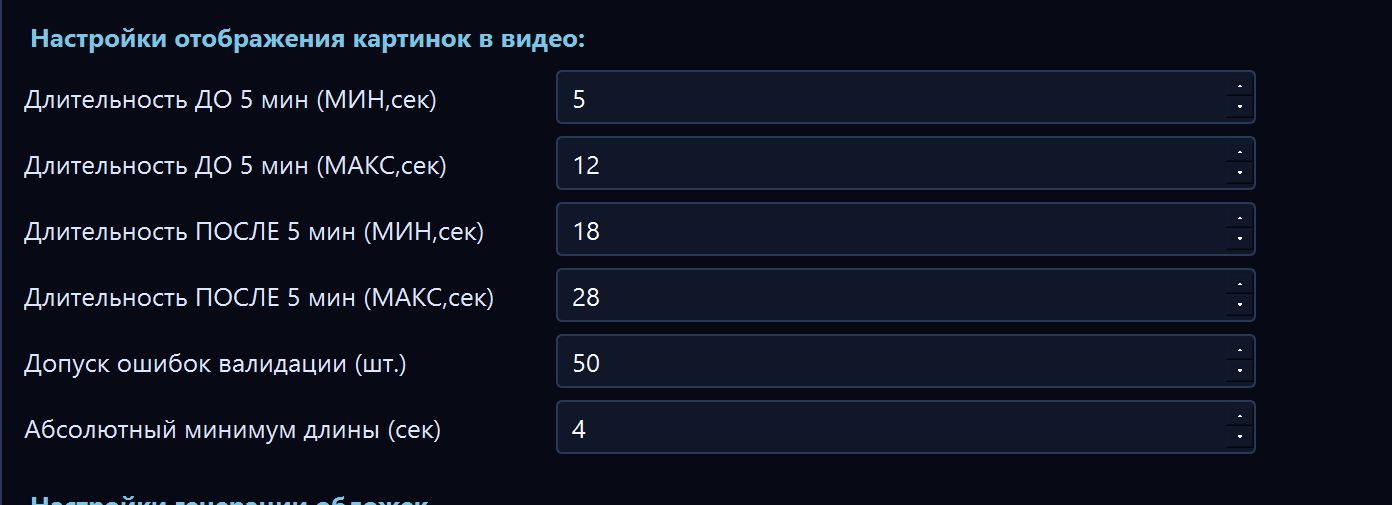
Use it if available on your plan and suitable for your format. After enabling it, check that the filter does not damage faces, thumbnail text, or small details.
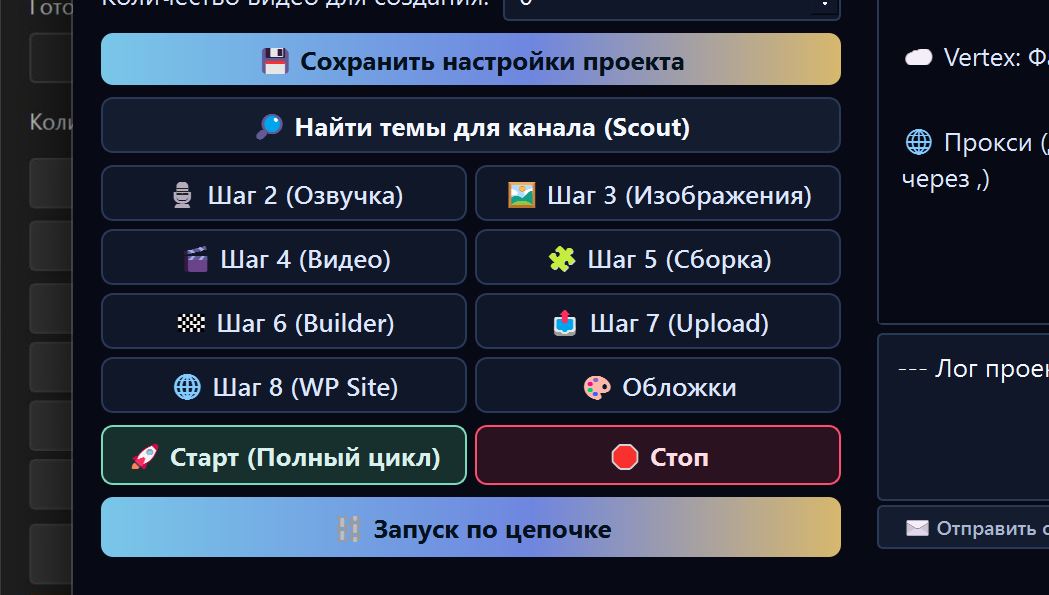
Running Step 3 separately
Run Step 3 separately if you want to check visuals before video generation and Builder.
This is useful when:
- you change style;
- you test a new character;
- you test an image generator;
- you are unsure about thumbnails;
- you want to avoid spending FX on video before checking frames.
What to check after completion
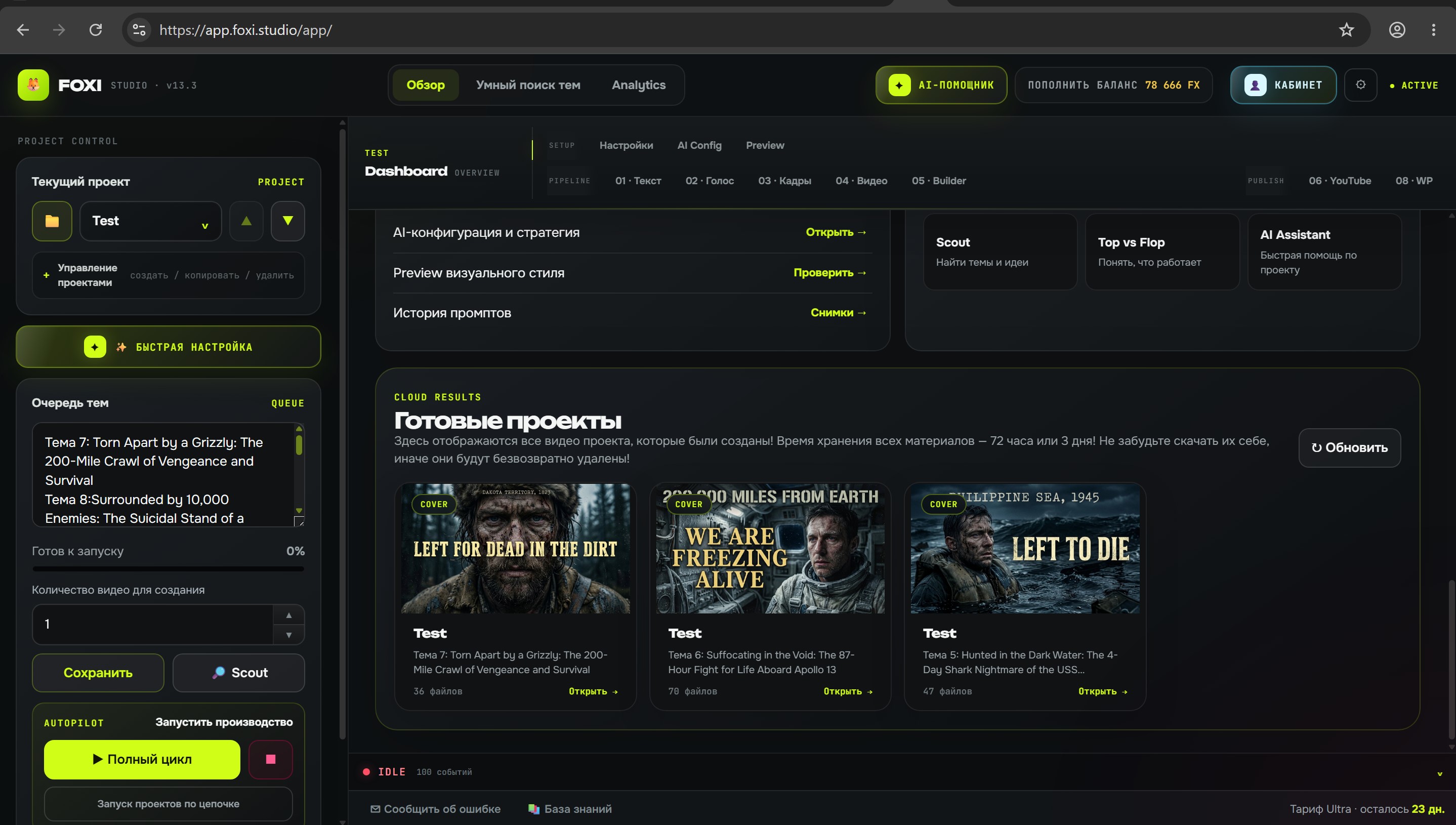
After generation, open project files and review images.
Check that:
- frames match the topic;
- style is consistent;
- there is no unwanted text on images;
- faces and hands are not distorted;
- character is recognizable if enabled;
- thumbnail is readable;
- images fit language and audience;
- there are no watermarks, logos, or random artifacts.
If images are bad
Do not change everything at once. First identify the problem.
| Problem | What to change |
|---|---|
| Too cartoonish | Visual style or YouMind Skill |
| Too many artifacts | Generator, negative prompt, quality |
| Wrong character | Character settings or reference |
| Weak thumbnails | Thumbnail rules and title/cover prompts |
| Frames do not match script | Frame prompts or scene breakdown |
| Too expensive | Number of frames, model, threads, quality |
Example AI Assistant request:
Images are too cartoonish. Review Step 3 settings and suggest how to make the style documentary and cinematic without changing the script.
Common mistakes
| Mistake | Why it is bad | Better approach |
|---|---|---|
| Changing generator before checking style | The problem may be the prompt, not the model | Clarify visual style first |
| Enabling character without need | Generation becomes harder and riskier | Start without character if it is not important |
| Not reviewing thumbnails separately | CTR can be weak even if the video is good | Check thumbnails before publishing |
| Creating too many frames in a test | Extra FX is spent | Start with a short video |
| Ignoring negative prompt | Artifacts may repeat | Add only real problems |
What to ask the AI Assistant
- “Choose a visual style for my niche.”
- “Why did images become too cartoonish?”
- “Which YouMind Skill should I choose for a medical video?”
- “Make thumbnails more readable for YouTube.”
- “Which words should I add to the negative prompt?”
- “Can I regenerate only images without changing text and voice?”
Where to go next
If images and thumbnails look good, continue to Step 4 · Video. In the next stage, FOXI animates the visual sequence and prepares video clips.