Step 2 · Voiceover
02 · Voice is the second production stage in FOXI Studio. It takes the finished script from 01 · Text and turns it into an audio track for the future video.
Good voiceover strongly affects retention. Even a strong script feels weak if the narrator has the wrong tone, speaks too fast, is too monotonous, or sounds synthetic.
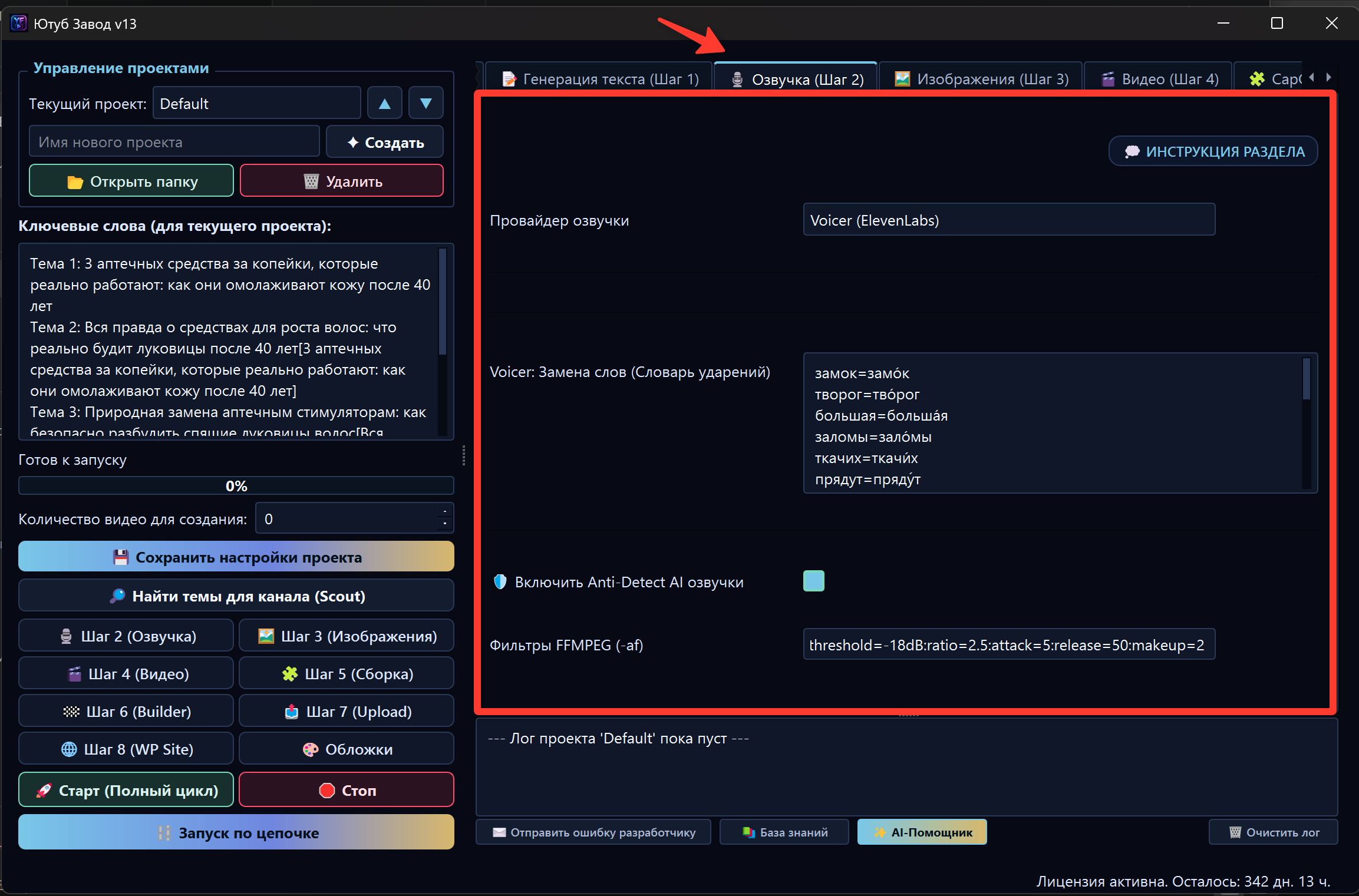
What Step 2 does
At this stage FOXI:
- takes the final script from Step 1;
- cleans technical notes and extra formatting;
- sends the text to the selected voice engine;
- receives the audio track;
- applies post-processing if needed;
- saves the result in project files;
- passes audio to images, video, and Builder stages.

What beginners should choose
If you are just starting, do not test dozens of voices. Choose one understandable voice template, make a short test, and judge the result in the finished video.
For the first test, check:
- the correct project is selected;
- Step 1 has already created a script;
- voice language matches text language;
- a voice template is selected;
- speed is not too high;
- voice Anti-Detect is enabled if available on your plan;
- FX balance is sufficient.
Voice provider
The project may have several voiceover options. Availability depends on plan and current integrations.
| Provider | When it fits |
|---|---|
| Gemini | Fast start and simple voice setup |
| ElevenLabs/Lumean template | More natural and stable narrator via a saved template |
| Backup ElevenLabs models | Alternative route or a different voice character |
| FOXI internal models | The service manages connection and charges FX internally |
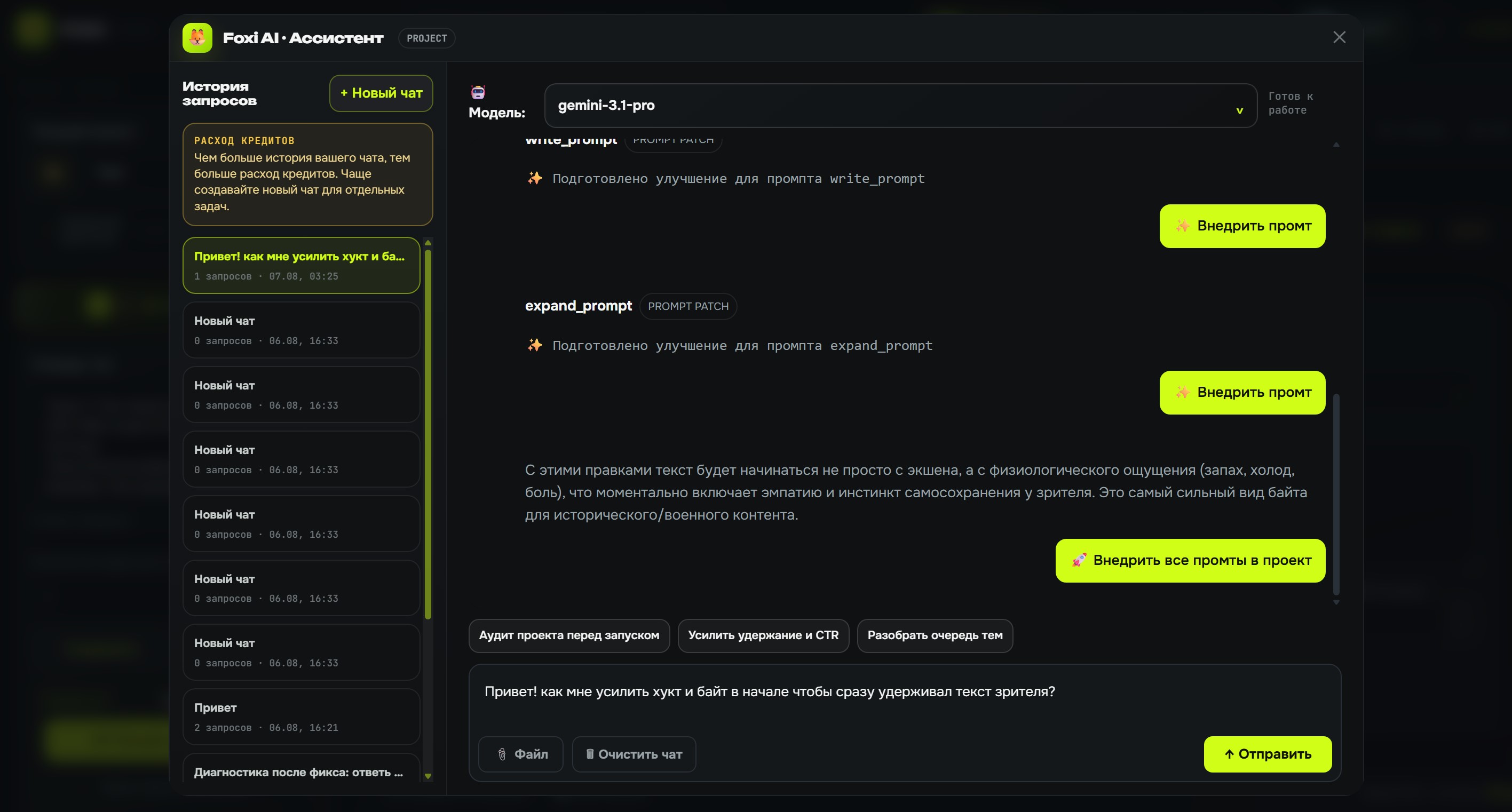
If you do not understand the difference, keep the recommended option or ask the AI Assistant.
Example request:
Choose voice settings for an English channel about mysterious history: serious documentary tone, male narrator, US audience aged 30–60.
ElevenLabs voice template
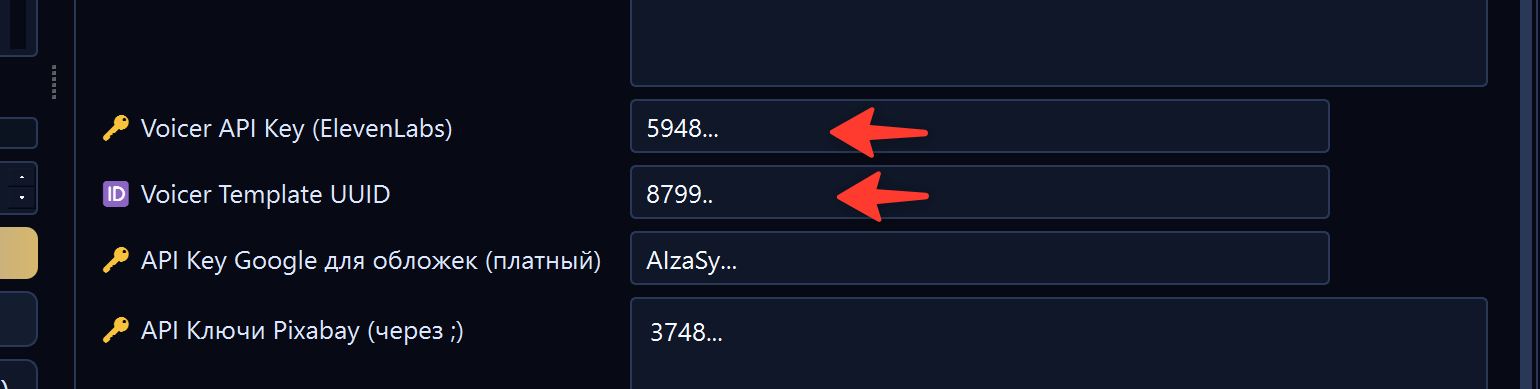
A voice template is a saved narrator setup. It may include selected voice, model, speed, stability, and other parameters.
Templates are usually created during Quick Setup or in base project settings. After a template is created, it can be selected in Step 2.
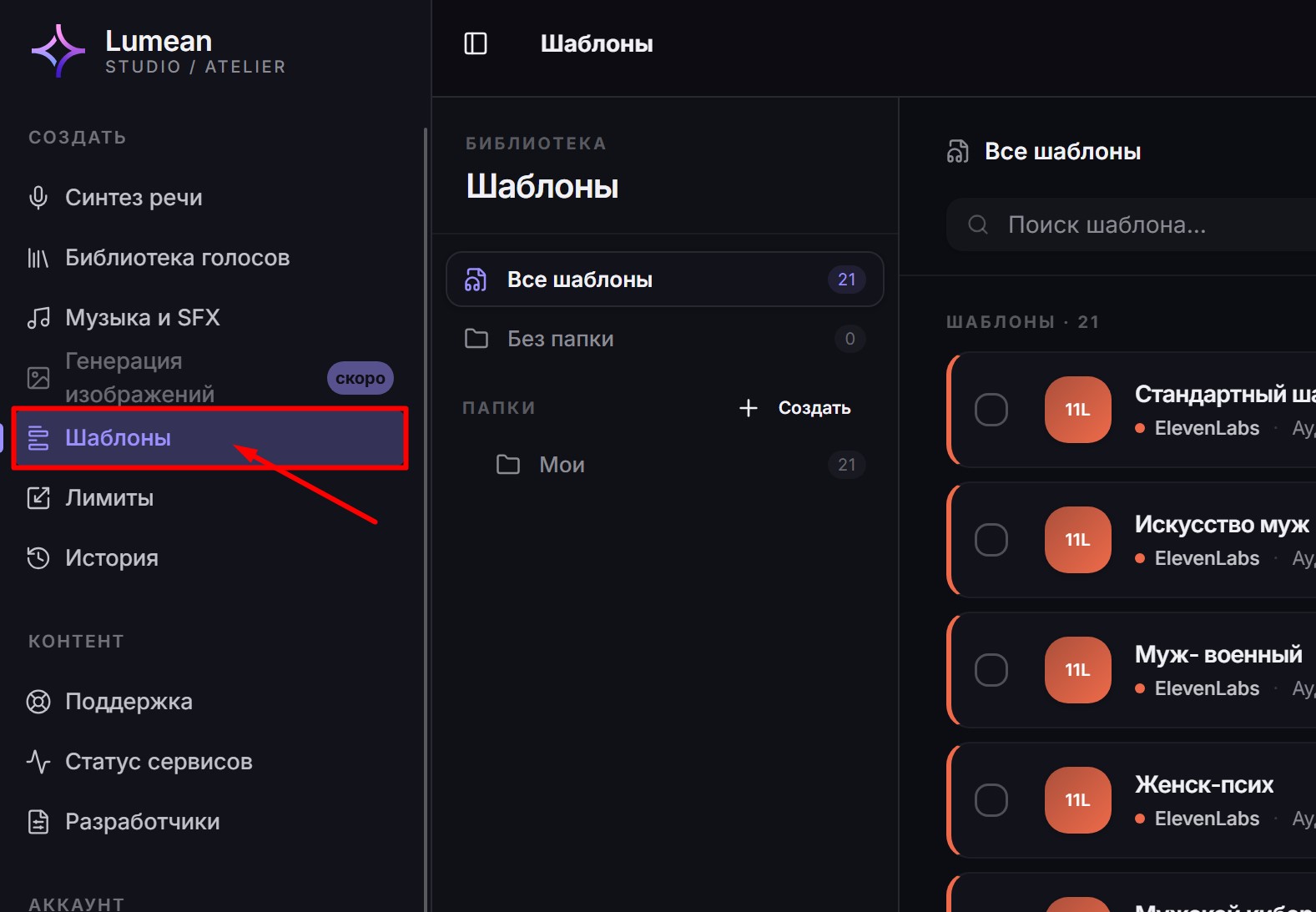
Good practice: use clear template names, such as US documentary male, Calm doctor 50plus, or Mystery narrator female.
Gemini and director instructions
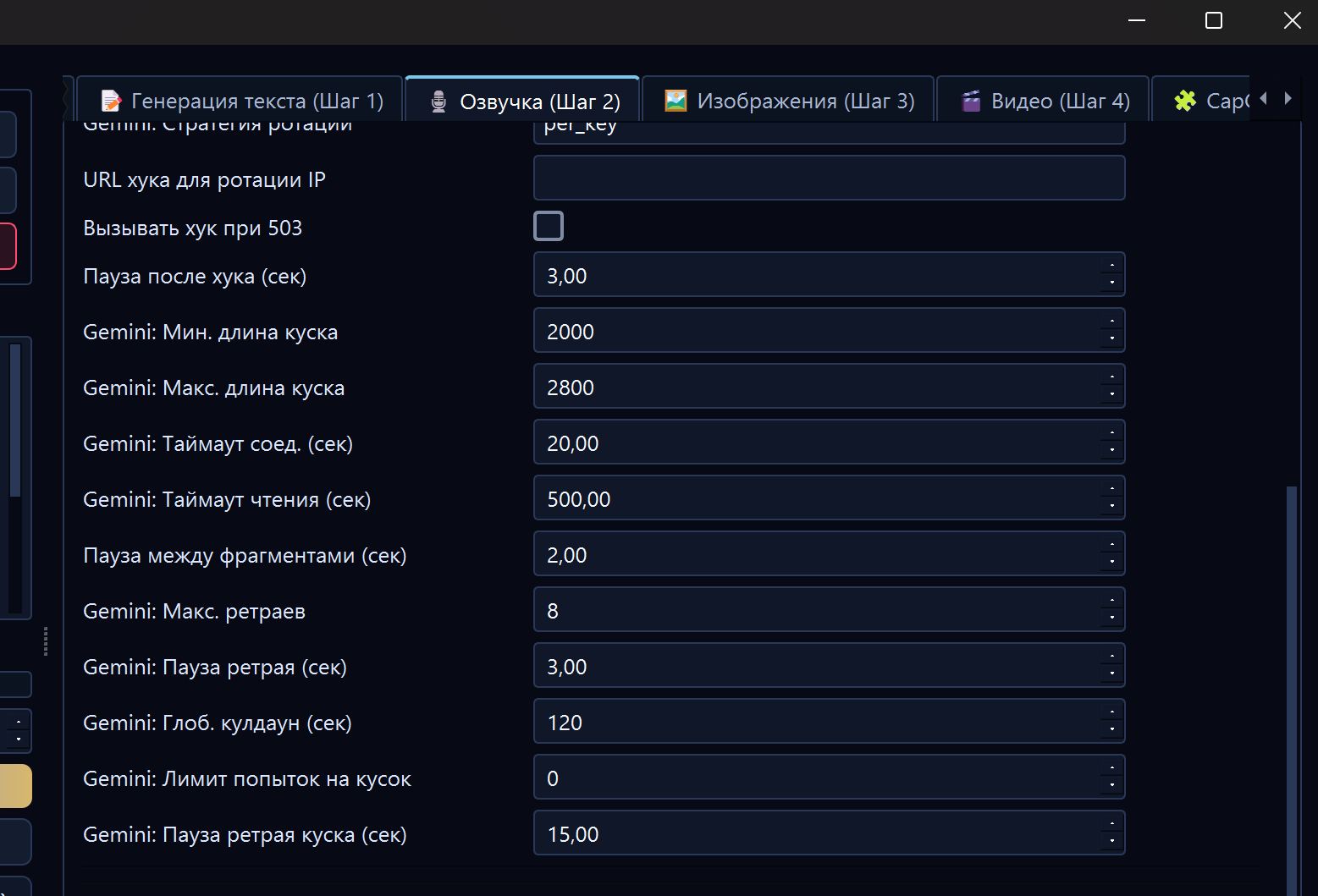
If Gemini voiceover is used, not only voice and language matter. Director instructions are also important. This is a text description of how the narrator should read the script.
Example:
You are an experienced documentary narrator. The voice is calm, confident, slightly dark. Read without advertising tone, pause before important facts, and do not overact.
Do not make instructions too long or contradictory. If you ask for “very fast”, “very dramatic”, and “calm” at the same time, the result may become unstable.
Speed, stability, and style
Some providers let you configure speed, stability, similarity, and style.
Simple recommendations:
| Parameter | First-test choice |
|---|---|
| Speed | Around 1.0; slightly slower for older audiences |
| Stability | Medium value so the voice is not too monotone or chaotic |
| Style | Increase carefully if emotion is needed |
| Similarity | Do not max it out before testing; artifacts may appear |
If the narrator speaks too fast, reduce speed and test again before changing the entire voice.
Pronunciation dictionary and word replacements
If the voice mispronounces specific words, use word replacements or a pronunciation dictionary.
Example:
замок=замо́к
творог=творо́г
Lead=leed
Add only words that are actually pronounced incorrectly. A very large dictionary can create new mistakes.
Voice Anti-Detect AI
Voice Anti-Detect AI is post-processing that helps make audio less sterile and more natural. It may include equalization, compression, limiter, and other audio filters.

It is useful when the voice sounds:
- too synthetic;
- too perfect and sterile;
- flat;
- not studio-like;
- too harsh in high frequencies.
Availability may depend on your plan.
Removing long pauses
The Remove long pauses after voiceover option shortens empty gaps after the voice track has already been generated and downloaded. It is useful when the narrator leaves long stops and the final video feels slower than needed.
When the checkbox is enabled, the Pause removal strength field appears:
- Soft — carefully shortens only noticeable pauses when you want to keep a calm pace.
- Normal — recommended for most videos; makes speech tighter without harsh cuts.
- Strong — compresses pauses more aggressively when you need a faster, more dynamic video.
Start with Normal. If the voice becomes too dense, switch to Soft. If there are still too many pauses, choose Strong.
Launching voiceover generation
Run Step 2 separately if you want to check only the voice before images and video.
This is useful when:
- you choose a new voice;
- you change speed;
- you test pronunciation dictionary;
- you want to understand voiceover cost;
- you do not want to spend FX on later stages before checking audio.
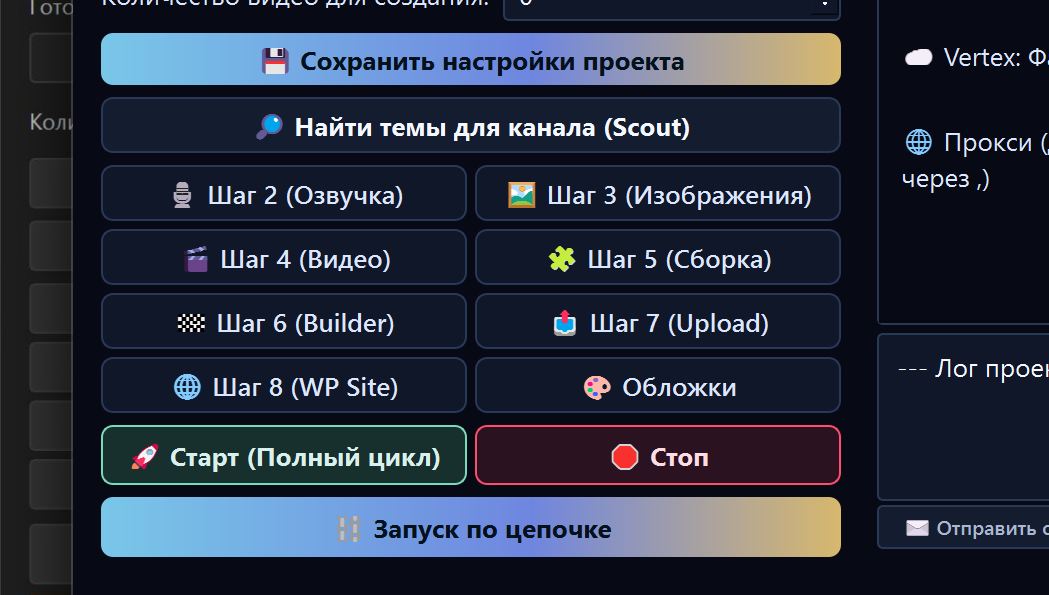
After launch, watch the log. It shows whether the task was accepted by the server, which stage is running, and where an error happened if there is one.
What to check after completion
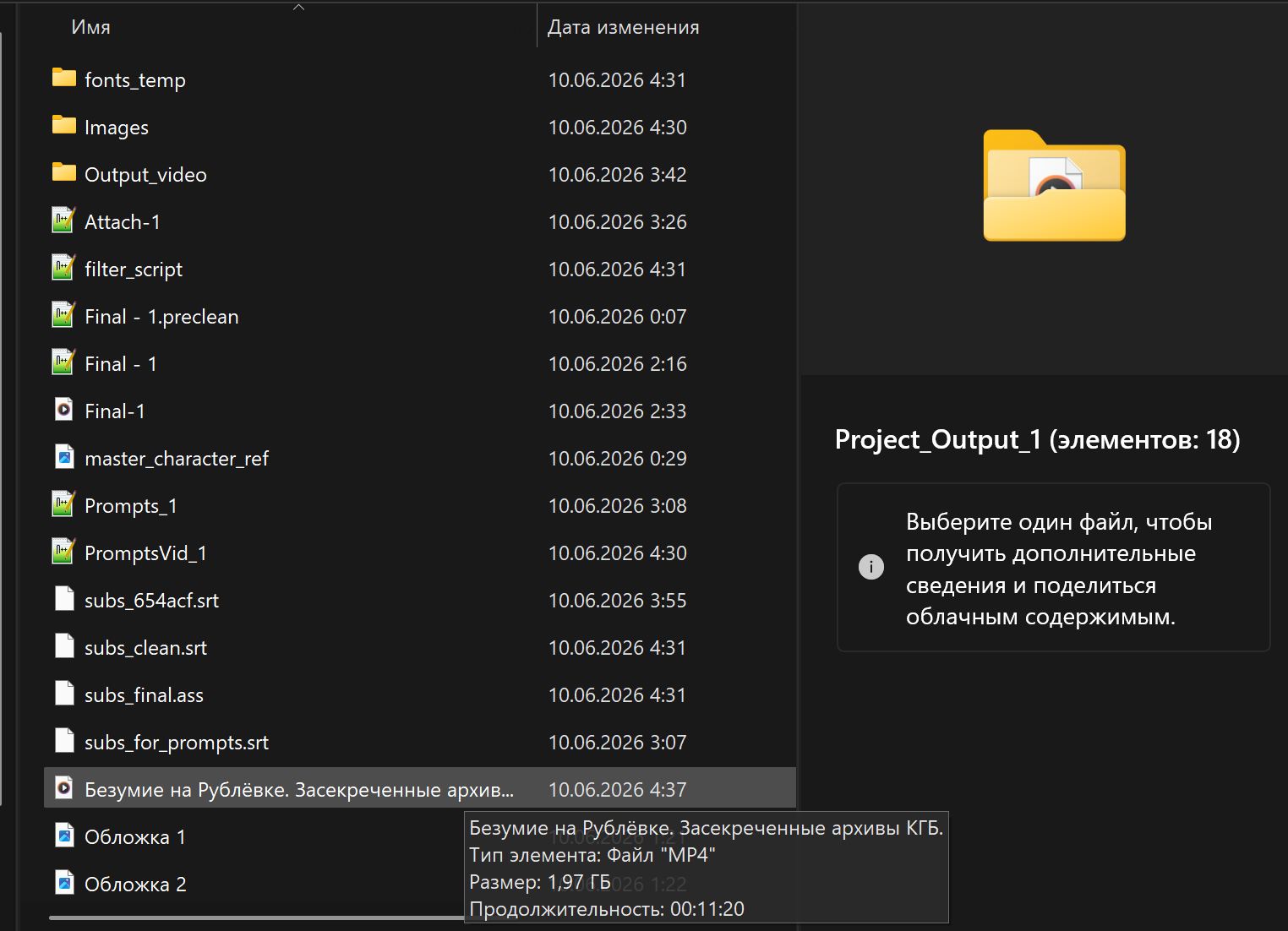
After generation, listen to audio or check it in preview.
Check that:
- narrator fits the audience;
- there are no wrong pronunciations;
- pace is not too fast;
- voice does not sound too commercial;
- emotions are not overacted;
- pauses feel natural;
- audio does not distort or clip;
- duration roughly matches the script.
If you do not like the voice
Do not rerun the entire full cycle. Fix Step 2 first.
You can:
- choose another template;
- reduce or increase speed;
- change director instructions;
- add a word to the pronunciation dictionary;
- enable or disable Anti-Detect;
- ask the AI Assistant to choose parameters.
Example request:
Voiceover sounds too commercial and fast. Choose calmer settings for a documentary channel and explain what to change.
Common mistakes
| Mistake | Why it is bad | Better approach |
|---|---|---|
| Changing voice before checking script | The problem may be in text, not voice | Check Step 1 first |
| Setting speed too high | Viewers struggle to follow information | Start with normal speed |
| Not checking voice language | Narrator may read text incorrectly | Choose voice for the channel language |
| Ignoring pronunciation dictionary | Same mistakes repeat | Add problem words to the dictionary |
| Running full cycle just to test voice | Extra FX is spent | Run only Step 2 |
What to ask the AI Assistant
- “Choose a voice for my audience and niche.”
- “Why does the voiceover sound too synthetic?”
- “How do I make the narrator calmer and more documentary-like?”
- “Which words should I add to the pronunciation dictionary?”
- “Should I enable voice Anti-Detect for this project?”
- “Compare two voice options and tell me which is better for retention.”
Where to go next
If the voiceover sounds good, continue to Step 3 · Frames. In the next stage, FOXI prepares images, thumbnails, and the visual foundation of the future video.