AI Assistant
The AI Assistant is the built-in FOXI Studio consultant. It helps explain settings, understand errors, improve prompts, interpret Scout and Analytics reports, suggest ideas, and safely apply changes to the project.
It is not just a separate external chat. The Assistant works inside FOXI and receives the current project context: settings, prompts, reports, log, selected models, topic queue, and your chat history.
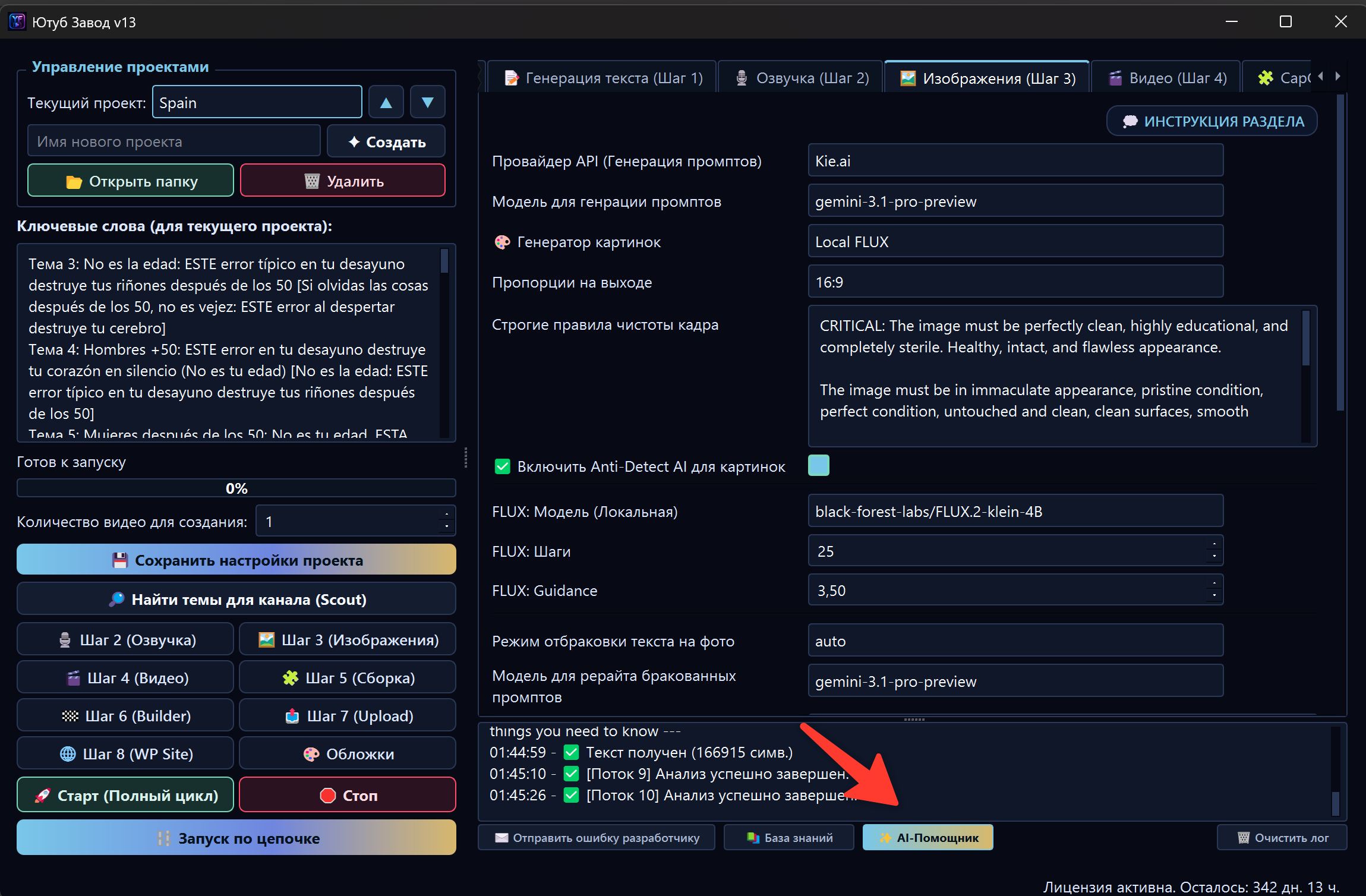
When to open the AI Assistant
Open the AI Assistant when:
- you do not understand a setting;
- a module stopped with an error;
- you need to understand the latest log lines;
- Scout found weak topics;
- a Top vs Flop report must be turned into edits;
- scripts are written in the wrong style;
- images or thumbnails look wrong;
- prompts need to be changed without manual editing;
- a video became more expensive than usual;
- you are not sure what to do next.
For beginners, this is the main way to avoid getting lost in the interface.
What the AI Assistant can see
The AI Assistant can use project context. Depending on the current state, it may see:
| Context | How it helps |
|---|---|
| Project settings | Explains what is enabled and what blocks launch |
| Topic queue | Tells which topic will be used next |
| Event log | Diagnoses errors and stopped tasks |
| Project prompts | Suggests safe edits |
| Scout_Output | Explains found topics and weak search points |
| Top vs Flop report | Turns analytics conclusions into rules for scripts, thumbnails, and Scout |
| Chat history | Keeps context inside the selected conversation |
| Costs and balance | Helps understand where FX was spent |
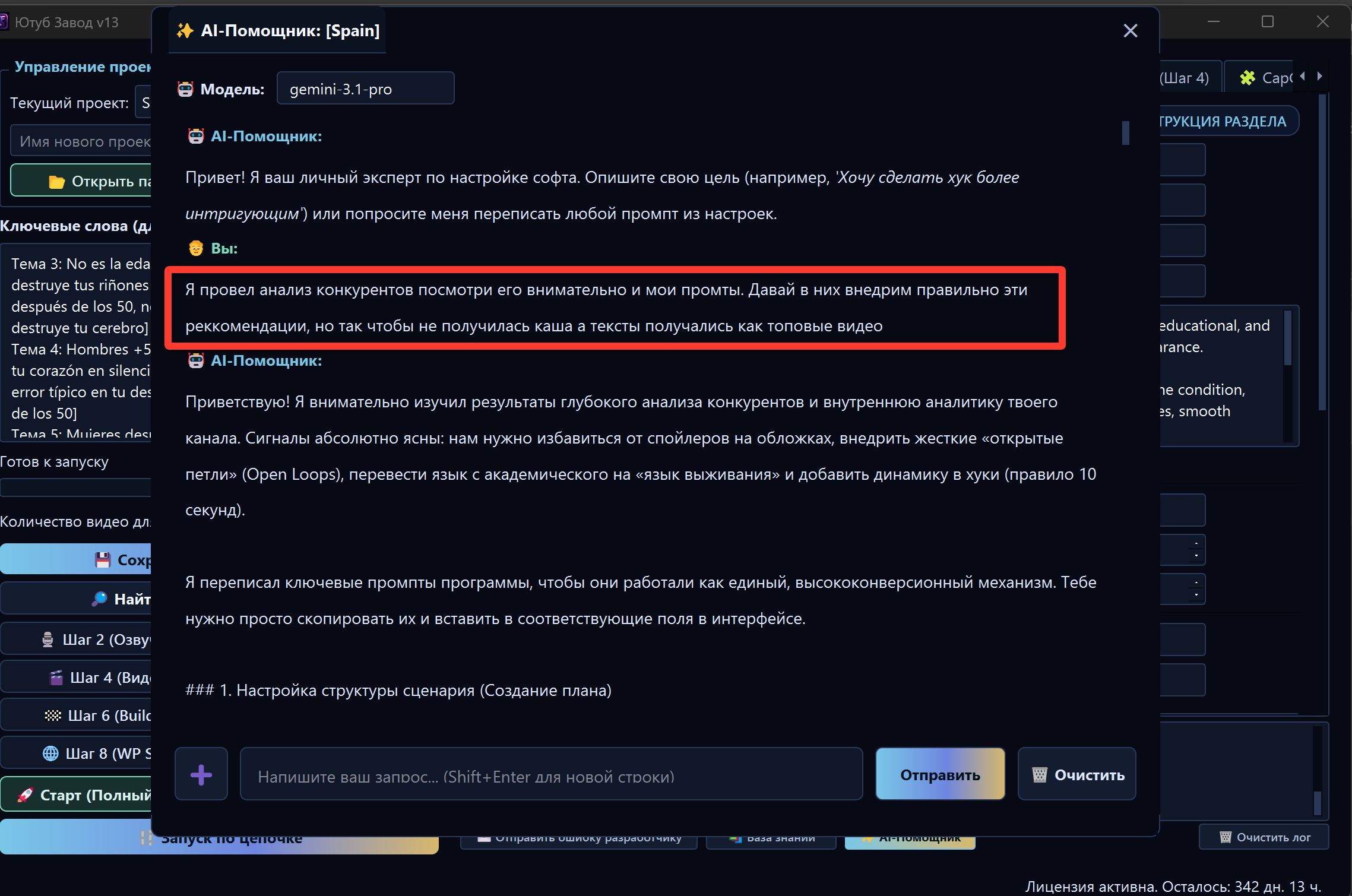
How to open the AI Assistant
The AI Assistant opens from the top panel, Dashboard, or an interface button. The chat window usually includes:
- chat list;
- conversation area;
- input field;
- model selector;
- processing status;
- buttons for applying suggested edits.
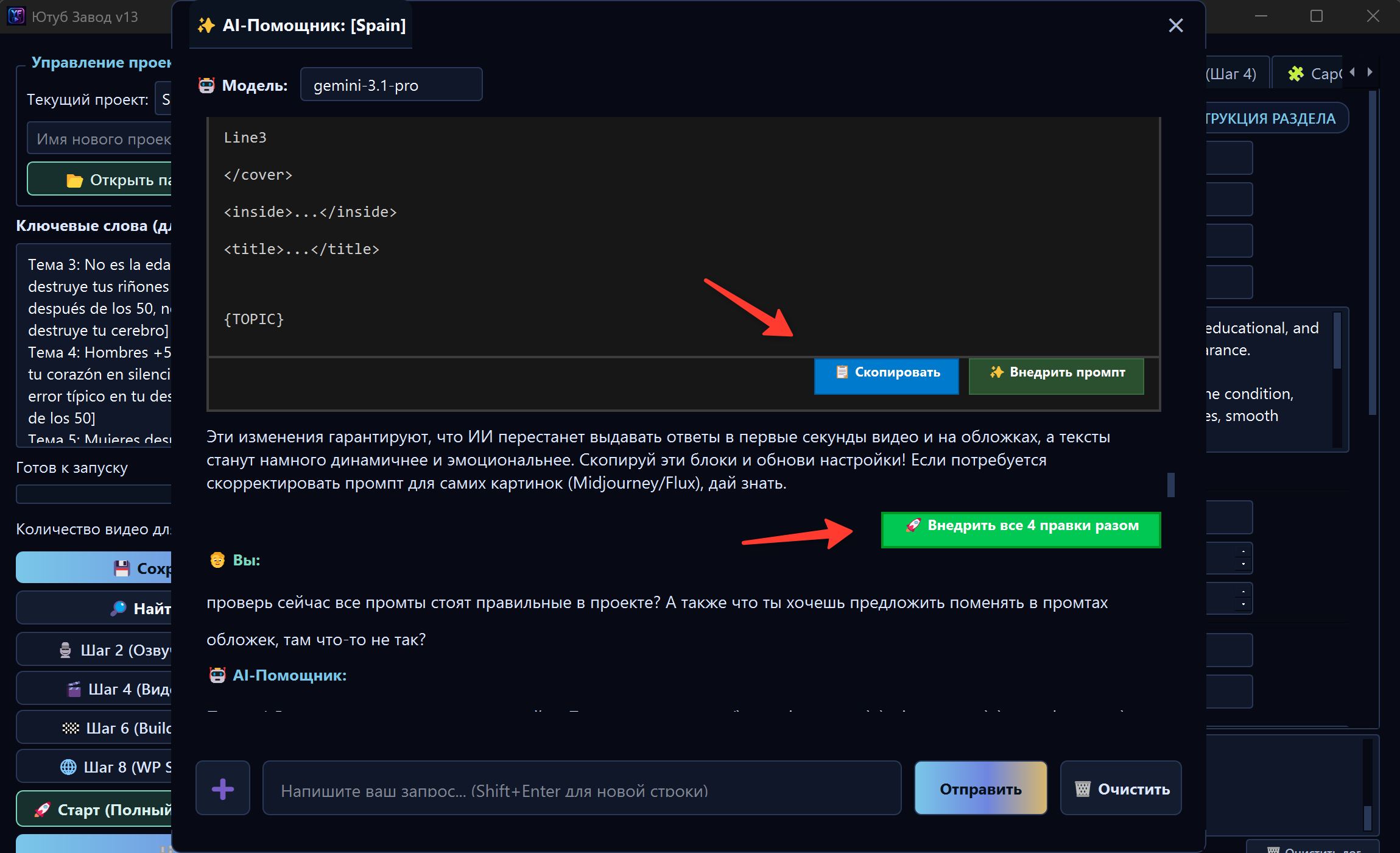
Create a separate chat for each task. For example: one chat for thumbnails, another for Builder errors, and another for Scout setup. This keeps history shorter, answers more accurate, and FX usage lower.
How to write a good request
Bad request:
Make it better.
Good request:
I have an English project about historical mysteries for a US audience aged 30–60. Scripts feel too generic and do not keep enough intrigue. Review project settings and suggest what to change in text prompts without breaking system variables.
A good request includes:
- goal;
- what is wrong now;
- what result you want;
- limitations;
- a request to check project context.
Error and log analysis
If a task stops, you do not need to guess the reason. Open the AI Assistant and ask it to review the log.
Example:
Full cycle stopped. Review the latest log messages and explain in simple words what happened and what I should click next.
The Assistant can tell you:
- whether FX is missing;
- whether quota is exhausted;
- whether a project is selected;
- whether the plan blocked the action;
- which stage stopped;
- whether only one stage can be restarted.

Editing prompts through AI Assistant
In the FOXI cloud/web version, main prompts are hidden from regular users. It is safer to change them through the AI Assistant.
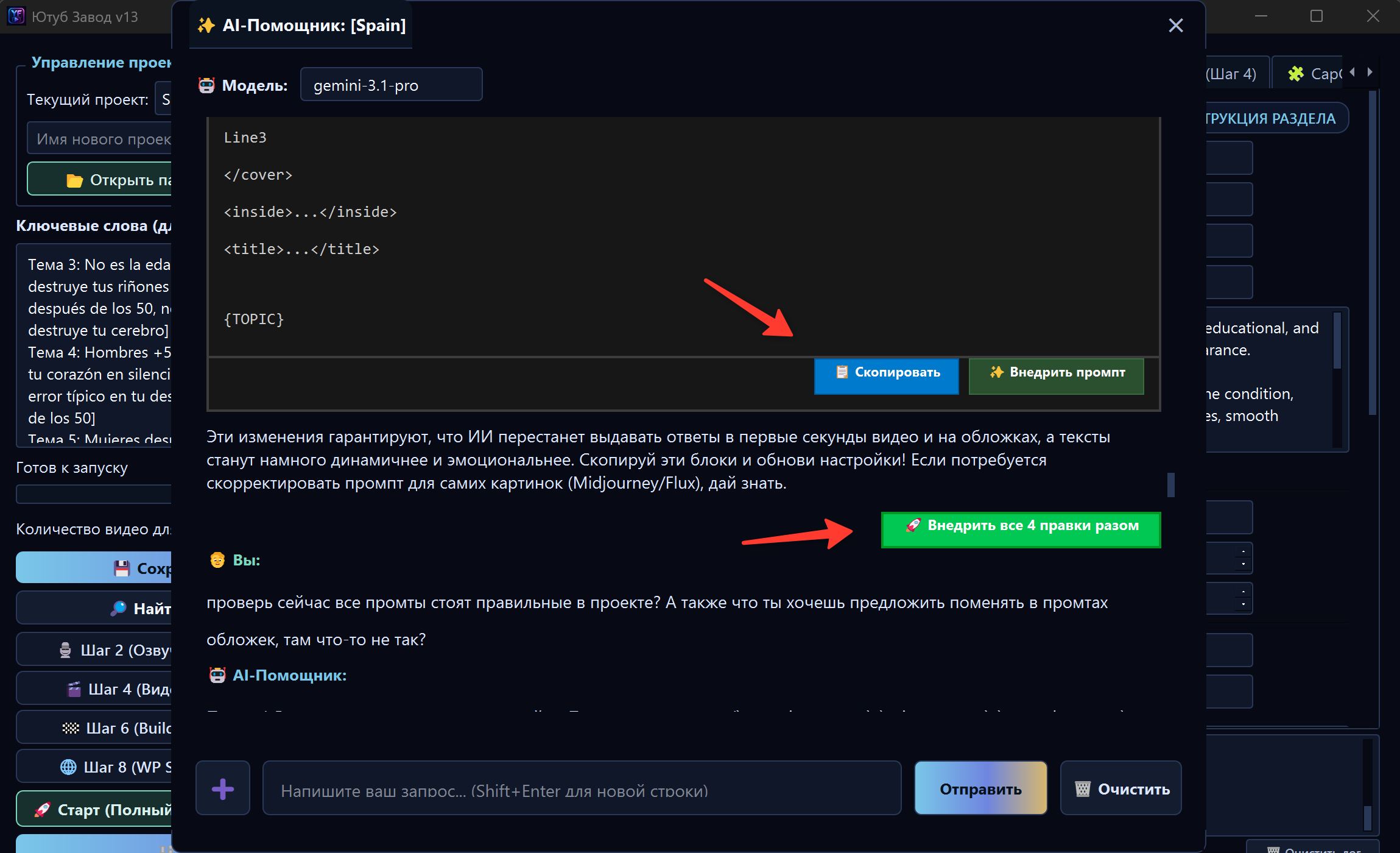
You describe the desired result, and the Assistant prepares an edit. If the interface supports it, an apply button appears.
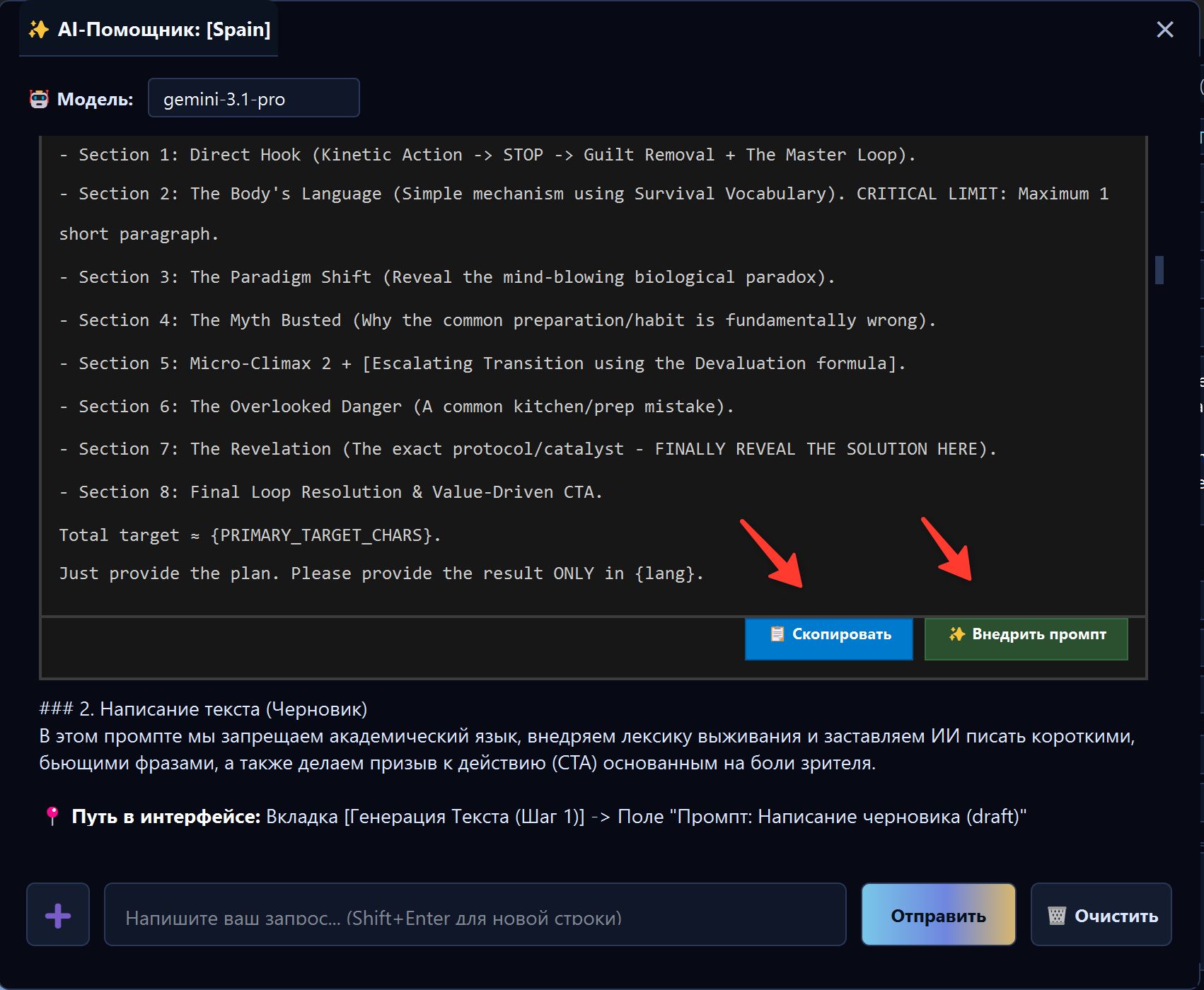
Example request:
Make scripts less clickbait-heavy, add more facts and cause-and-effect explanations, but keep a strong hook in the first 30 seconds.
After applying an edit, run a short test. If the result becomes worse, restore the previous version through 01 · Text → Prompt History.
Apply buttons
When the AI Assistant suggests a prompt change, it can show an apply button. This is easier than copying text manually.
Before clicking it, check:
- the Assistant is changing the correct part of the project;
- the edit does not remove system variables;
- the change matches your task;
- you are ready to test the result.
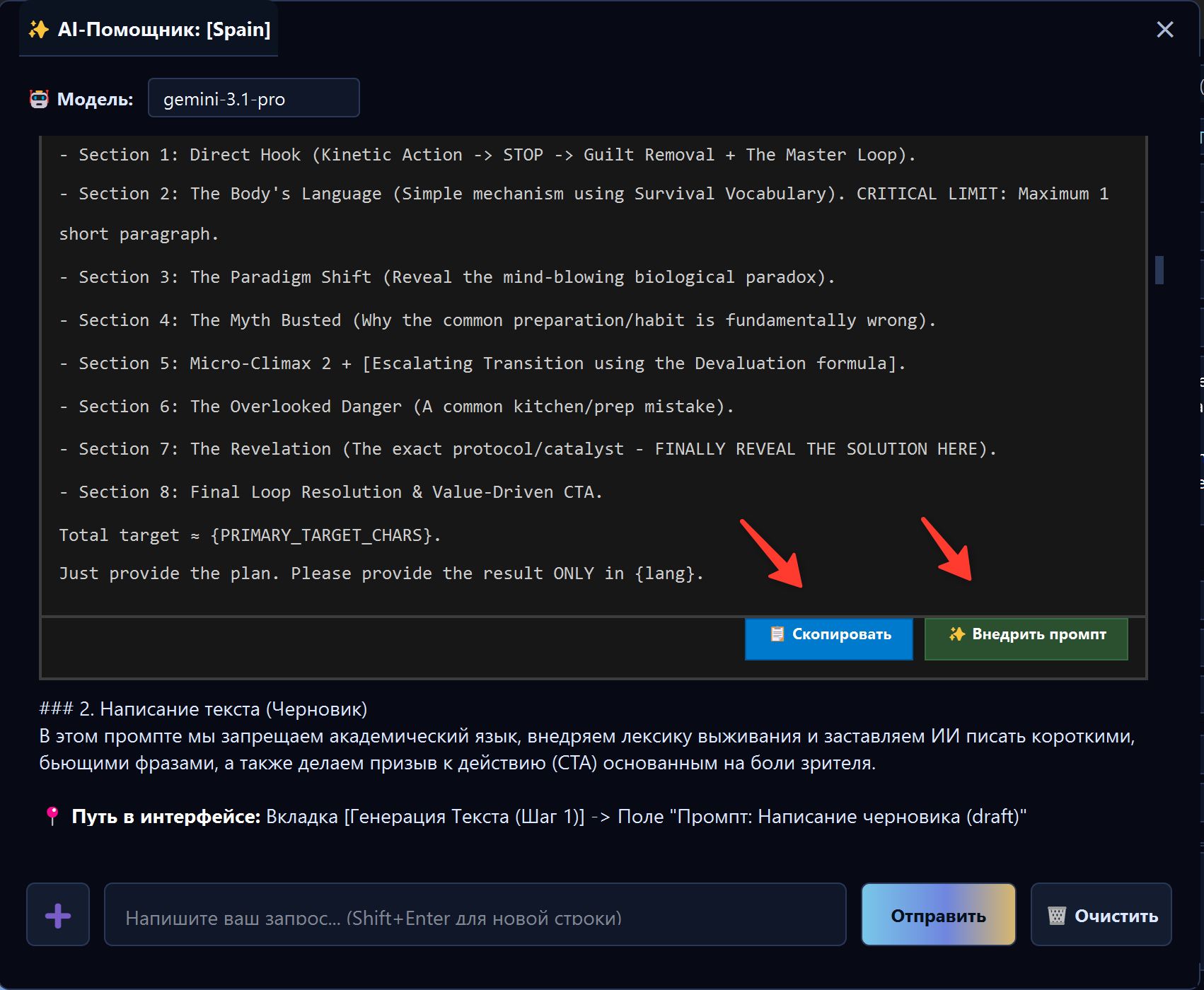
Do not apply many different edits in a row without testing. Otherwise it will be hard to know which edit improved or worsened the result.
Working with Scout and Analytics
The AI Assistant is especially useful after Scout and Top vs Flop analytics.
Example requests:
- “Scout found weak topics. Review settings and suggest new keywords.”
- “Read the Top vs Flop report and tell me which mistakes should be banned in scripts.”
- “Which successful-video patterns should be added to Scout?”
- “Which topics from this list should I remove before launch?”
This turns reports into real project changes instead of leaving them as plain text.
Model selection
The AI Assistant window may include a model selector. Use lighter models for simple questions and stronger models for complex project analysis, reports, and prompts.
Simple rule:
| Task | What to choose |
|---|---|
| Explain a setting | Fast/standard model |
| Analyze a log error | Standard or strong model |
| Rewrite prompts | Strong model |
| Read Top vs Flop report | Strong model |
| Create channel strategy | Strong model |
If you are not sure, keep the default model.
How to save FX with the Assistant
The AI Assistant uses AI operations, so avoid sending meaningless one-word messages.
To save FX:
- write detailed requests from the start;
- create separate chats for separate tasks;
- do not keep a very long history for a new question;
- include a specific log or goal;
- ask for a plan first, then apply edits;
- check results with a short test.
Common mistakes
| Mistake | Why it is bad | Better approach |
|---|---|---|
| Writing “make it better” | The Assistant does not know the quality criteria | Describe the problem and desired result |
| Mixing all tasks in one chat | History grows and answers may become less focused | Create separate chats |
| Applying edits without testing | The project can get worse unnoticed | Run a short video after edits |
| Not using the log | The error remains too generic | Ask the Assistant to review latest lines |
| Ignoring Prompt History | Bad edits are harder to roll back | Remember recovery before major changes |
Useful requests
- “Check whether my project is ready for the first launch.”
- “Explain in simple words why the task stopped.”
- “Review the Scout report and suggest which topics to keep.”
- “Make scripts calmer but keep retention.”
- “Which prompts should change after the Top vs Flop report?”
- “Why did the video become more expensive than usual?”
- “What should I run next: full cycle or one separate stage?”
Where to go next
After the AI Assistant, continue to production stages. The first key stage is 01 · Text, where FOXI creates the script, titles, metadata, and the foundation of the future video.