FOXI Studio Documentation
Welcome to the FOXI Studio knowledge base. This guide explains the web service where the user works in a browser, while video production runs on the FOXI cloud side.
FOXI Studio helps you create YouTube videos without manually switching between many separate AI services. One project can include topics, scripts, voiceover, images, video clips, final assembly, thumbnails, publishing, costs, and analytics.
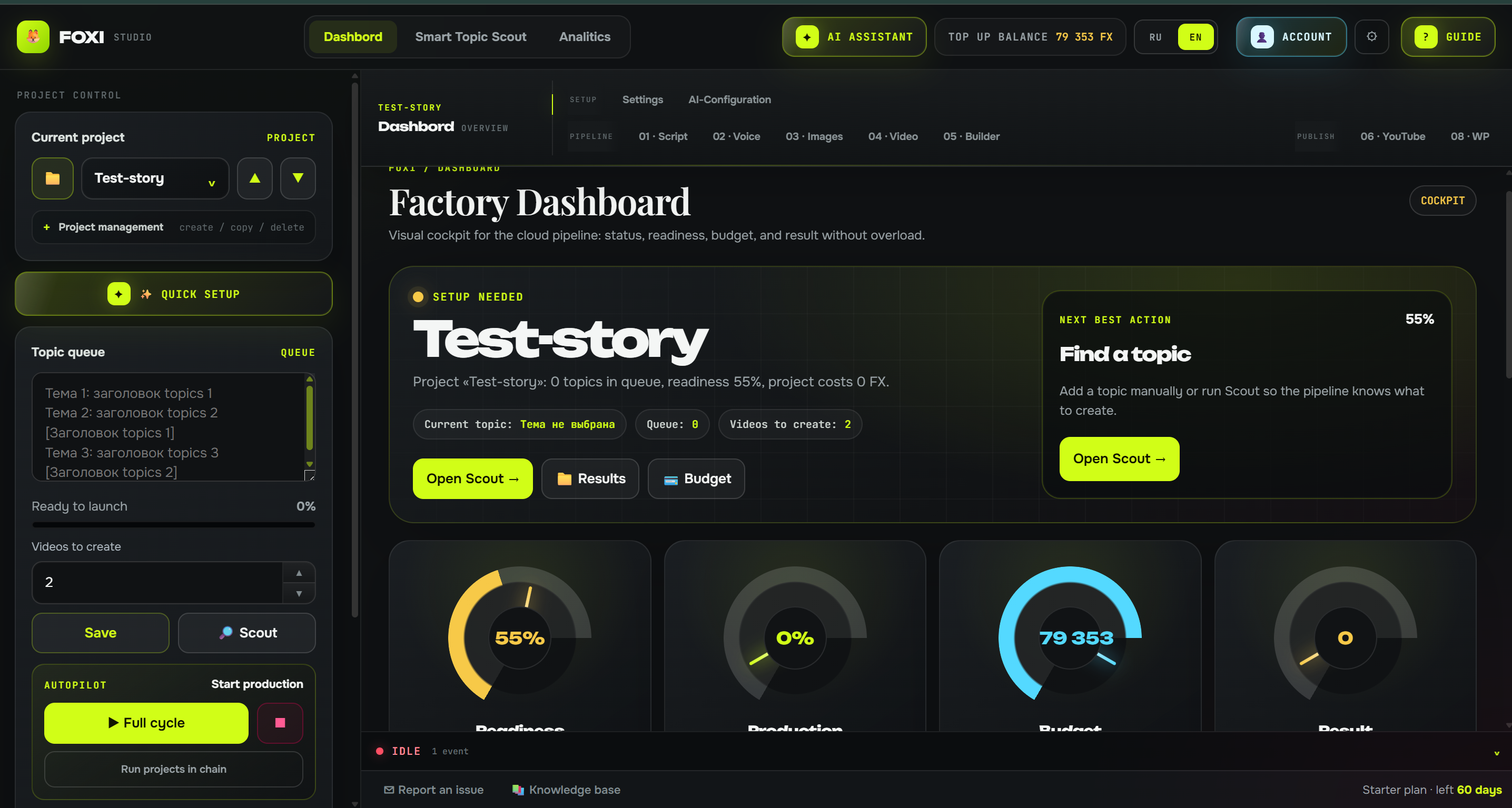
What FOXI Studio is in simple words
FOXI Studio is a production control panel for YouTube channels. You do not manually assemble a video from separate pieces. You configure a project and start the production pipeline.
The normal workflow looks like this:
- Create a project for a channel or niche.
- Add topics to the queue manually or find them with Scout.
- Start the full cycle or a separate production stage.
- FOXI writes the script, creates the voiceover, generates visuals, and assembles the video.
- You return later, open the finished result, and download the materials.
- If publishing is enabled, FOXI can upload the video to YouTube or prepare WordPress content.
The main idea is: you control production instead of manually building every file and every stage yourself.
Why users do not need their own hardware power
Heavy operations do not run on the user's device. You can work from a laptop, tablet, phone, or a regular office computer. What matters is a browser, internet connection, an active plan, and FX balance.
For the user, this means:
- no need to buy an expensive computer just to generate videos;
- you can start a task and return to it later;
- you can manage several channels as separate projects;
- you can run production in a project chain;
- you can control costs through one shared balance;
- you can ask the AI assistant to explain settings and errors.
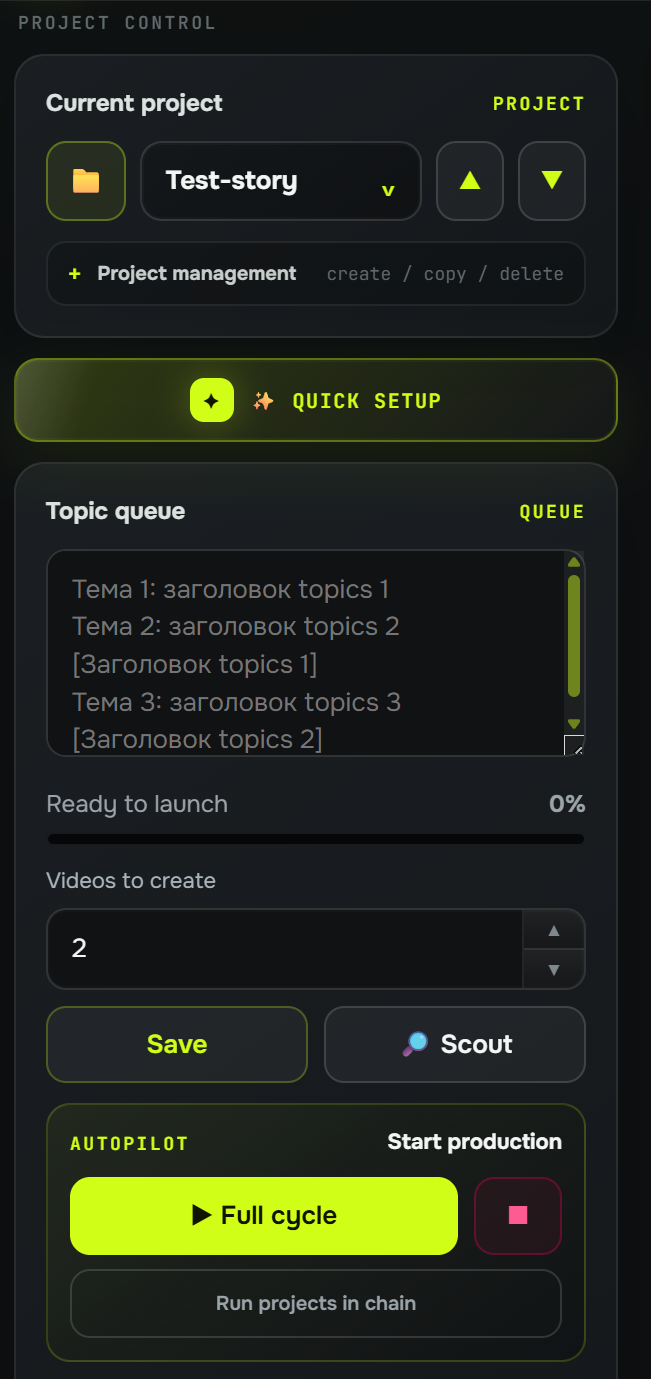
How projects work
One project usually means one YouTube channel, one niche, or one content direction.
Examples:
History Lab— a channel about historical mysteries;Space Facts— a channel about space;Health Stories— a channel about health;Business Shorts— short business videos.
This approach lets every channel have its own settings: language, target country, script style, voice, visual style, topics, publishing, reports, costs, and prompt history.
If you want to test a new niche or another style, create a separate project or copy the current project. That way you do not damage the working settings of the main channel.
What the topic queue is
The topic queue is a list of future videos. FOXI takes a topic from the queue and creates a video from it.
Example:
Topic 1: The Lost City Under the Ocean
Topic 2: The Empire That Vanished Overnight
Topic 3: The Map That Changed History
Topics can be:
- added manually;
- added after Scout analysis;
- prepared with the AI assistant;
- distributed across different projects if you run several channels.
If the topic is weak, the video can also become weak. A good topic should be clear, specific, and promise the viewer a clear reason to watch: a story, benefit, conflict, mystery, explanation, or strong visual idea.
What the shared FX balance is
FOXI uses one shared FX balance. It is used for paid operations inside the service: text generation, voiceover, images, video clips, final rendering, analytics, and other actions.
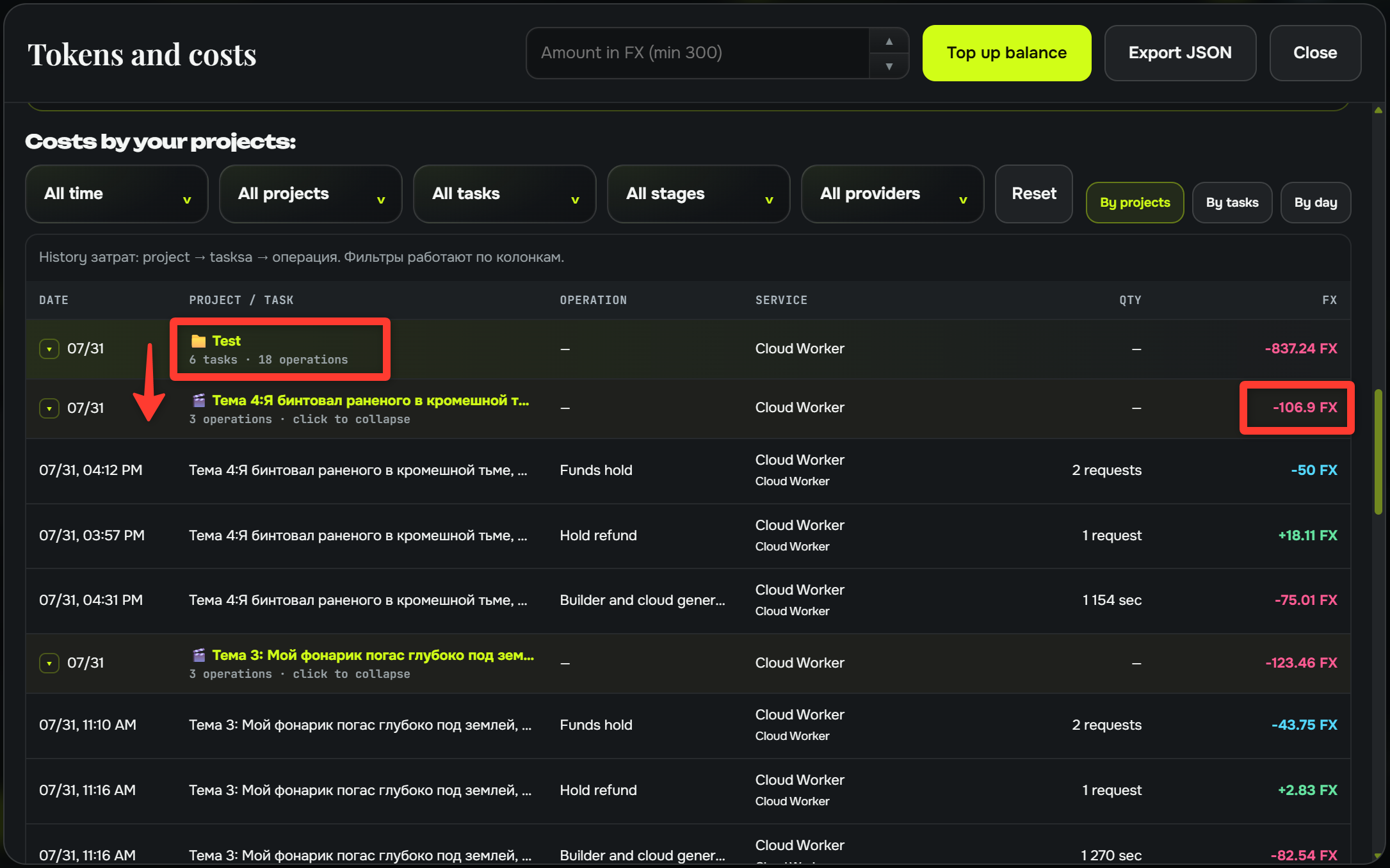
The user does not need to top up many different services separately. FOXI distributes costs between the required AI models and shows all charges in one place.
The average cost of one finished video is often around $1–2, if you do not use expensive modes unnecessarily and do not regenerate everything many times. The exact cost depends on video length, number of scenes, video mode, Builder resolution, selected models, and retries.
Where the AI assistant is and why it matters
The top panel of the web interface has an AI assistant button. It is a built-in consultant for your project.
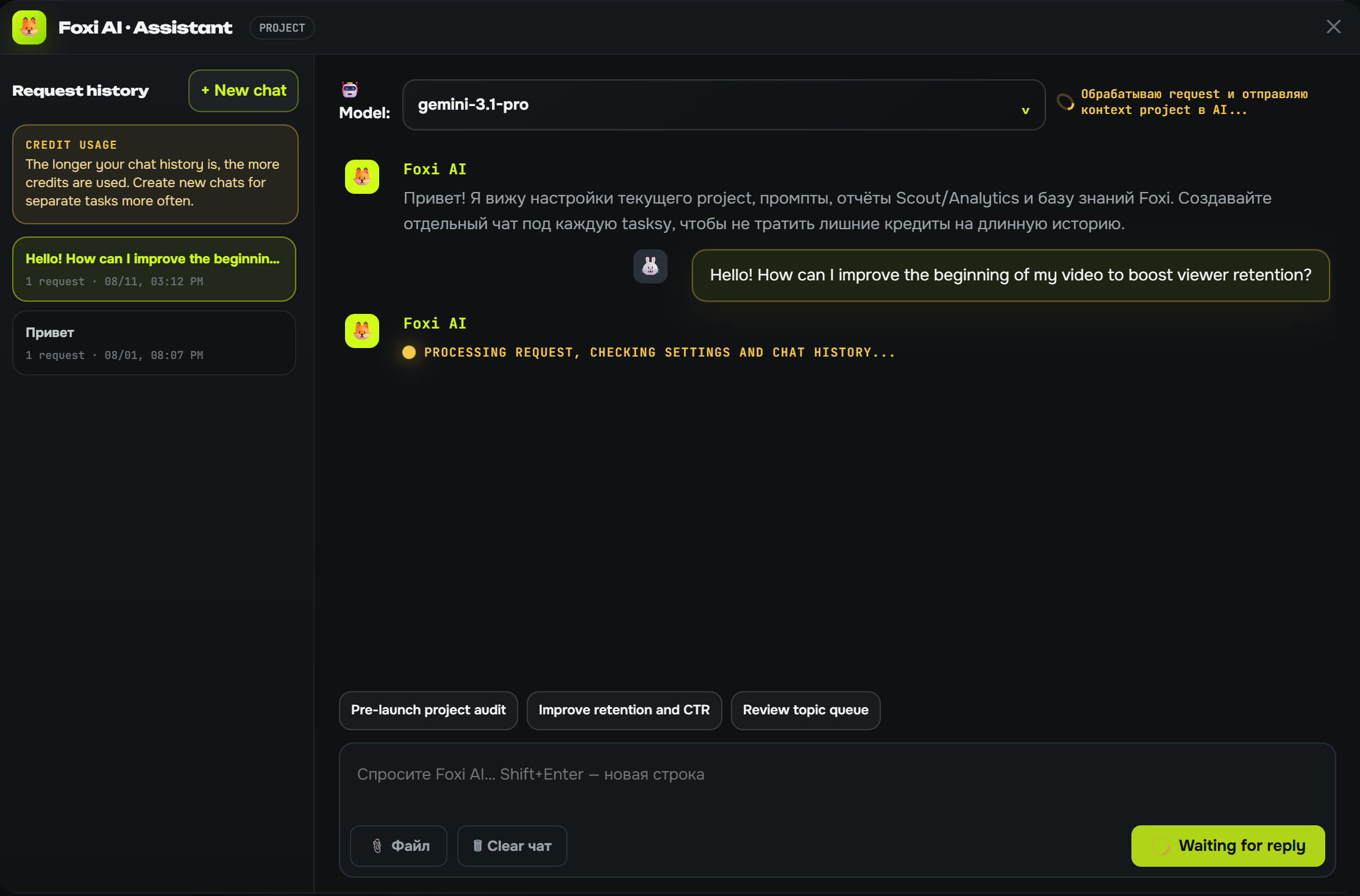
You can message the AI assistant when you:
- do not understand which setting to choose;
- want to adapt a project to a specific niche;
- see an error in the log;
- want scripts to sound more natural;
- want to change the image style;
- want to reduce generation costs;
- want to improve prompts;
- do not know why Scout found weak topics;
- do not understand why YouTube or WordPress publishing failed.
Example of a good request:
I have an English channel about historical mysteries for a US audience. I want 8–10 minute videos, a serious documentary tone, and no clickbait. Review the project settings and tell me what should be improved.
You do not need technical wording. It is better to describe your goal, audience, desired style, and the problem.
Important note about prompts
The main prompts are hidden from regular users in the web interface. This is intentional: there are many prompts, they depend on each other, and a random edit can make the result worse.
Prompts control different parts of production:
- general style and safety;
- script outline;
- draft writing;
- review and text improvement;
- titles and metadata;
- thumbnail ideas;
- voiceover direction;
- image prompts;
- negative image rules;
- video prompts;
- Scout rules;
- analytics rules.
The correct way to change prompts is through the AI assistant. You describe what you want to get, and the assistant suggests a safe edit and helps apply it to the project.
There is also a Prompt History button on the 01 · Text tab. It lets you manually restore a specific prompt from a saved snapshot if the new version became worse.
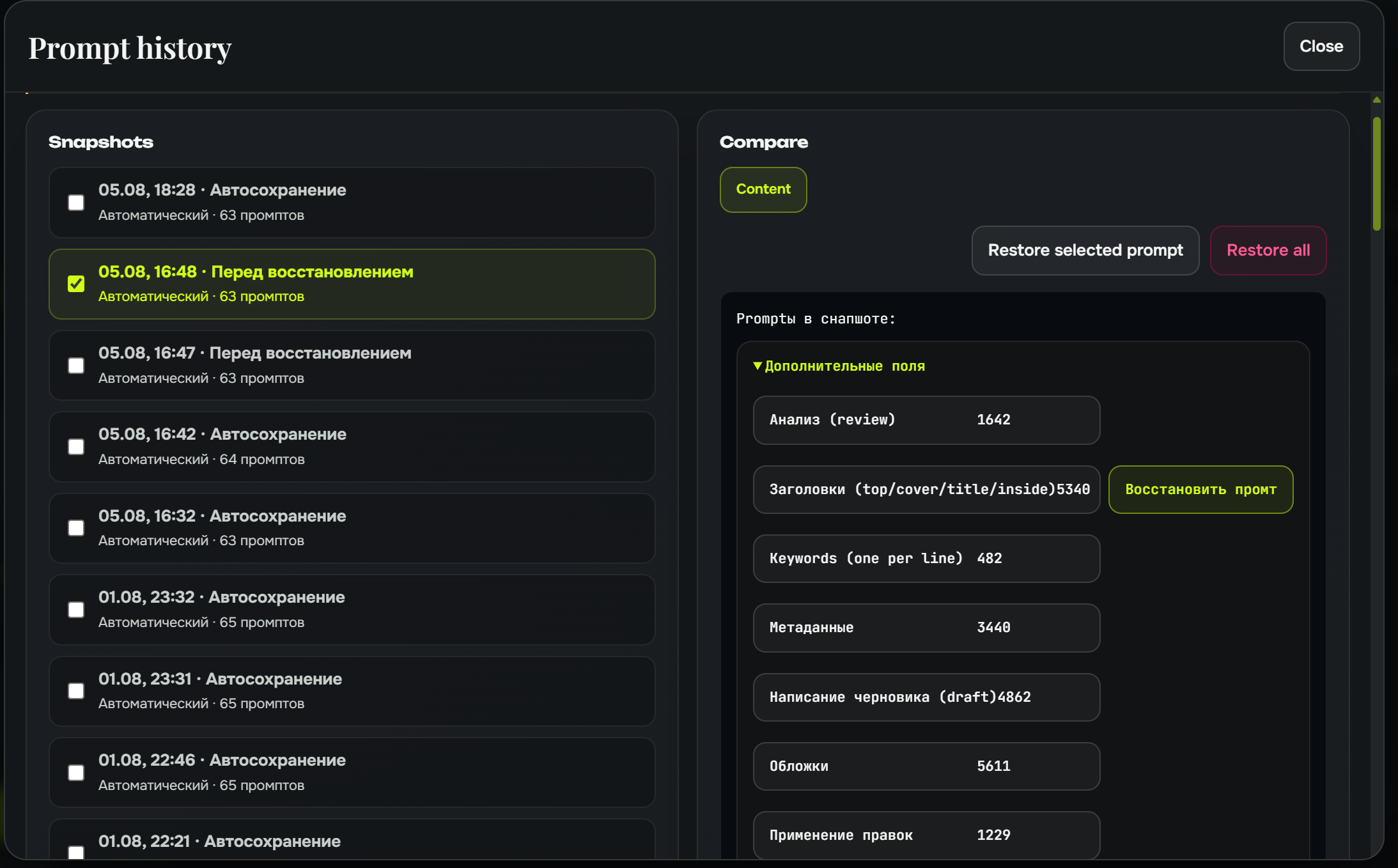
Example situation:
- You asked the AI assistant to make scripts more aggressive.
- After that, videos became too clickbait-heavy.
- You opened 01 · Text → Prompt History.
- You found an older snapshot.
- You restored the needed prompt manually.
This is safer than trying to rewrite system instructions yourself.
How to read this documentation
The documentation is updated page by page. Each page should explain not only “where the button is”, but also:
- what the section does;
- when it is needed;
- which settings are required;
- which settings beginners should not touch;
- how to choose between options;
- common errors;
- what to ask the AI assistant;
- which interface screenshots are needed.
Recommended path
If you are a new user, follow this order:
- First login, plan, and balance — understand the account, FX, and plan limits.
- Quick setup — create your first working project through the wizard.
- Main interface — understand projects, topic queue, launch buttons, and logs.
- AI assistant — learn how to ask questions and improve the project without manually editing prompts.
- Core modules — study production stages when you need them.
- Troubleshooting — learn what to do if a task does not start or stops.
Quick links
Documentation update status
This is the first page of the new documentation version. Each next page is rewritten separately, in both Russian and English, with clear explanations and a shared screenshot checklist.